
Introduction
Your algorithms are worthless without market access. That blunt reality confronts every trader who builds strategies but can't execute them. The bridge between your uTrade Algos strategies and live markets is your broker connection—specifically, integrating Fyers with the platform.
Fyers Broker Integration makes algorithms come to life, converting algorithms to trades, fills, and portfolio growth. Fyers Broker integration with uTrade Algos is not a tedious process involving APIs and technical knowledge. Instead, the process takes only a matter of minutes.
This tutorial will take you through the entire process, from creating the API to the authentication process, ensuring that your algorithms are executed effortlessly through the Fyers Broker account.
Step-by-Step: Connecting Fyers to uTrade Algos
Step 1: Access Broker Management
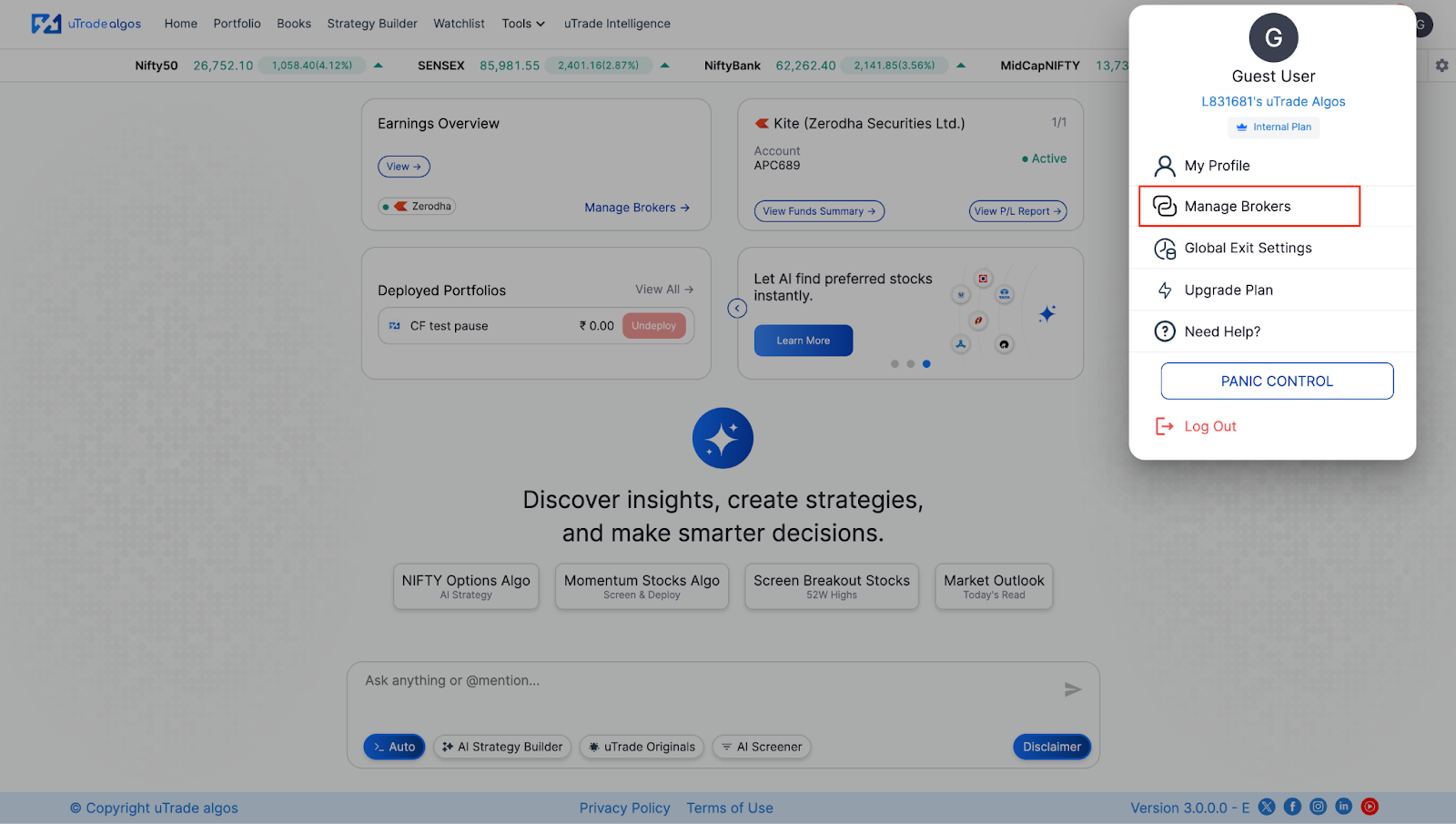
You can log in to uTrade Algos and navigate to the top-right corner of the screen, where you can find the Profile icon. This icon usually contains your initials or a default user image.
You can click on the icon, and a drop-down menu will appear. From the dropdown menu, you can click on the option labeled "Manage Brokers".
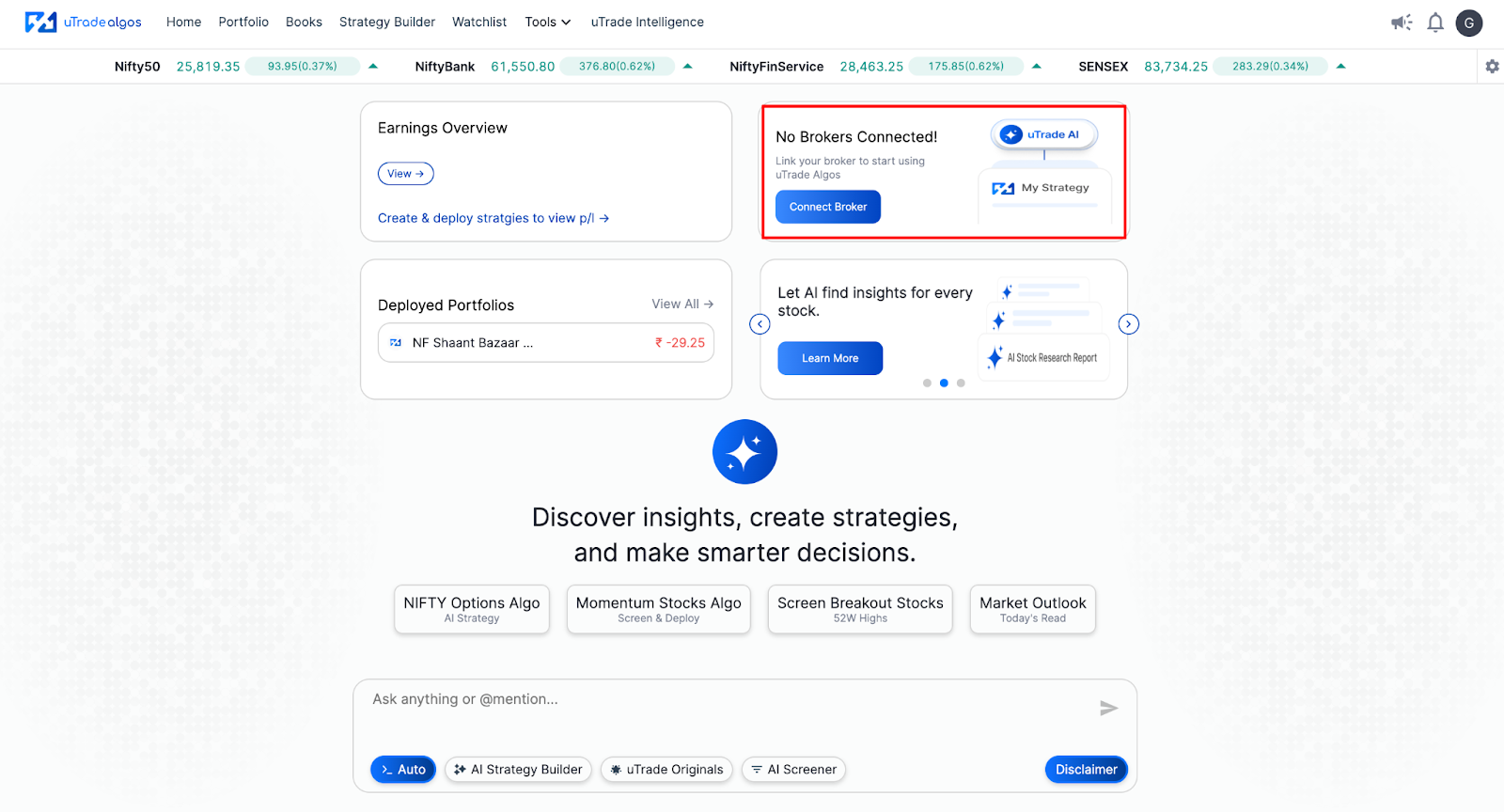
Alternatively, you can also click on the second card on the home screen with the direct button “Connect Broker”.
This selection will open the broker management interface. Here, you can see all the available broker connections.
Step 2: Locate and Select Fyers

The “manage brokers” screen shows a complete list of supported brokers. There are multiple options in this list, including Fyers, Zerodha, Angel One, Dhan, etc.
Every broker in this list is represented by:
- Broker logo and official name
- Current connection status (Connected/Not Connected)
- Setup button
Locate Fyers & click on the Setup button next to Fyers. This action initiates the Fyers broker connection configuration process with uTrade Algos.
Step 3: Enter Connection Details and Generate URLs
After clicking Setup, a configuration form appears requesting specific information to establish your Fyers broker integration. Complete the following fields:

Connection Name: Enter a descriptive identifier for this broker connection. This is particularly useful if you manage multiple accounts or want easy identification. Examples: "My Primary Fyers Account" or "Fyers Trading Account."
Fyers Client ID: This is your unique Fyers account identification number. To find your Client ID:
- Open a new browser tab and log in to your Fyers account at fyers.in
- Click on your Profile icon in the Fyers interface
- Your Client ID will be displayed—typically an alphanumeric code
- Copy this ID and return to the uTrade Algos setup form
- Enter the Client ID in the designated field
Once you have entered both the Connection Name and Client ID, click on the Generate Redirect URL button.
Step 4: Generate Fyers API ID & Secret ID
To generate your App ID and Secret ID, log in to the Fyers My API portal and create a new app.
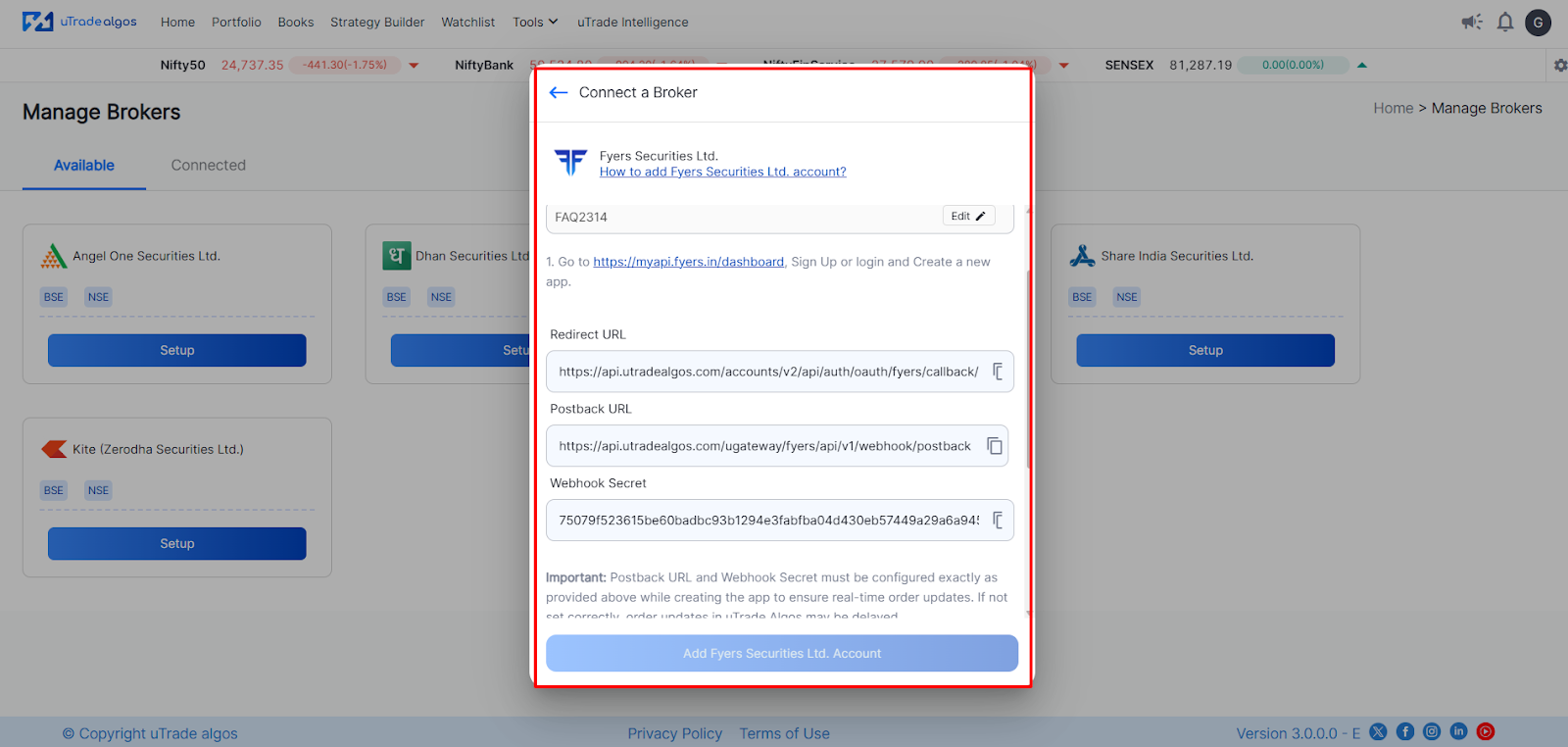
- Enter the generated Redirect URL, Postback URL and Webhook Secret (mandatory) on the Fyers portal.
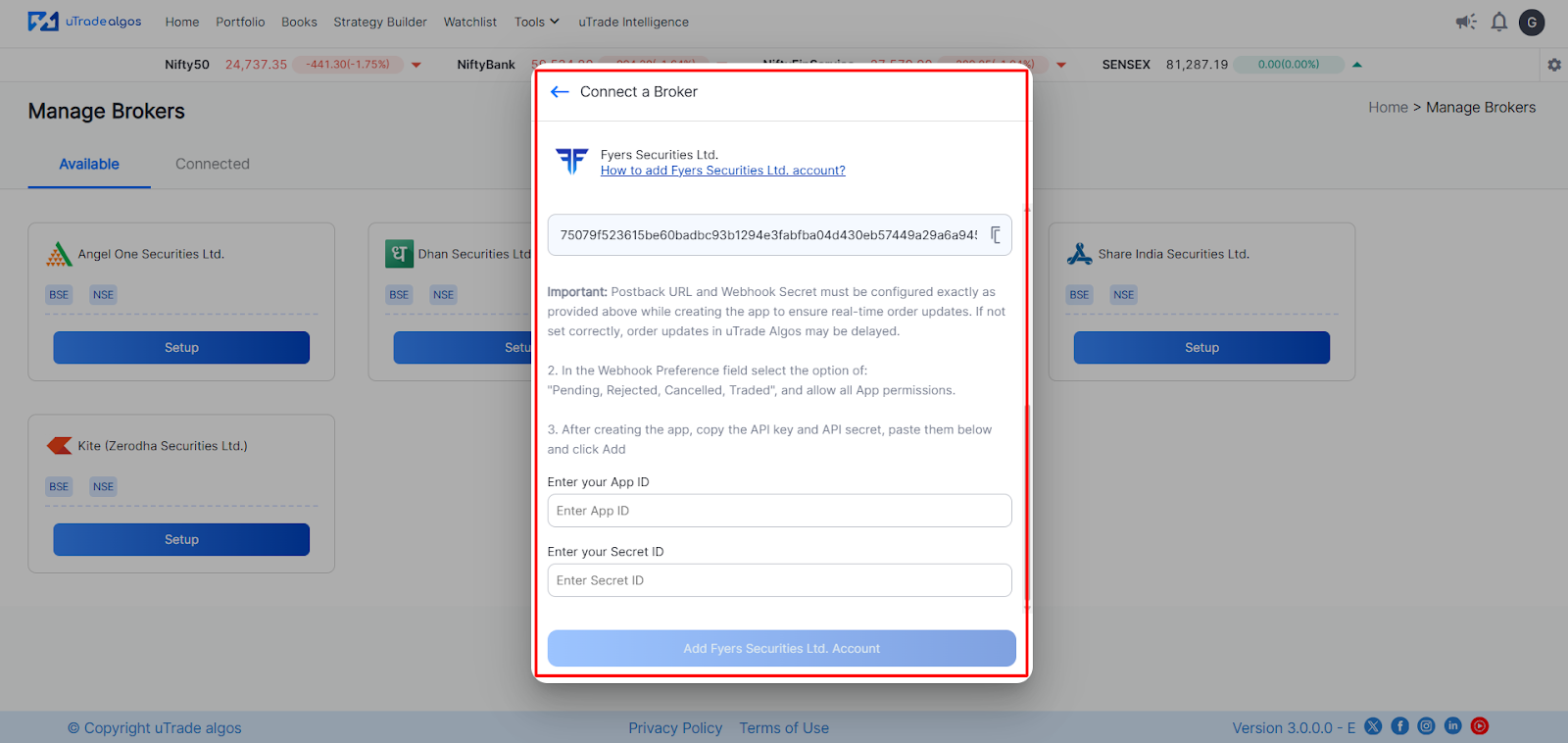
- Once the App ID and Secret ID are generated, copy them and enter the details in uTrade Algos.
Once all fields are completed accurately, click the Add Fyers Securities Ltd Account button at the bottom of the form. This submits your connection details and initiates the authentication process.
Step 5: Complete Fyers Authentication
Once you click the 'Add Account' button, uTrade Algos will start the authentication process. Your browser will be redirected to the Fyers login page. Enter your Fyers login credentials and authenticate.
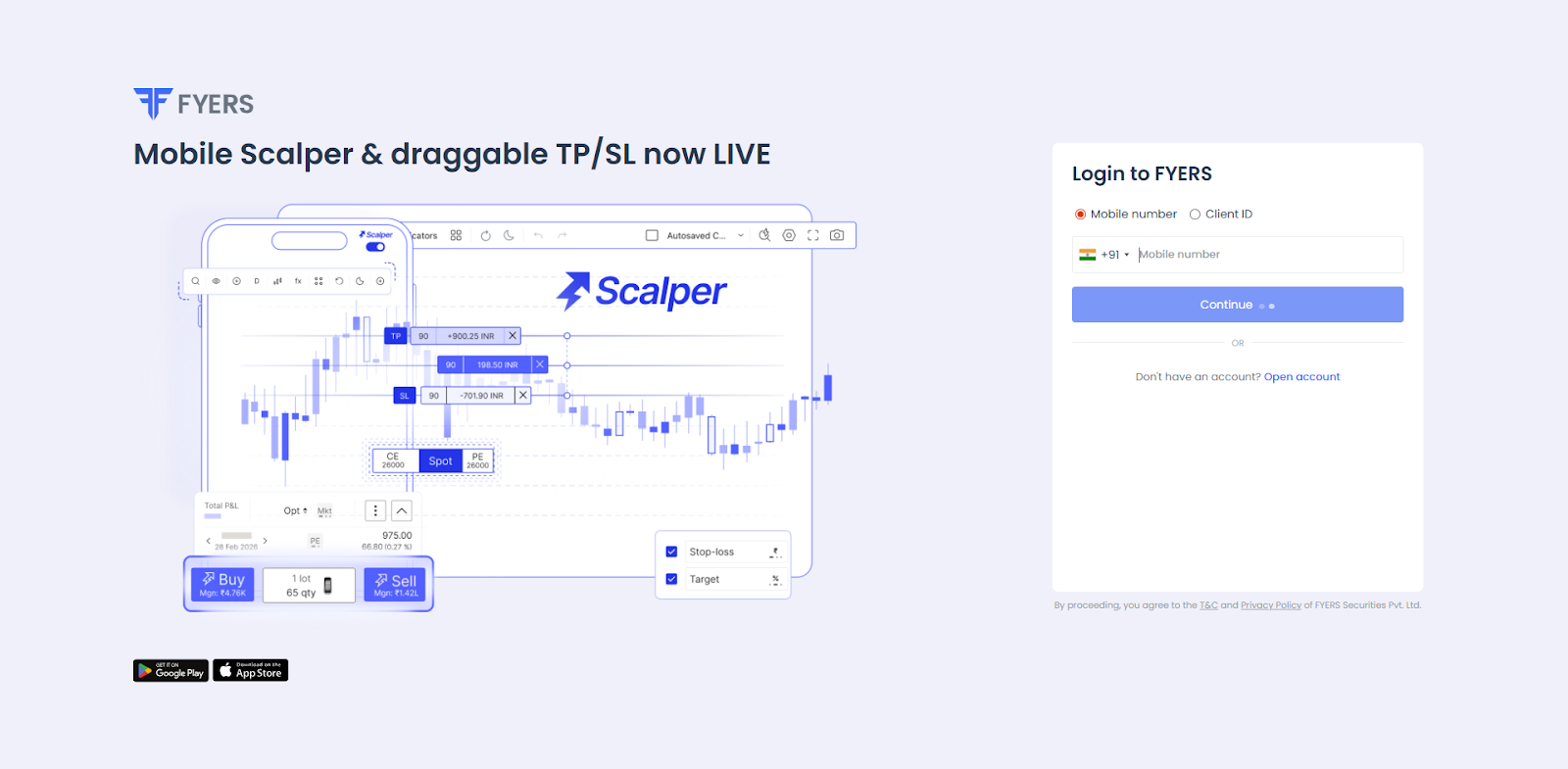
Step 6: Automatic Redirect and Connection Confirmation
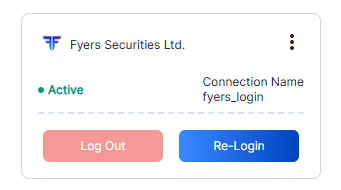
After successful authentication, you will be redirected back to uTrade Algos. Your Fyers account will now be linked and will appear under the Connected section in Manage Broker.
For more details, visit Fyers’ official website.
Suggested Reading:
How to Deploy Your First AI Algo with uTrade AI Strategy Builder
Conclusion
The technical bridge between strategy and execution is complete. Your Fyers broker connection transforms uTrade Algos algorithms from theoretical constructs into live market participants. What seemed complex—API portals, credential generation, authentication flows—simplified into clear, manageable steps. This Fyers broker integration is not just any other technical infrastructure; it's the beginning of a new era of automated, emotion-free, and rule-based trading, where the strategies will be executed exactly the way they have been designed.
Your setup is complete, and your strategies are waiting for execution. The markets are available through Fyers, and now it's time to move from preparation to execution, from testing to trading, and from planning to profit pursuit.
Frequently Asked Questions
Do I need a separate Fyers API account to integrate with uTrade Algos?
No, you don't need a separate Fyers API account. All Fyers trading account users can use the My API portal by using their regular Fyers login credentials. Just go to My API, log in, and create an app to generate the API credentials required for the integration of uTrade Algos.
How often do I need to reconnect my Fyers account to uTrade Algos?
Fyers API sessions are valid for a long period of time, and the re-establishment of the Fyers connection depends upon the Fyers API sessions policy. Just keep an eye on the connection through the uTrade Algos Broker Setup section, and if disconnected, re-establish the connection through the same process.
Can I use the same Fyers API credentials for multiple platforms simultaneously?
Technically possible but not recommended. Using the same API credentials on multiple platforms may cause conflicts and difficulties with tracking. Create separate apps on the Fyers My API portal for each platform you need to connect with the broker.
Will uTrade Algos have access to withdraw funds from my Fyers account?
No. uTrade Algos can only place, modify, and cancel trades through the Fyers broker connection. It cannot withdraw funds, transfer money, or access linked bank accounts. All capital remains securely in Fyers' custody under your control.
What happens to my running strategies if the Fyers connection drops during trading hours?
Strategies pause execution immediately when connection drops. Open positions remain in your Fyers account but won't be managed algorithmically until you reconnect. Reconnect promptly to resume automated trading, or manually manage positions through Fyers platform if needed.


.svg)





