
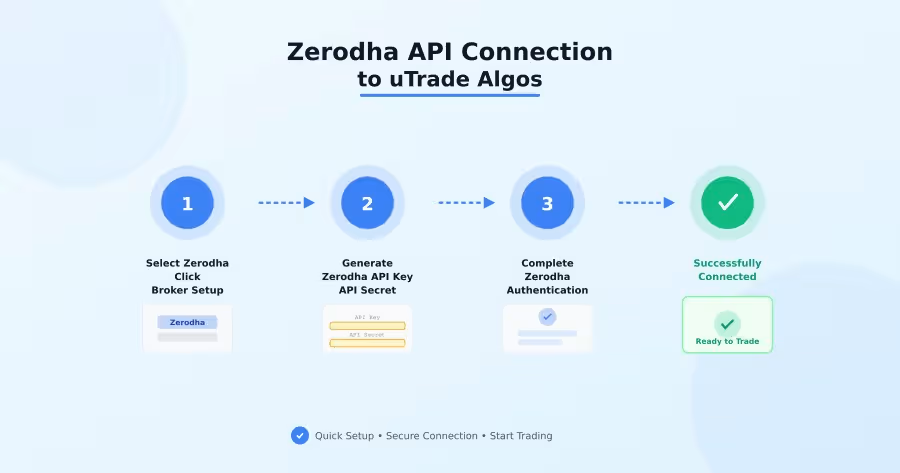
Introduction
Your trading algorithms are useless without market access. That harsh reality hits every algo trader who builds perfect strategies but can't execute them. The bridge between your uTrade Algos strategies and live markets is your broker connection.
Algo trading through Zerodha (Kite) broker connection transforms theoretical strategies into real trades, real profits, and real portfolio growth.
This guide walks you through the complete setup process, from creating your Zerodha account to executing your first automated trade through uTrade Algos, ensuring your algorithms finally reach the market.
Step-by-Step: Setting Up Zerodha (Kite) Broker API Connection
Step 1: Access Broker Management
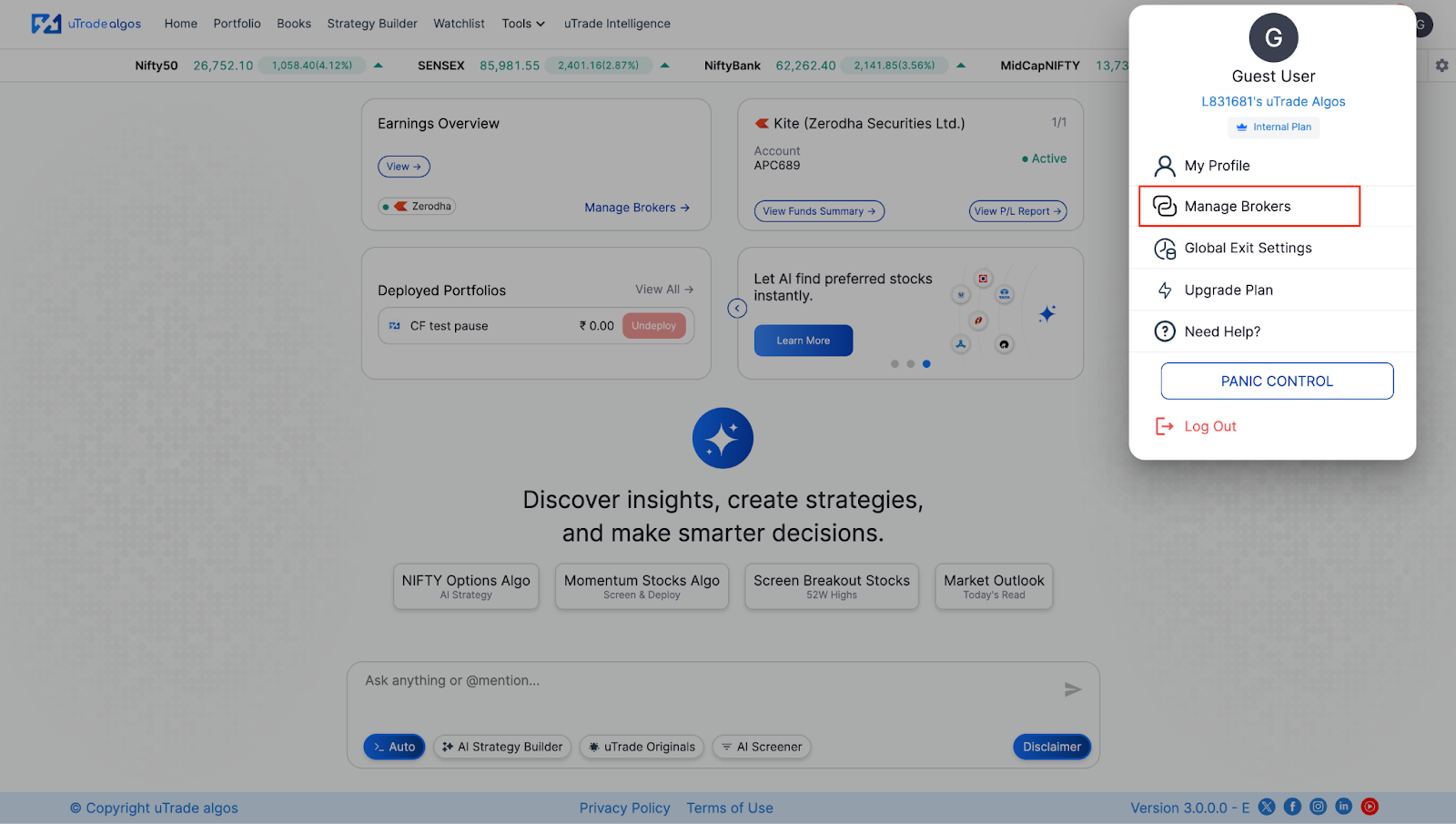
Log in to uTrade Algos & Look for your Profile icon located at the top-right corner of the screen—typically represented by your initials or a user avatar.
Click on this icon and a dropdown menu with various account management options will appear. From the dropdown menu, select Manage Brokers option.
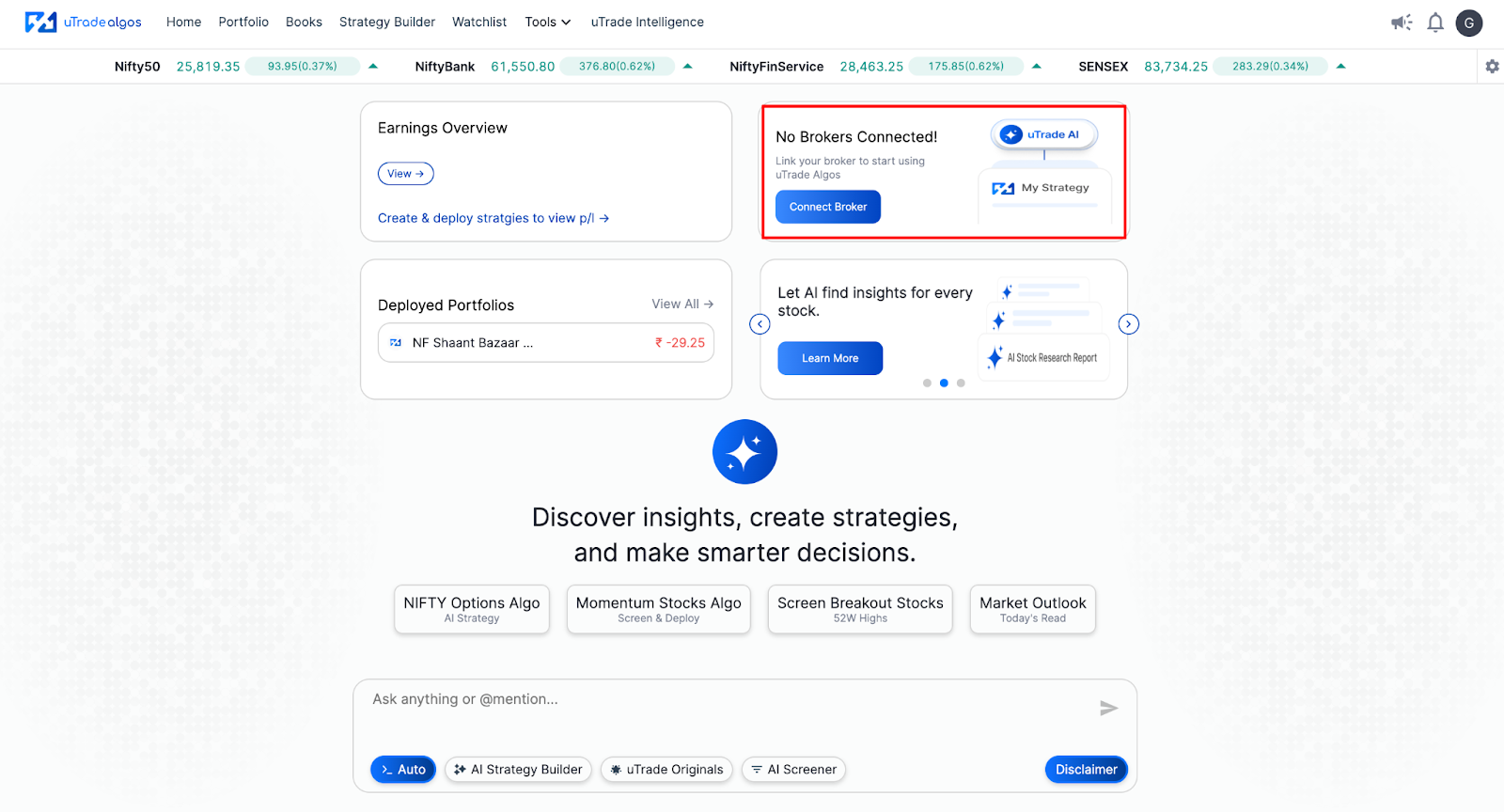
Alternatively, you can also click on second card on the home screen with direct button “Connect Broker”.
This action opens the manage brokers interface where you can view all available broker integrations and manage your existing connections if any.
Step 2: Locate & Select Zerodha (Kite)
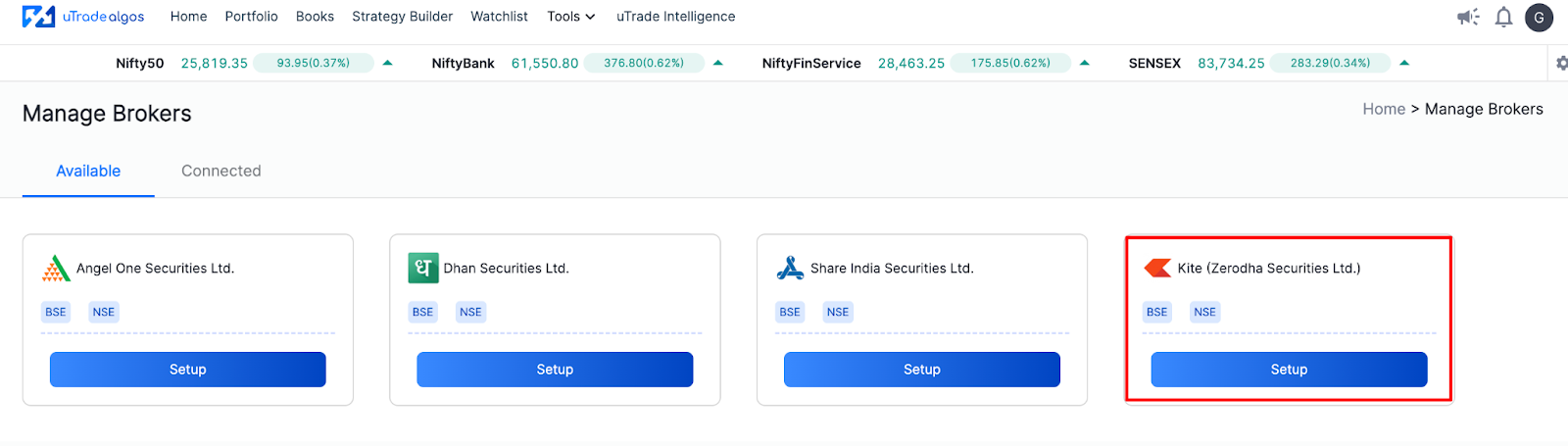
The manage brokers screen displays a list of supported brokers with their logos and connection status indicators. You'll see multiple broker options, including Zerodha, Angel One, Dhan, and others.
Locate Zerodha (Kite) from the list of brokers on the screen. Each broker card shows:
- Broker logo and name
- Current connection status (Connected/Not Connected)
- Setup button
Click on the Setup button associated with the Zerodha (Kite) card. This initiates the broker connection configuration process.
Step 3: Initiate Connection Process
After clicking Setup, a configuration form appears requesting specific information to establish your Kite broker connection. This form includes several fields that need to be completed accurately.
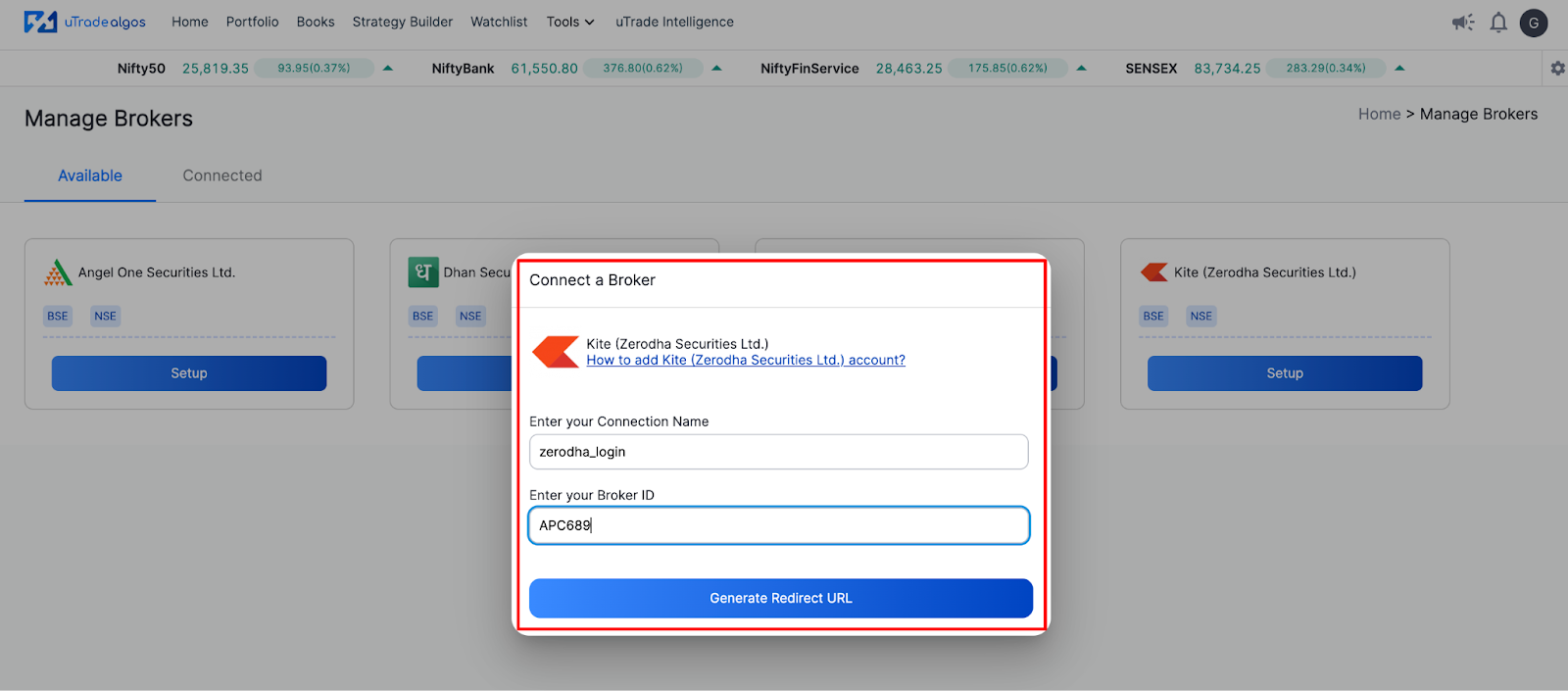
Connection Name: Input a clear label for this broker link. This is especially helpful if you oversee several portfolios or wish to recognize links without difficulty. Examples: "My Primary Zerodha Account" or "Zerodha Trading Setup."
Zerodha Broker ID: This is your distinct Zerodha client identification number. To locate your Broker ID:
- Open a new browser tab and log in to your Zerodha account at kite.zerodha.com
- Click on your Profile icon in the Kite interface
- Your Broker ID (also called Client ID) will be displayed—typically a 6-character alphanumeric code like "AB1234"
- Copy this ID and return to the uTrade Algos setup form
- Paste the Broker ID in the designated field
Once you've entered both the Connection Name and Broker ID, click on the Generate Redirect URL button.
Step 4: Enter Zerodha API Credentials
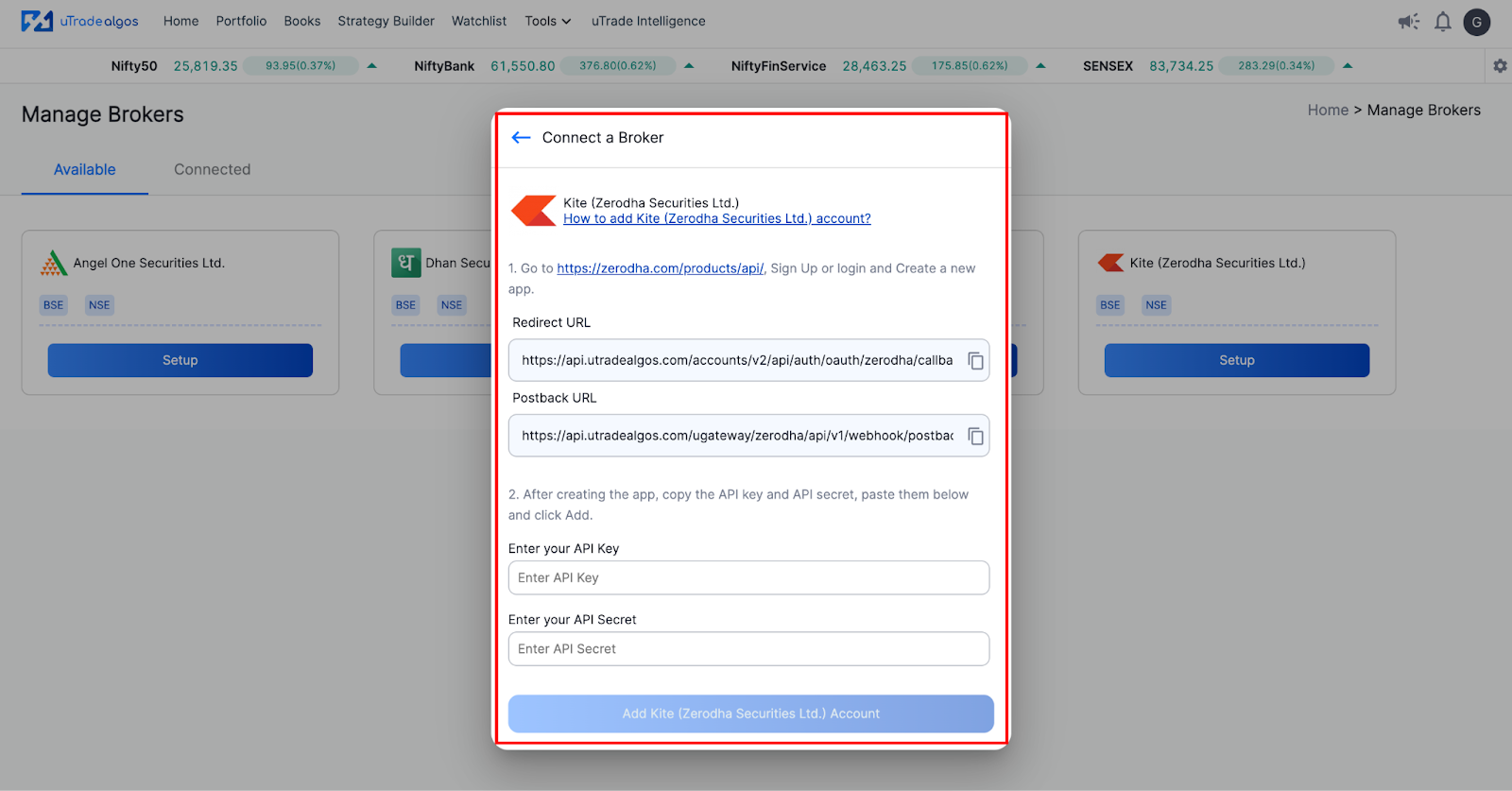
To generate your Zerodha API Key and API Secret, log in to the Zerodha developer portal and create a new app.
- Enter the generated Redirect URL and Postback URL on the Zerodha portal.
- Once the API Key and API Secret are generated, copy them and enter the details in uTrade Algos along with your Zerodha account information.
Double-check all entered information for accuracy. Mistakes in API credentials or URLs are the most common causes of connection failures in Zerodha algo trading setups.
Step 5: Complete Zerodha Authentication
Once all fields are completed accurately, click the Add Zerodha Securities Ltd Account button at the bottom of the form. This submits your connection details and initiates the authentication process.
Step 6: Verify Connection Status
Log in using your Zerodha credentials and complete the authentication process.
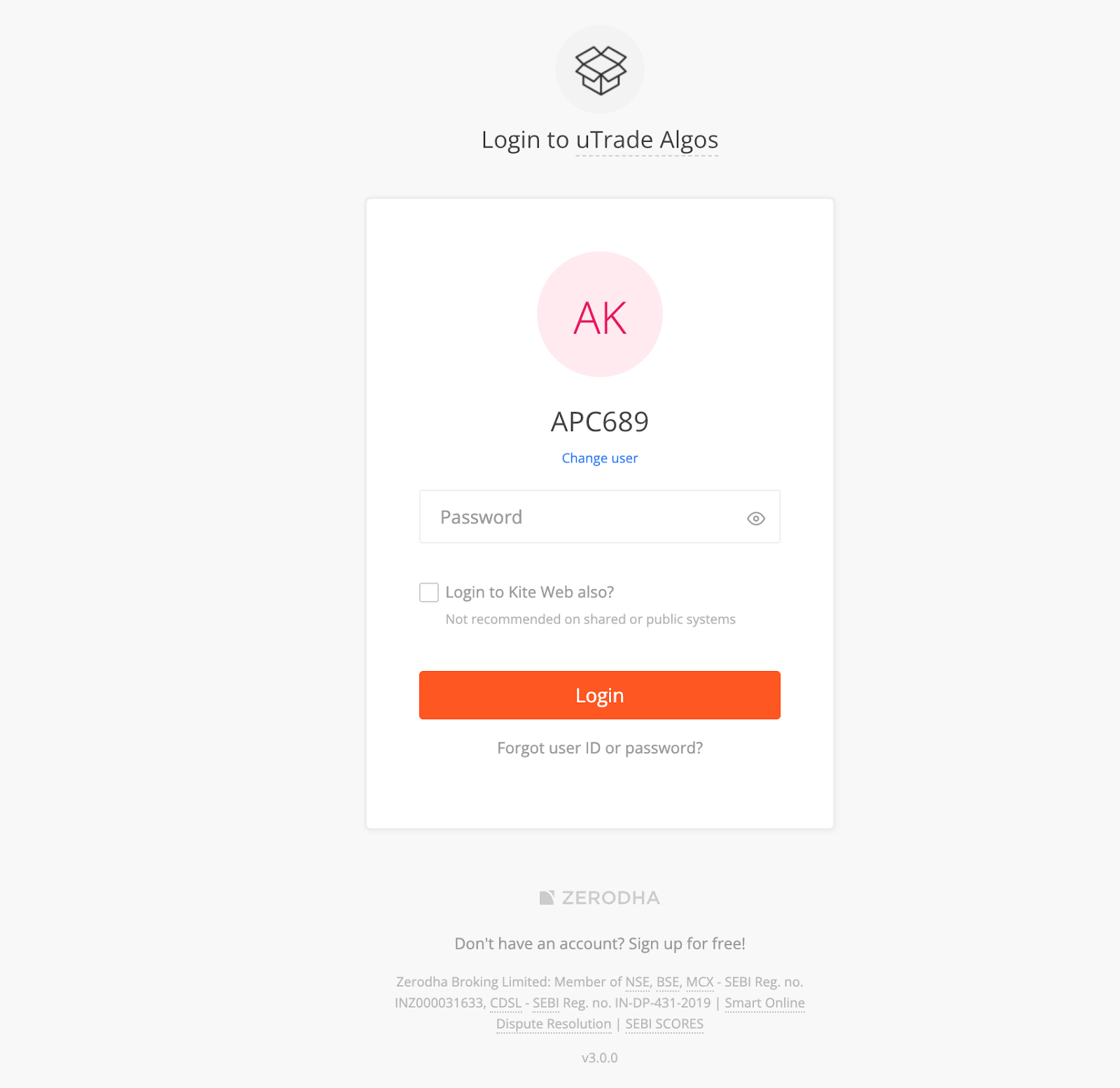
After successful authentication, you will be redirected back to uTrade Algos. Your Zerodha (Kite) account will now be linked and will appear under the Connected section in Manage Broker.

For more details, visit Zerodha’s official website.
Step 7: Deploy Your First Strategy
The broker connection is complete—time to put it to work. Navigate to your uTrade Algos portfolio or strategy library. Select any strategy you want to deploy—either a pre-built uTrade Original or a custom strategy you've created.
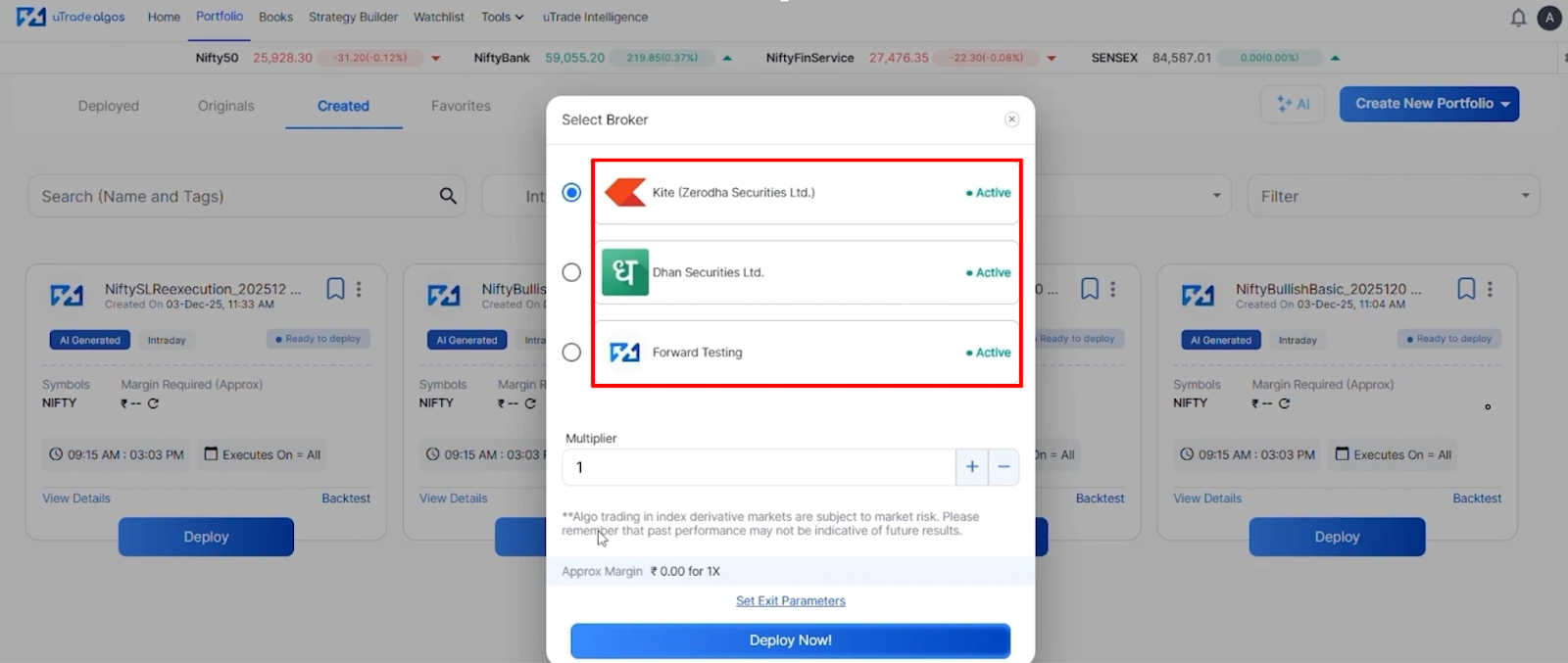
Click Deploy button on the strategy. The deployment screen now shows Zerodha as an available broker option. Select Zerodha (Kite) from the broker dropdown.
Click Deploy Now button. The strategy activates, connecting to Zerodha for trade execution. Your first Zerodha algo trading strategy is live. Monitor the deployed strategy from the uTrade Algos dashboard.
Suggested Reading:
How to Deploy Your First AI Algo with uTrade AI Strategy Builder
Conclusion
The gap between strategy and execution is now closed. Your Zerodha algo trading infrastructure is complete—algorithms in uTrade Algos now reach live markets through secure Kite broker connection. What seemed complex—API integrations, authentication flows —reduced to a series of straightforward clicks and confirmations.
This broker connection isn't just technical plumbing. It's the foundation of your automated trading journey, the bridge transforming backtested ideas into real portfolio growth. Every strategy you deploy, every trade executed algorithmically, every profit captured systematically—all flow through this connection you've just established.
The setup is complete, but the journey begins now. Your first strategy awaits deployment. Your Zerodha account is connected. The markets are open. It's time to let your algorithms trade.
Frequently Asked Questions (FAQs)
Do I need a separate Zerodha developer account to connect with uTrade Algos?
No separate account needed. All Zerodha trading account holders can access the developer portal using their regular Kite login credentials. Simply visit developers.kite.trade and create an app to generate API credentials.
Can I use the same Zerodha API credentials for multiple platforms simultaneously?
Yes, but not recommended. While technically possible, using same API keys across multiple platforms can cause conflicts, rate limiting issues, and tracking difficulties. Create separate apps in Zerodha developer portal for each platform.
Will uTrade Algos have access to withdraw funds from my Zerodha account?
No. uTrade Algos can only place, modify, and cancel trades. It cannot withdraw funds, transfer money, or access your bank account. All funds remain securely in Zerodha's custody under your control.
What happens to my running strategies if the broker connection drops during trading hours?
Strategies pause execution immediately when connection drops. Open positions remain in your Zerodha account but won't be managed algorithmically. Reconnect promptly to resume automated trading, or manually manage positions through Kite if needed.



.svg)





