
Introduction
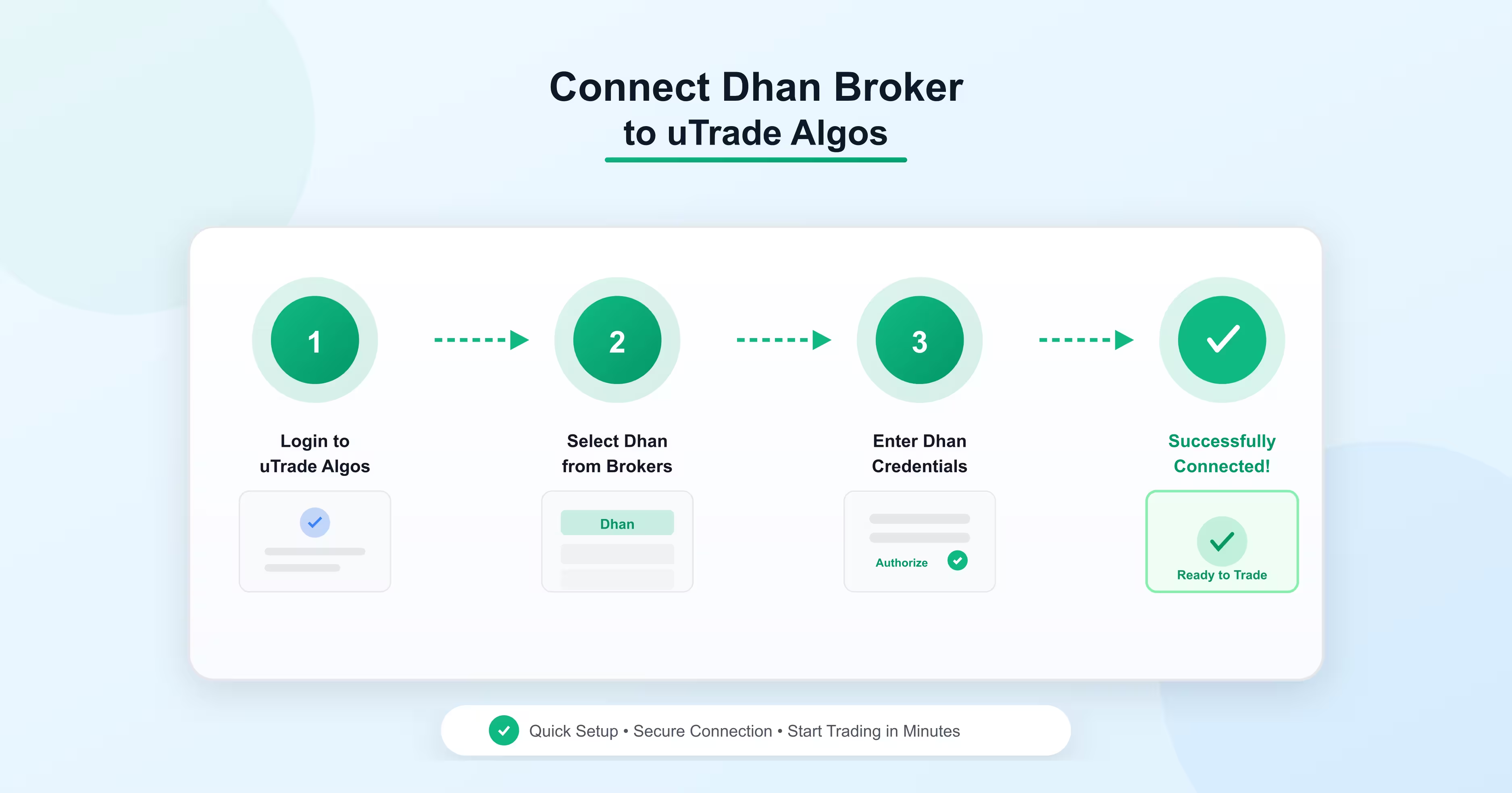
Setting up a broker connection doesn't have to be complicated. With uTrade Algos, connecting your Dhan broker account is straightforward and takes just a few minutes.
This integration allows you to execute algorithmic trading strategies seamlessly while maintaining full control over your trades. Whether you're new to algo trading or looking to streamline your workflow, this guide will walk you through each step of the Dhan broker integration process.
Step-by-Step Dhan Broker Integration Guide
Connecting your Dhan broker account to uTrade Algos requires just a few simple steps. Follow this guide to complete your broker connection smoothly.
Step 1: Navigate to Manage Brokers
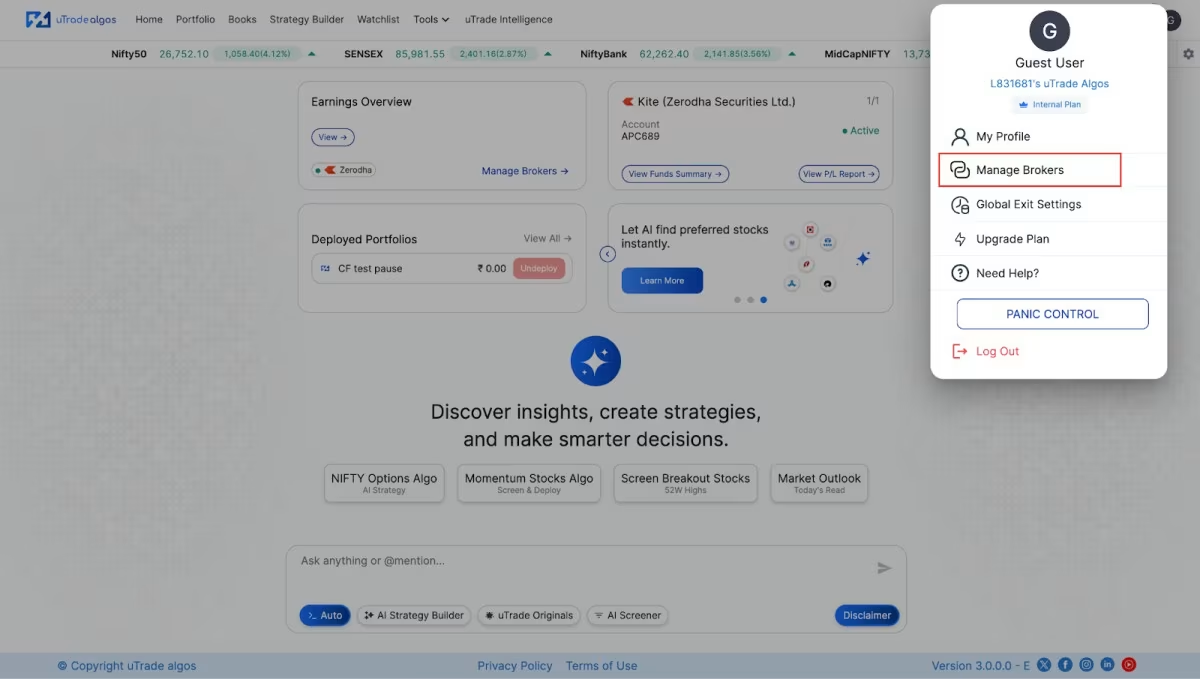
After logging in to your uTrade Algos account, click on the Profile icon located at the top-right corner of your screen. From the dropdown menu, select Manage Brokers.
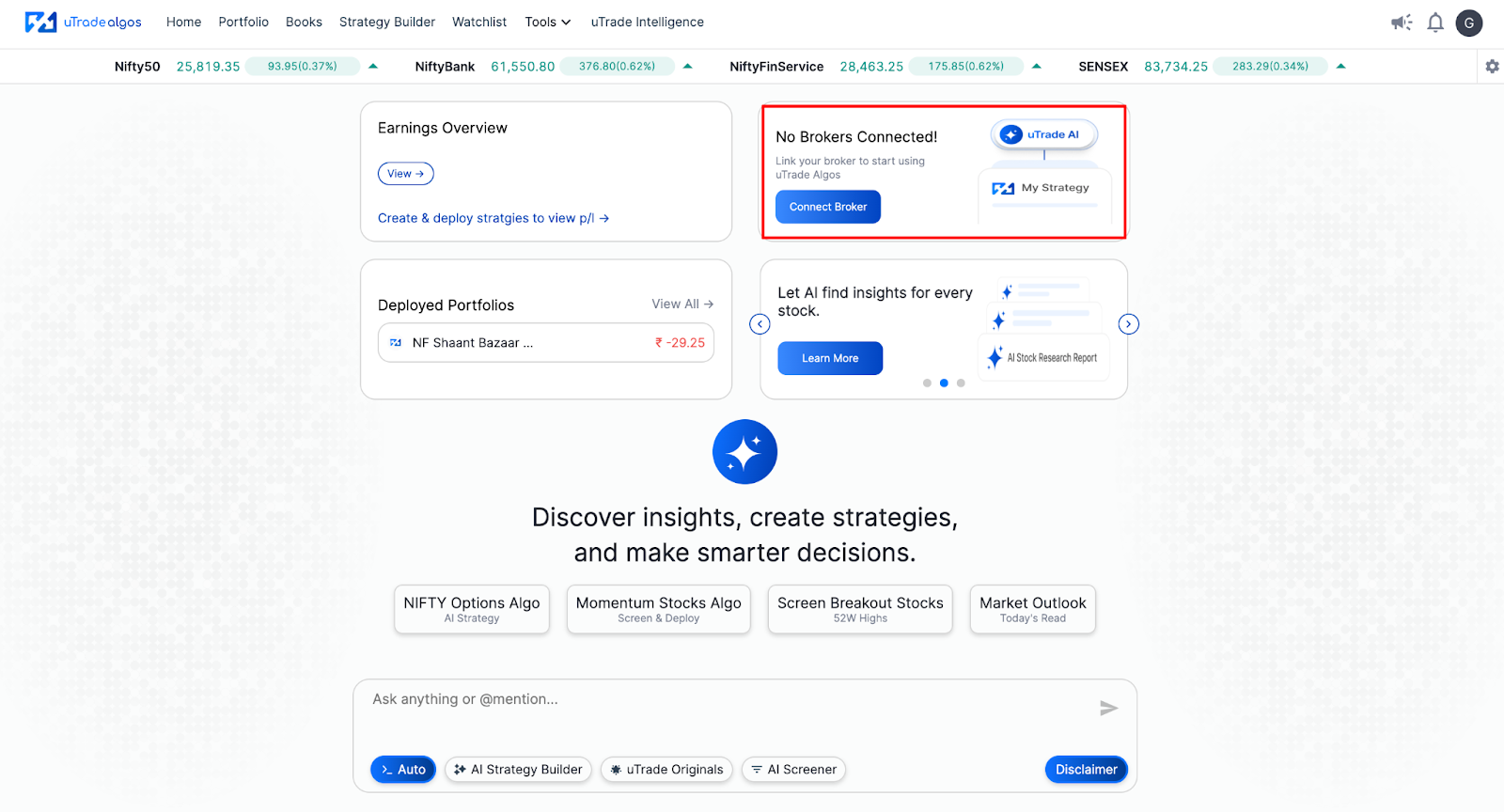
Alternatively, you can also click on the second card on the home screen with the direct button “Connect Broker”.
This selection opens the Manage Brokers interface, where you can view all available broker integrations and manage your existing connections.
Step 2: Locate and Set Up Dhan
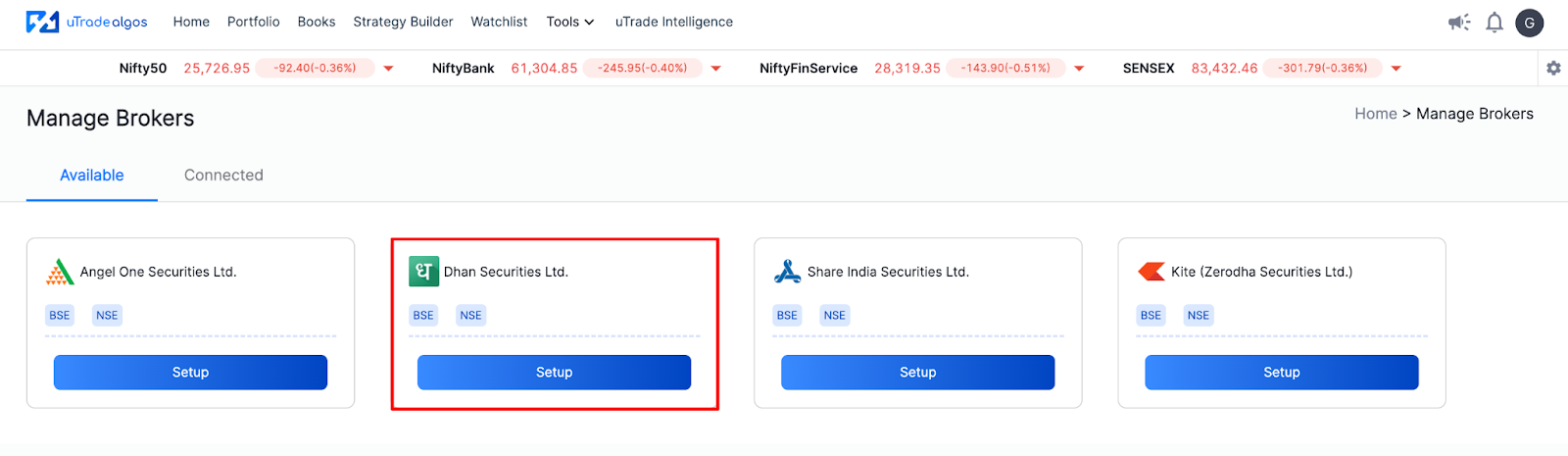
The list of brokers will appear on the Manage Broker Screen. Click on the Setup button associated with the Dhan Broker card.
This action will redirect you to the Dhan login page, where you'll authenticate your account.
Step 3: Authenticate Your Dhan Account
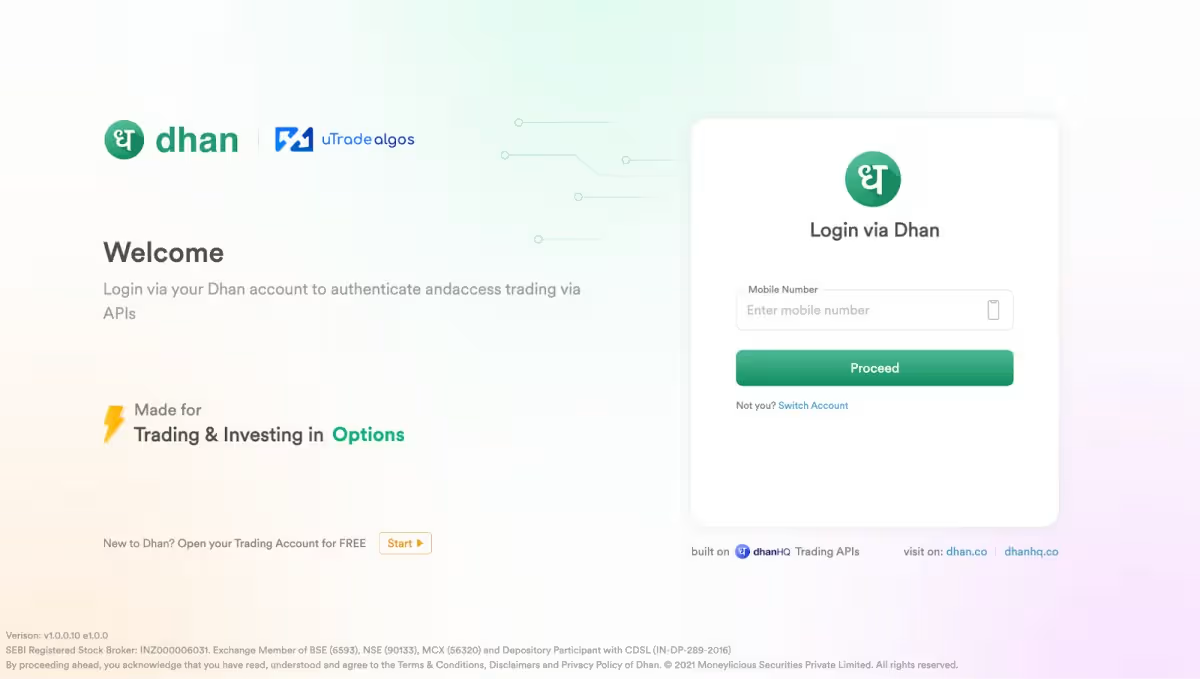
On the Dhan sign-in page, add the registered mobile number linked to your account.
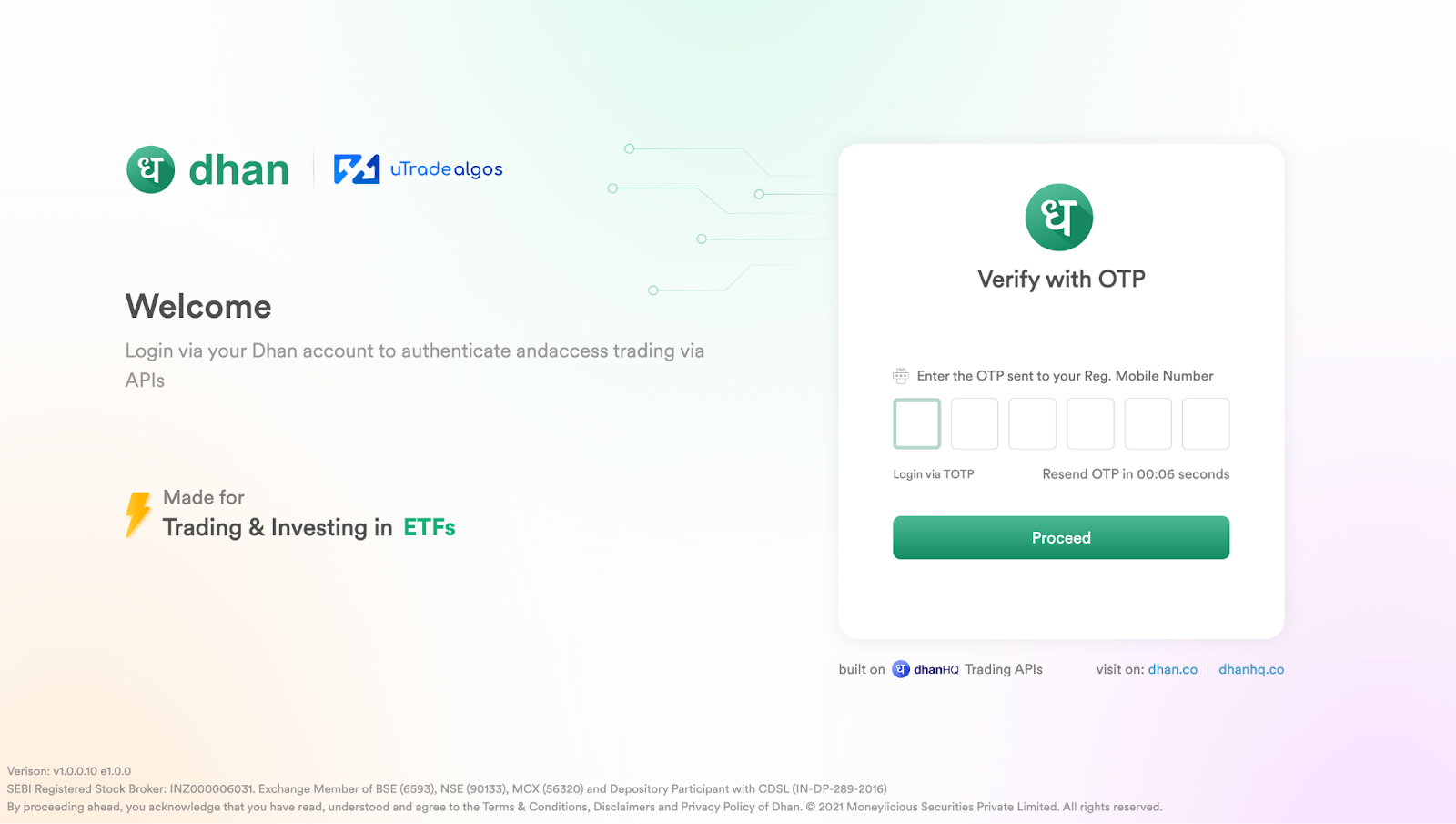
You will subsequently be sent an OTP (One-Time Password) or TOTP (Time-based One-Time Password) to your registered device.
Enter this code precisely and click Proceed to finalize the verification step.
Step 4: Confirm Successful Connection
Once authentication is successful, you'll be redirected back to uTrade Algos.
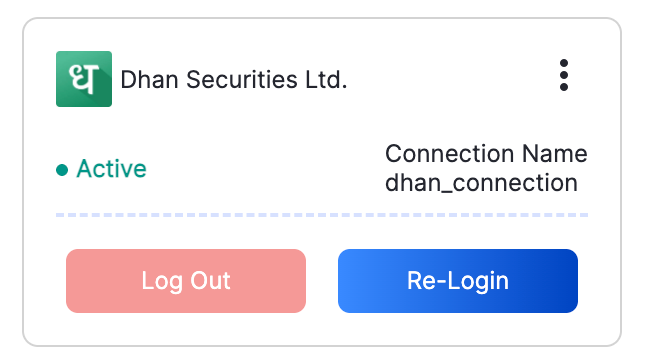
Your Dhan broker account will now appear under the Connected section in Manage Broker with an active status. This confirms that your broker integration is complete and ready for use.
For additional information about Dhan services, visit their official website.
Start Automated Algo Trading with Dhan and uTrade Algos
Integrating your Dhan broker with uTrade Algos transforms how you execute trades. No more switching between platforms or worrying about manual errors.
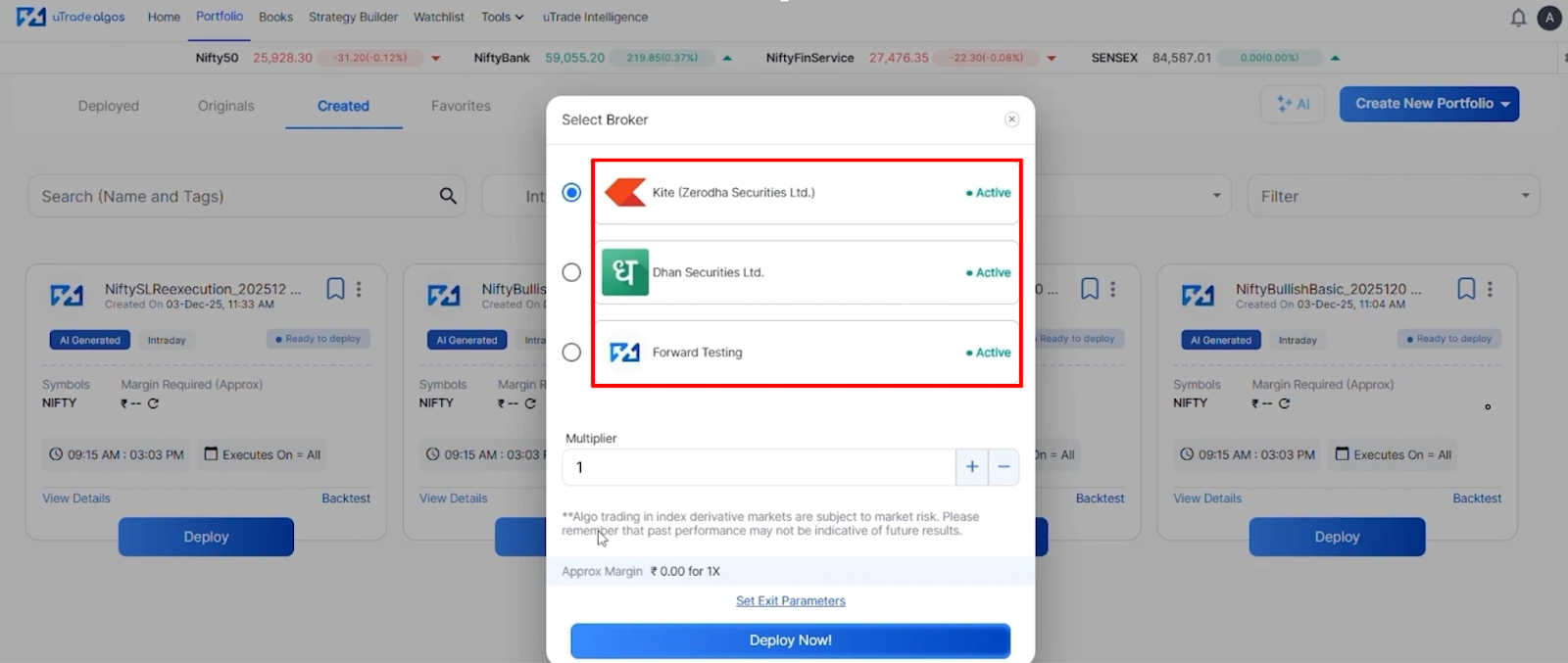
With this broker connection in place, your algorithmic strategies run smoothly, allowing you to focus on refining your approach rather than managing logistics. If you haven't connected your Dhan broker yet, now's the time to set it up and experience automated trading at its best.
Frequently Asked Questions (FAQs)
Do I need any special credentials to connect Dhan broker?
No special credentials are required beyond your registered mobile number and the OTP or TOTP sent to your device. The authentication process is designed to be secure yet simple, ensuring that only authorized users can establish a broker connection with uTrade Algos.
How long does the Dhan broker connection process take?
The entire process typically takes less than five minutes. Once you initiate the setup, authenticate your account, and complete verification, your Dhan broker will be linked and ready to use immediately for executing trades through uTrade Algos.
Can I connect multiple brokers to uTrade Algos?
Yes, uTrade Algos supports multiple broker integrations. You can connect Dhan along with other supported brokers like Angel One, Zerodha, and Share India. This flexibility allows you to diversify your trading strategies across different platforms while managing everything from a single interface.
What should I do if my Dhan broker connection fails?
If your broker integration fails, double-check that you're using the correct registered mobile number and entering the OTP accurately. Ensure your Dhan account is active and in good standing. If issues persist, contact uTrade Algos support or visit Dhan's official website for assistance.




.svg)





