
Introduction
Linking your broker account shouldn't feel like rocket science. But many traders still struggle with the setup process, wondering if they've missed a step or entered the wrong detail.
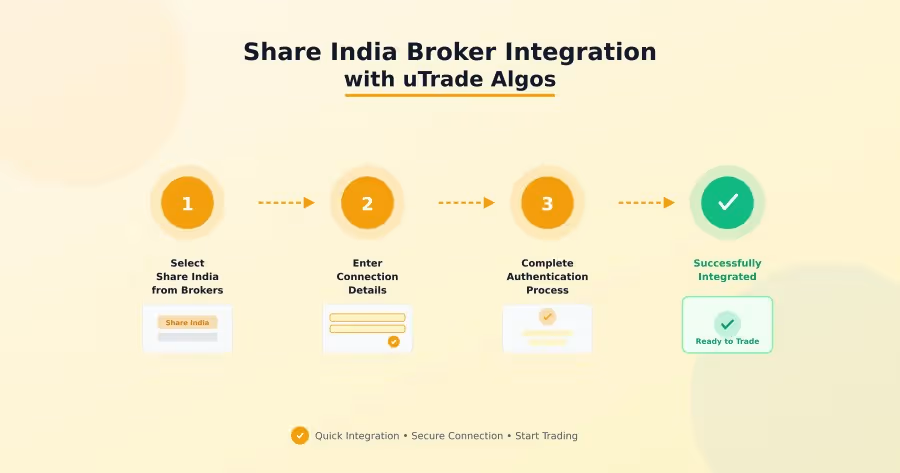
Connecting Share India with uTrade Algos is quite straightforward. This walkthrough guides you through each action—from logging in to completing authentication allowing you to start deploying your algorithmic strategies without delay. Whether you're setting up for the first time or you're resolving any connection issue, you'll find everything you need right here.
How to Integrate Share India Broker with uTrade Algos
Getting your Share India account connected to uTrade Algos takes just a few minutes. Follow these instructions to ensure a smooth & straightforward setup process that gets you trading faster.
Step 1: Log in & Navigate to Manage Broker
.png.avif)
Once you're logged in, click on the Profile icon located at the top-right corner of your screen. From the dropdown menu, select Manage Broker.
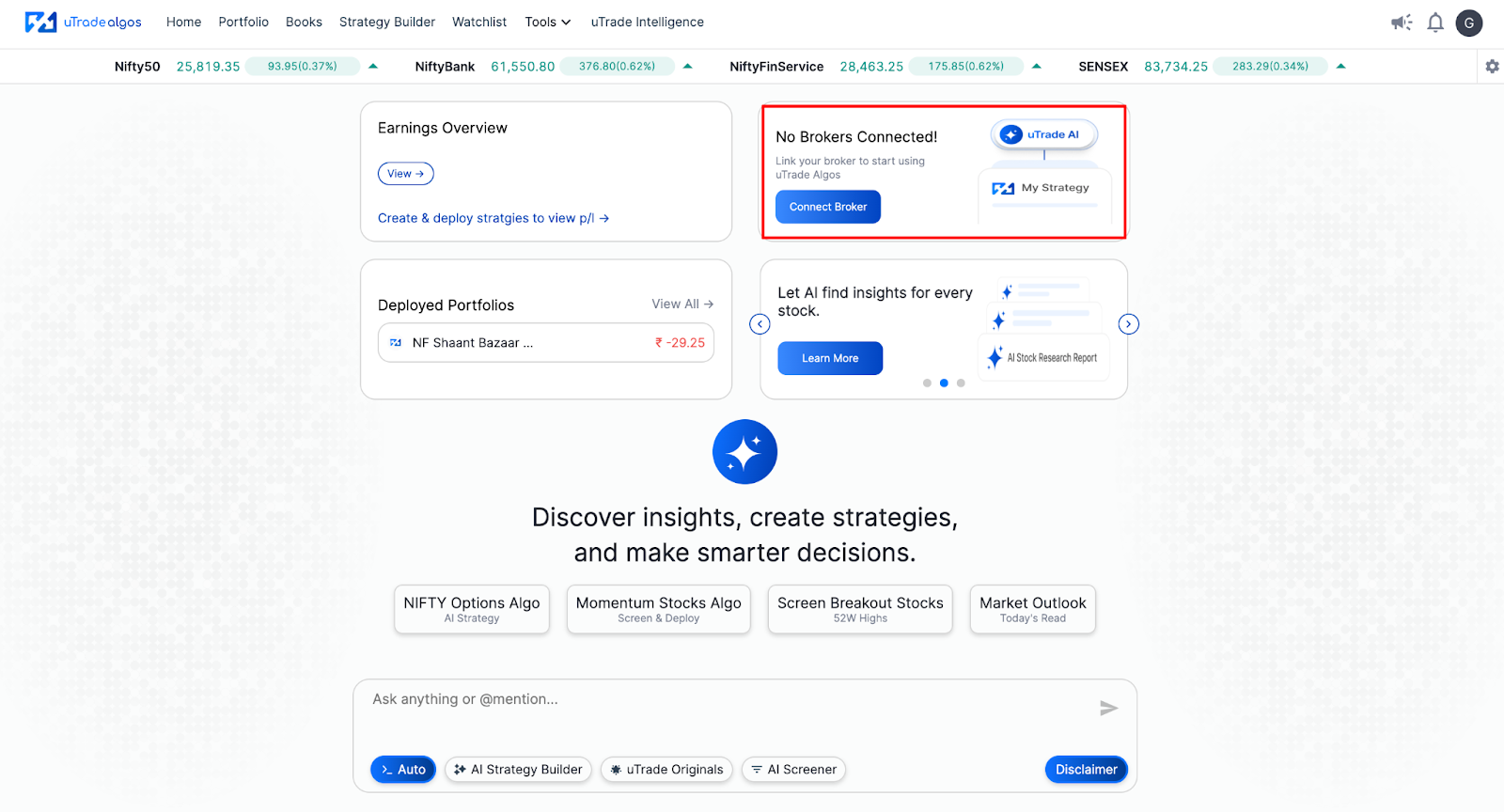
Alternatively, you can also click on the second card on the home screen with the direct button “Connect Broker”.
The Manage Broker interface will appear. This is where you'll see your broker integration.
Step 2: Locate Share India and Click Setup
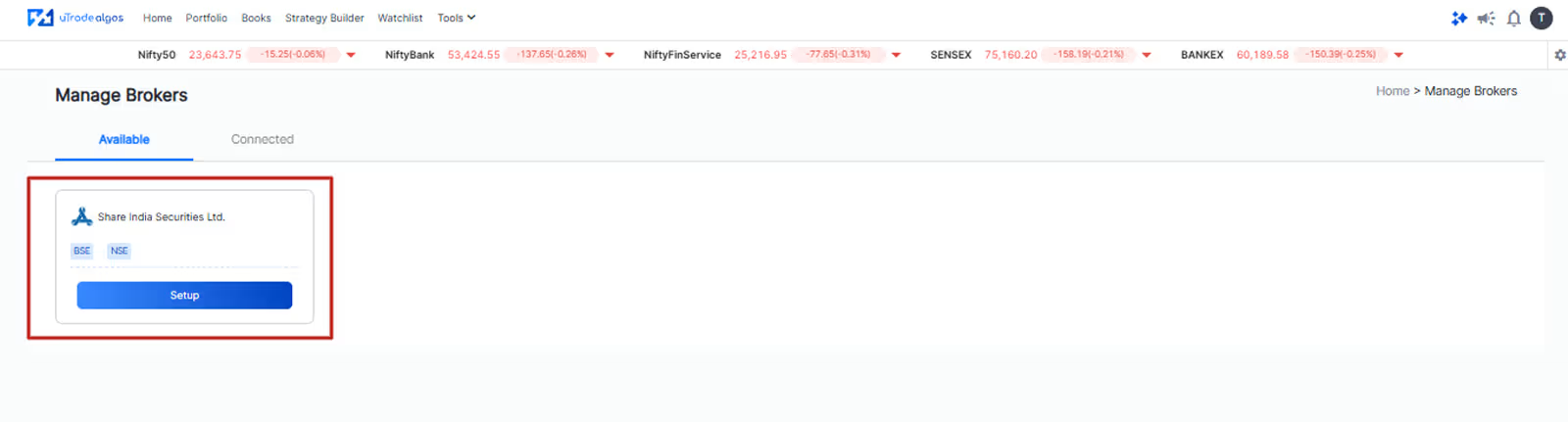
Locate Share India from the Manage Broker Screen.
Click on the Setup button next to it. This will initiate the connection process and redirect you to the Share India login page.
Step 3: Log in to Your Share India Account
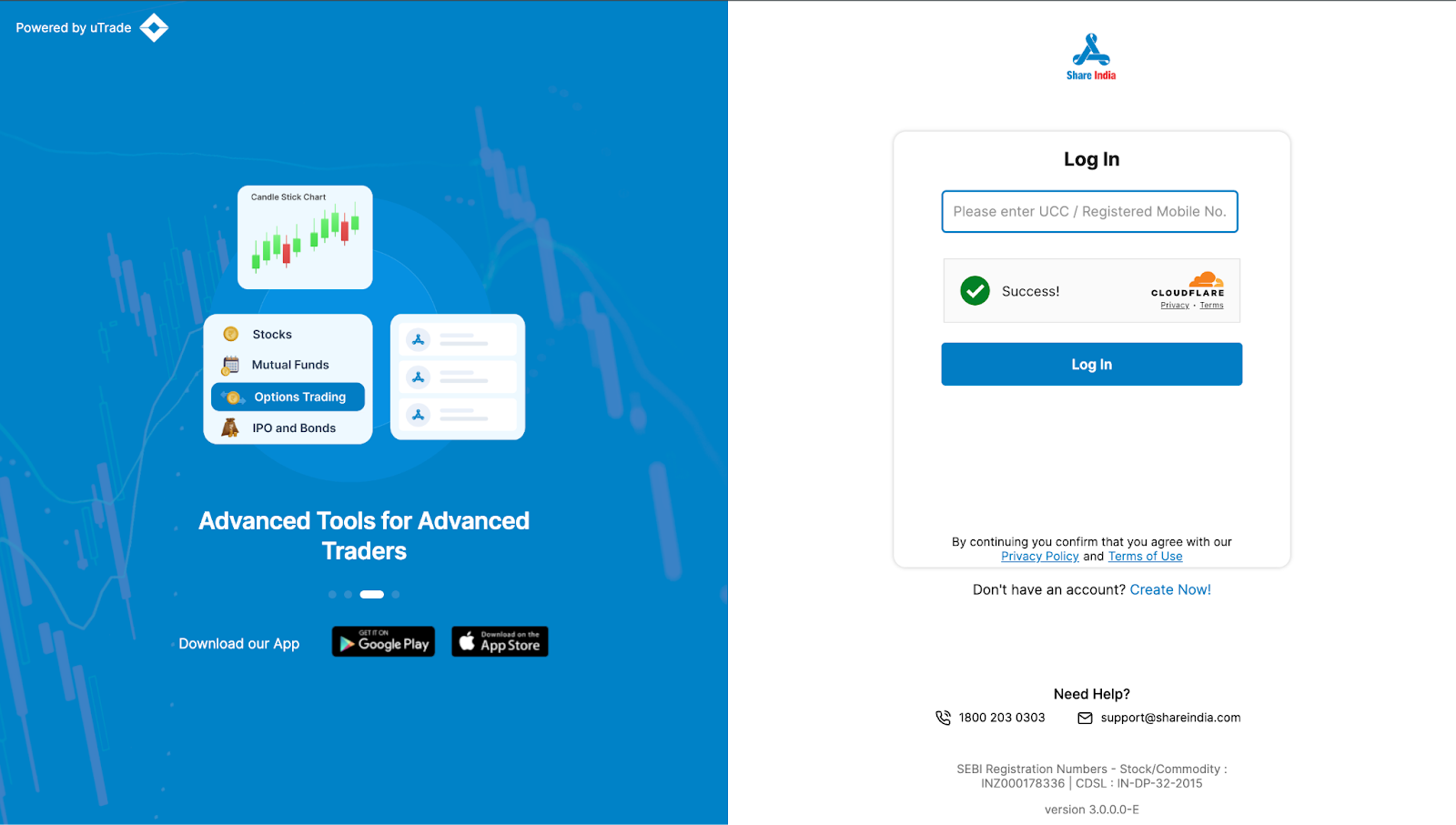
You will now be redirected to Share India's official login page.
Enter your registered UCC (Unique Client Code) or Mobile Number to move forward. Make sure the details match the ones you previously saved during your Share India account registration.
Step 4: Complete the Authentication Process
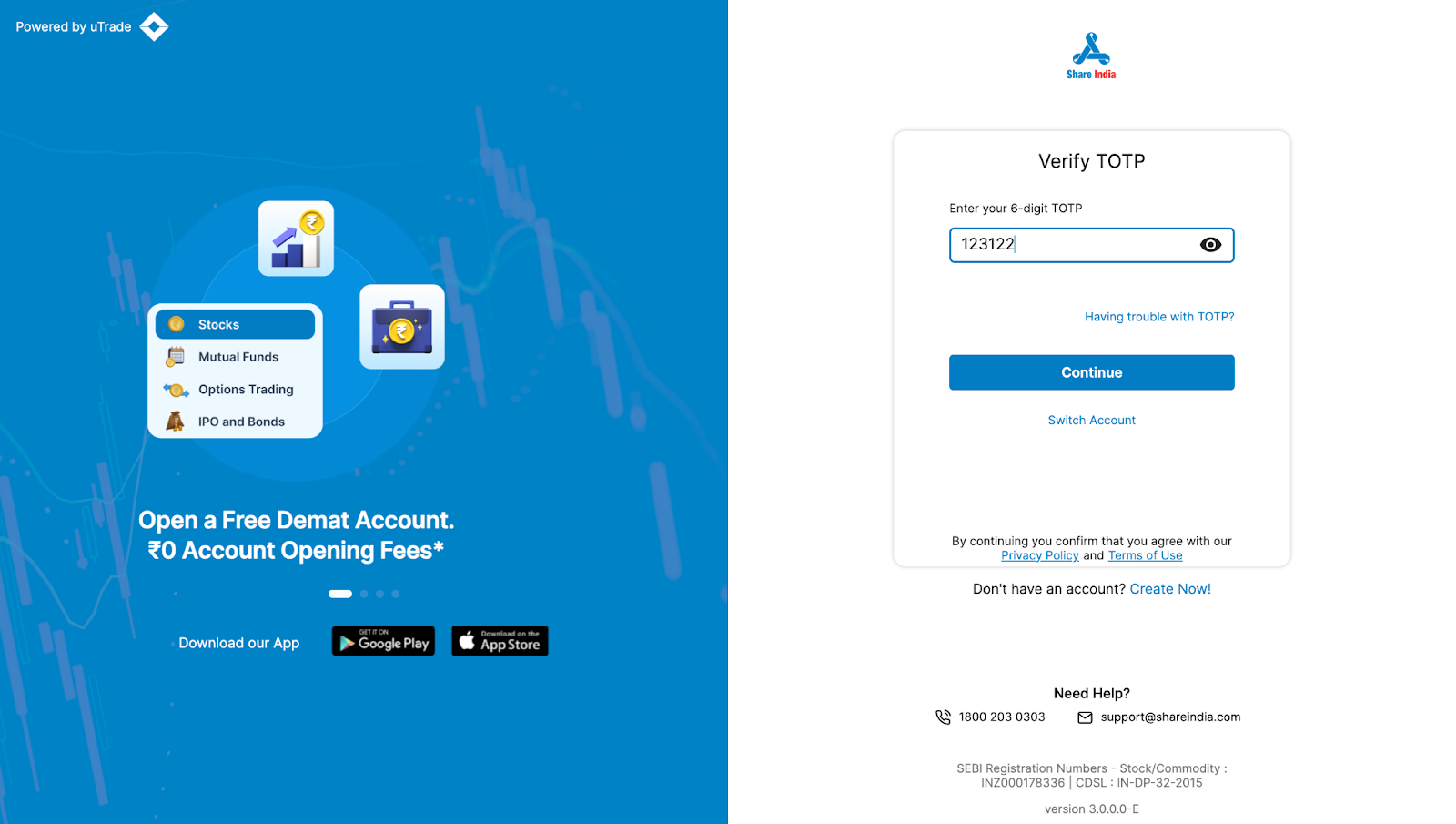
After entering your login details, you will receive an OTP or PIN on your registered device.
Enter this code in the authentication field and click on the Proceed button.
This step verifies your identity and authorizes the connection between Share India and uTrade Algos.
Step 5: Confirm Successful Integration
Once authentication is complete, you'll be redirected back to uTrade Algos.
.png.avif)
Your Share India account will now be linked and will appear under the Connected section in Manage Broker. You're now set to deploy your algo trading strategies and execute trades smoothly.
For more details about Share India's services and its features, visit their official website.
Suggested Reading:
How to Deploy Your First AI Algo with uTrade AI Strategy Builder
Conclusion
You've successfully integrated Share India with uTrade Algos. The entire process—from login to verification is completed in just a few clicks.
Now that your broker is connected, you can focus on the next important aspect: refining your algo trading strategies and executing trades with confidence. If you ever need to update your settings, simply revisit the Manage Broker section on uTrade Algos.
Start deploying your algos today and experience the power of automated trading with Share India and uTrade Algos.
Frequently Asked Questions (FAQs)
What is the purpose of connecting Share India to uTrade Algos?
Connecting Share India to uTrade Algos lets you execute algorithmic trading strategies directly via your Share India brokerage account. This integration enables seamless order placement, real-time market data access, and automated trade execution without manual intervention.
Do I need an API key to connect Share India with uTrade Algos?
No, you don't need to generate an API key for Share India integration. The connection process uses OTP-based authentication through your registered UCC or mobile number, making the setup straightforward and secure without additional technical steps.
How long does the Share India integration process take?
The entire integration process typically takes 2-3 minutes. Once you log in, enter your credentials, and complete OTP verification, your Share India account will be linked immediately and appear under the Connected section in Manage Broker.
What should I do if my Share India connection fails?
If the connection fails, double-check that you're using your correct registered UCC or mobile number. Ensure you're entering the OTP within the valid timeframe. If issues persist, verify your Share India account is active and contact uTrade Algos support for assistance.
.avif)
.avif)
.avif)

.avif)
.avif)
.avif)

.svg)





