
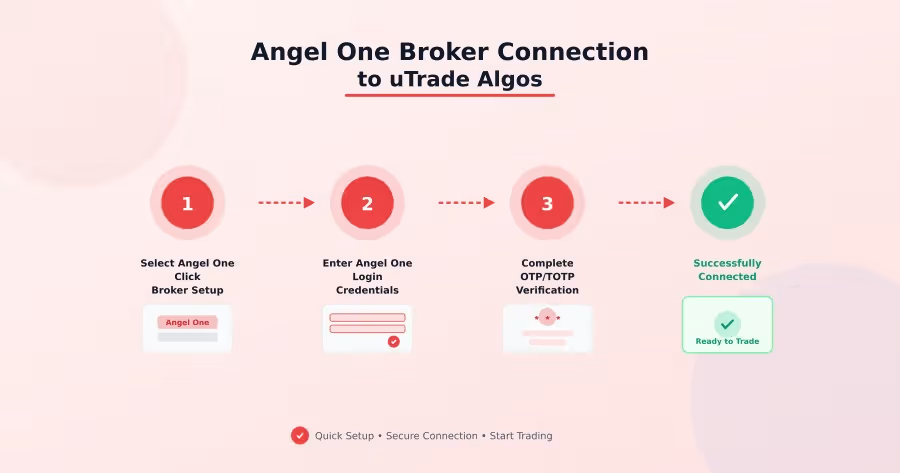
Introduction
The simplest integrations often hide behind the most intimidating names. "Broker connection" sounds technical, complex, something requiring IT support or coding knowledge.
Yet connecting Angel One with uTrade Algos takes less time than brewing your morning coffee. This broker connection is the gateway that transforms your algorithmic strategies from theoretical backtests into live market trades.
Angel One broker connection enables seamless order execution, real-time position tracking, and automated trade management—all without writing a single line of code.
In this guide, you'll complete the entire setup process in minutes, bridging your uTrade Algos strategies with Angel One's robust trading infrastructure.
Step-by-Step: Connecting Angel One to uTrade Algos
Step 1: Access Broker Management
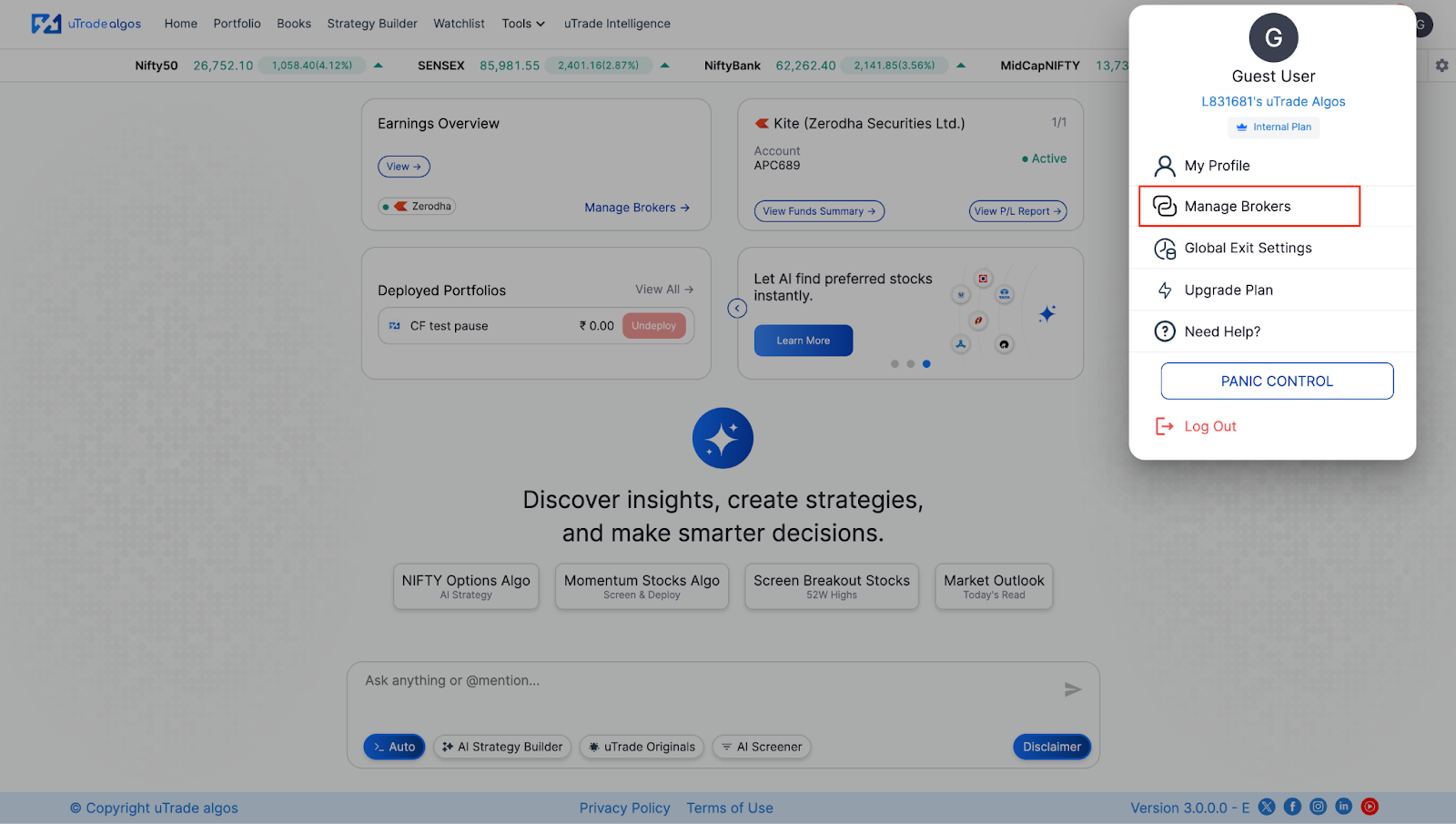
Log in to uTrade Algos & find your Profile icon in the upper-right area of the display. This icon usually shows your initials or a generic user avatar.
Click on this icon to reveal a dropdown menu with various account management and settings options. From the dropdown menu, select Manage Brokers.
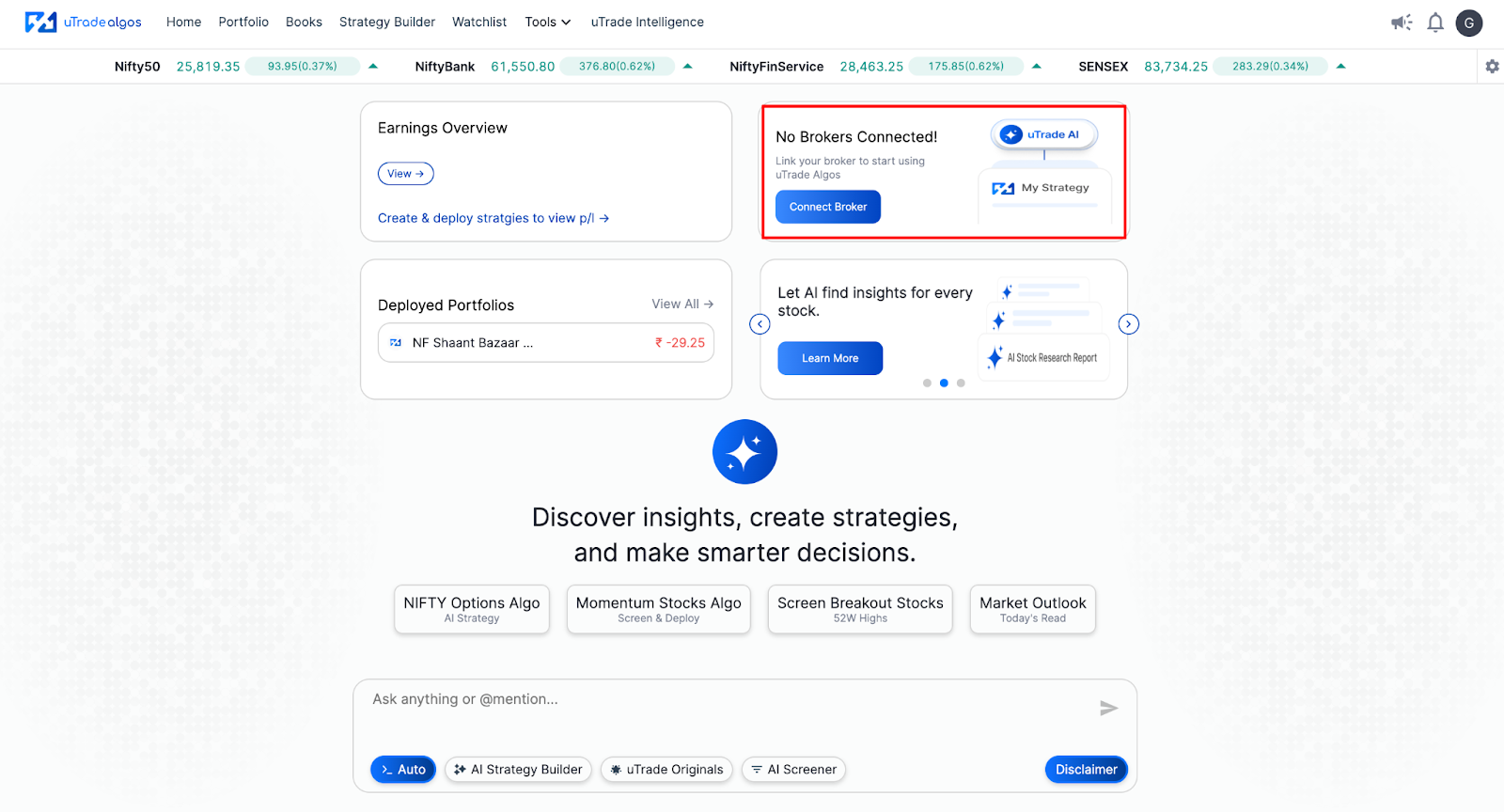
Alternatively, you can also click on the second card on the home screen with the direct button “Connect Broker”.
This selection opens the manage brokers interface, where you can view all available broker integrations and manage your existing connections.
Step 2: Select Angel One
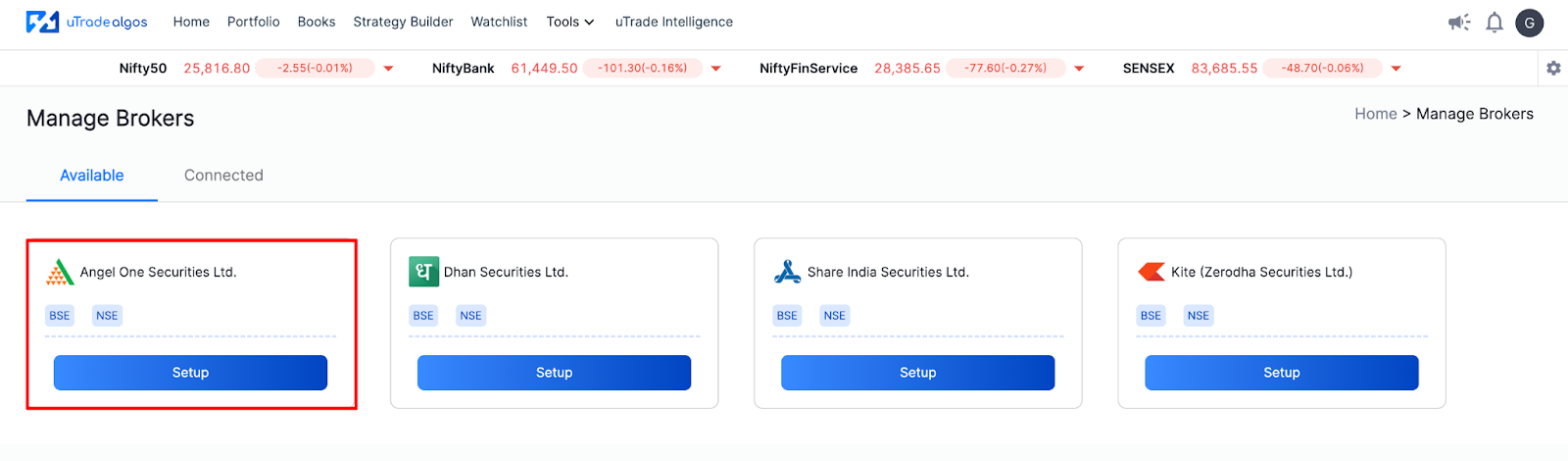
The Manage Brokers interface displays a comprehensive list of supported brokers, each shown by its logo and name. You'll notice multiple options, including Angel One, Zerodha, Dhan, and others.
Click on the Setup associated with the Angel One Card. This action initiates the Angel One broker connection process with uTrade Algos.
Step 3: Redirect to Angel One Login
After clicking the Setup button, uTrade Algos automatically redirects your web browser to the official Angel One login page. This redirect happens within seconds—don't close your browser window or navigate away during this transition.
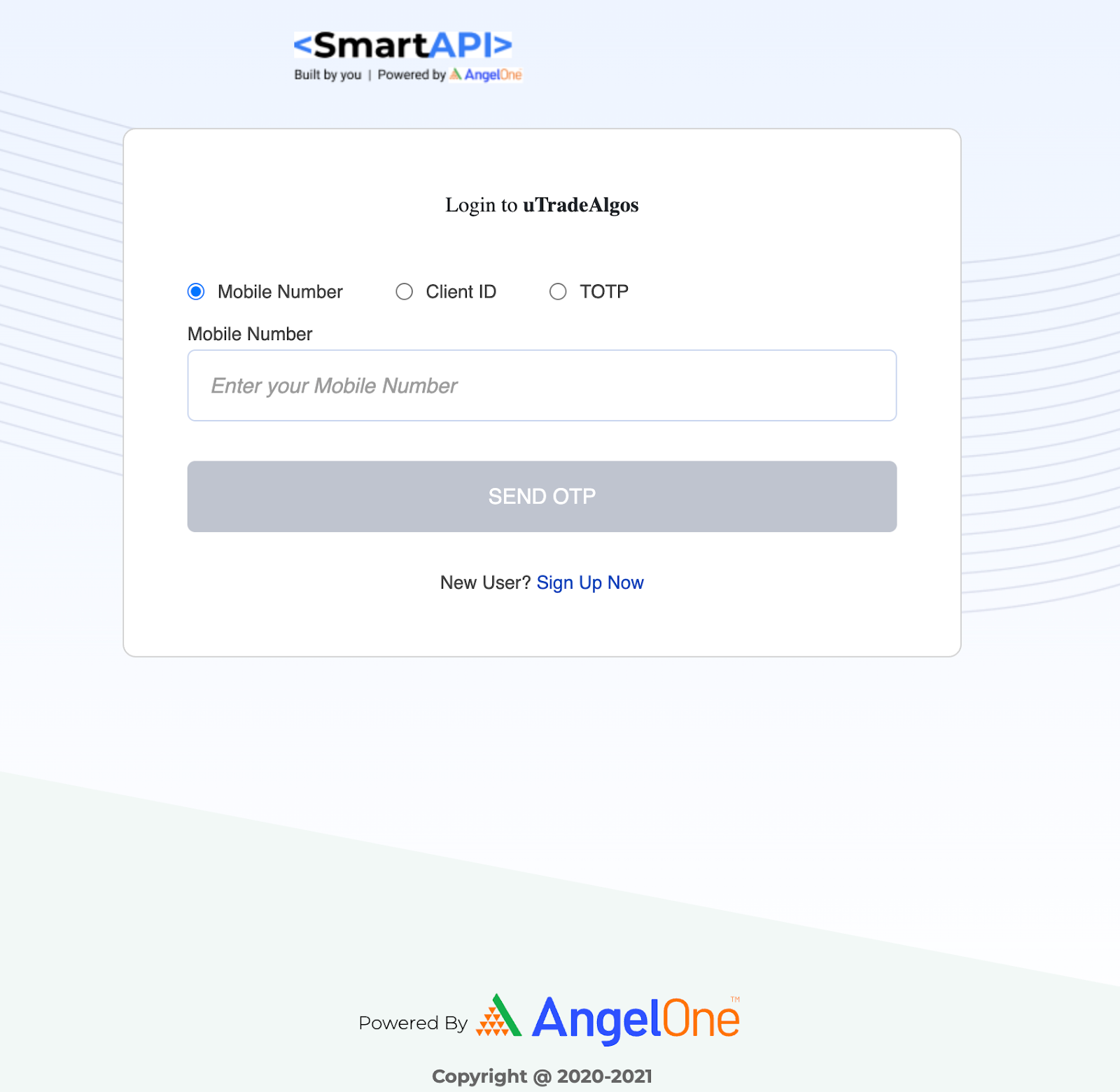
The Angel One login page presents multiple authentication options based on your account configuration. You can log in using:
Registered Mobile Number: Enter the mobile number linked to your Angel One account. This is the primary identification method for most users.
Client ID: Alternatively, use your unique Angel One client identification number—typically an alphanumeric code provided during account opening.
TOTP (Time-Based One-Time Password): If you've configured authenticator app-based login, you can use the TOTP option by entering the 6-digit code generated by your authenticator app.
Select your preferred login method and enter the corresponding credentials. Choose the method you're most comfortable with and that you use regularly for accessing your Angel One account.
Step 4: Complete OTP/TOTP Authentication
After entering your initial credentials (mobile number or Client ID), Angel One sends a verification code to authenticate your identity. This two-factor authentication is mandatory for all API access and broker connections.
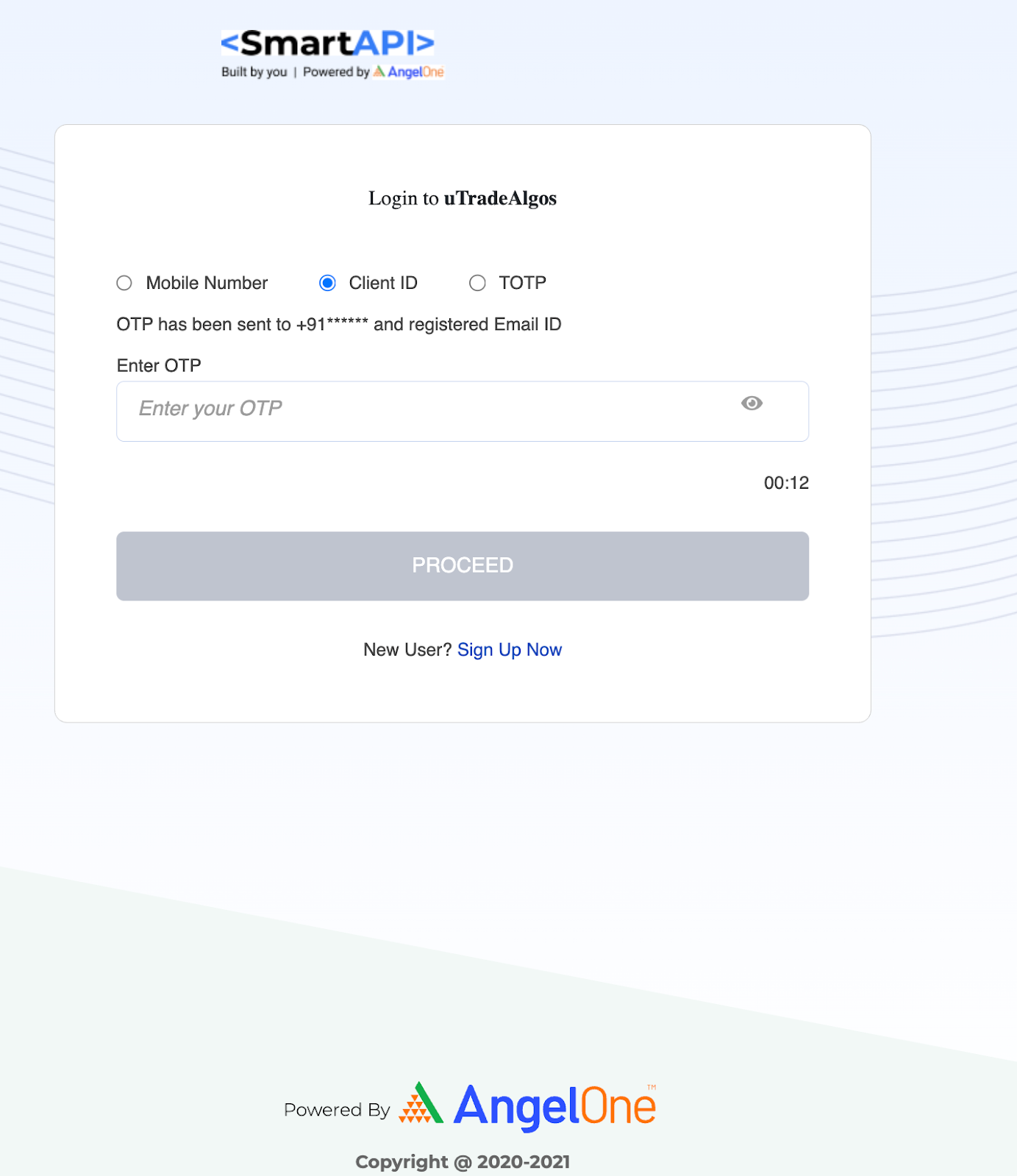
After entering the OTP or TOTP, click Proceed to complete the authentication process. Angel One validates the code and, if correct, authorizes the broker connection with uTrade Algos.
Step 5: Automatic Redirect and Confirmation
Upon successful authentication, you will automatically be redirected to uTrade Algos. This redirect occurs within seconds—allow the process to complete without interruption.
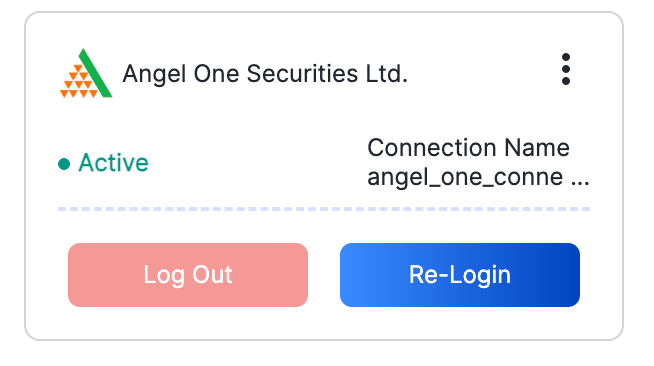
Your Angel One connection is now listed under the Connected section with an active status. This confirms that your Angel One broker connection is operational and ready for algorithmic trading through uTrade Algos.
For more details, visit Angel One’s official website.
Suggested Reading:
How to Deploy Your First AI Algo with uTrade AI Strategy Builder
Conclusion
The connection is complete—your pathway from algorithmic strategy to live market execution now flows seamlessly through your Angel One broker connection. What felt like a roadblock is simplified to a couple of taps and verifications. Zero programming needed, no involved setups, simply direct actions tying together two systems built for interoperability.
This broker connection isn't merely technical infrastructure. It's your gateway to systematic, disciplined trading where emotions don't interfere and opportunities aren't missed.
Your strategies now execute automatically, capitalizing on market movements while you focus on refinement and growth. The setup is done. Your algorithms are ready. Time to deploy and let your strategies work.
Frequently Asked Questions (FAQs)
How long does the Angel One broker connection remain active?
The Angel One broker connection remains active until you manually disconnect it or the API session expires. Session validity varies—some connections stay active indefinitely while others require periodic re-authentication for security. Check your connection status regularly in Manage Brokers.
Can I connect multiple Angel One accounts to uTrade Algos?
Yes, if you manage multiple Angel One trading accounts, you can connect each one separately to uTrade Algos. Each account requires independent authentication through the setup process. They'll appear as distinct connections, allowing you to deploy different strategies across accounts.
Will uTrade Algos have access to withdraw funds from my Angel One account?
No. uTrade Algos can only place, modify, and cancel trades through the Angel One broker connection. It cannot withdraw funds, transfer money, or access your bank account. All capital remains securely in Angel One's custody under your control.
What happens if I change my Angel One password after connecting?
Changing your Angel One password doesn't automatically disconnect the broker connection since it uses API tokens, not stored passwords. However, if the session expires and requires re-authentication, you'll use your new password. For security, disconnect and reconnect after password changes.
Do I need to reconnect Angel One every trading day?
This depends on Angel One's API session duration. Some broker connections remain active across multiple days while others require daily re-authentication. If reconnection is needed, uTrade Algos will notify you. The reconnection process takes under a minute using the same steps.

.svg)





