

Introduction
Your broker and your algo platform should talk to each other — but most traders spend hours figuring out how to make that happen.
Setting up a broker connection sounds technical, but with uTrade Algos, connecting your Kotak Neo account is a straightforward process that takes just a few minutes.
Once linked, you can deploy algorithmic strategies, automate order execution, and manage everything from a single dashboard — without switching between platforms. This guide walks you through every step of the Kotak Neo broker integration with uTrade Algos, from API creation to final authentication.
Step-by-Step: How to Integrate Kotak Neo Broker with uTrade Algos
Step 1: Open Manage Brokers on uTrade Algos
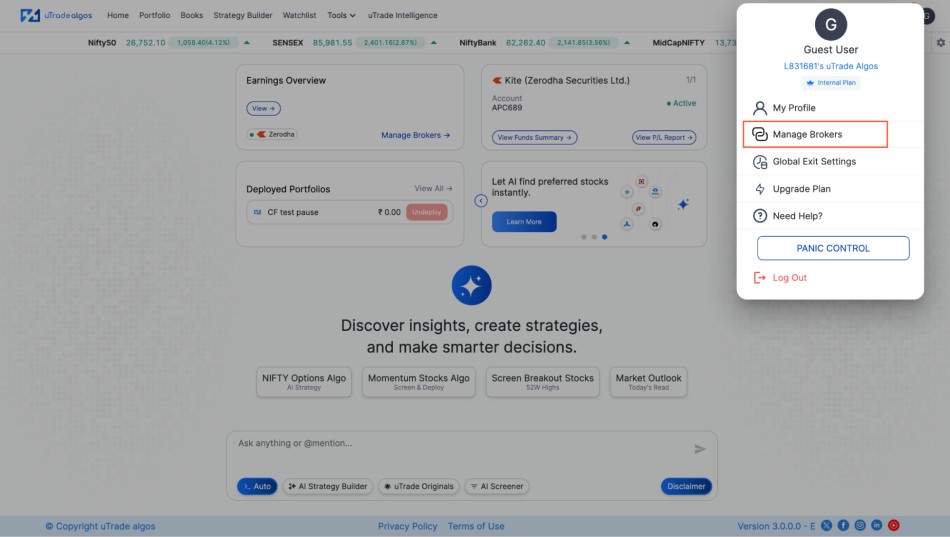
Log in to your uTrade Algos account. Click on the Profile icon at the top-right corner of the screen. From the dropdown, select Manage Brokers. This is the central hub where all your broker connections are managed.
Keep this page open in your browser — you will return to it after completing the API setup steps on the Kotak side.
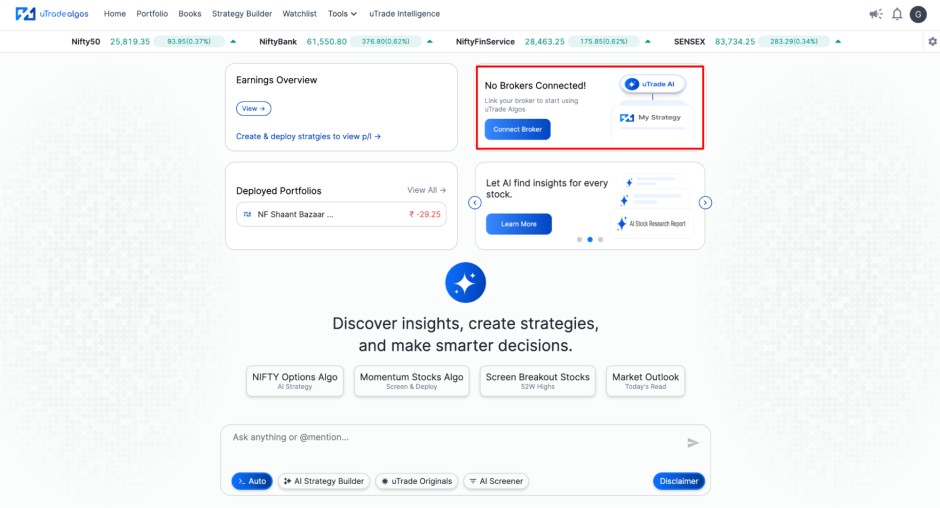
Alternatively, you can also click on the second card on the home screen with the direct button “Connect Broker”.
Step 2: Create an API on Kotak Neo Web Terminal
Open a new tab on your browser and navigate to the Kotak Neo Web Terminal. If you have not already, log in or sign up for your Kotak Neo account.
Once logged in, navigate to the Trade API. Here, create a New Application. Once the application is created, an Access Token will be generated beneath it.
Important: Copy and save this Access Token immediately. You will need to paste it into uTrade Algos in a later step. Do not close this tab until you have saved it somewhere secure.
Step 3: Activate TOTP on Kotak Neo
TOTP (Time-based One-Time Password) activation is mandatory for Kotak Neo broker integration. Without completing this step, you will not be able to authenticate your account on uTrade Algos.
- Go to the TOTP Registration page on Kotak Neo.
- You can follow the on-screen instructions to register yourself with Google Authenticator or any other third-party authenticator application.
- Once TOTP is enabled on your account, your authenticator application will be able to generate a new 6-digit number every 30 seconds that is associated with your Kotak account.
Step 4: Set Up Kotak Neo on uTrade Algos
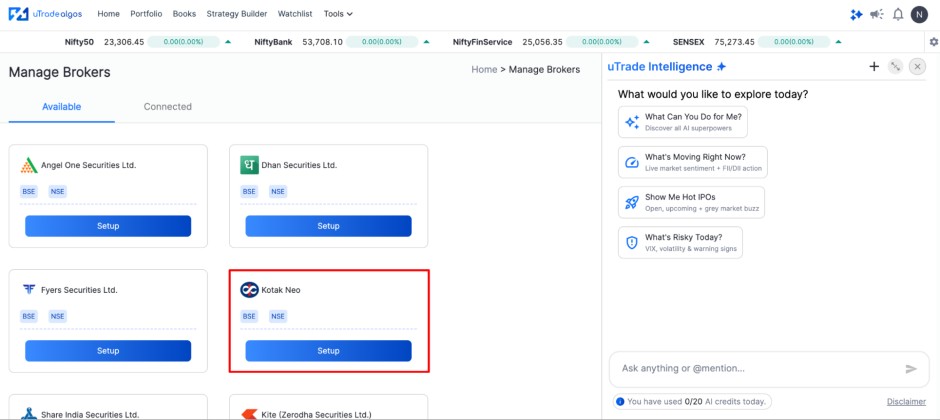
Return to the Manage Brokers page on uTrade Algos that you kept open. From the list of available brokers, locate Kotak and click the Setup button next to it.
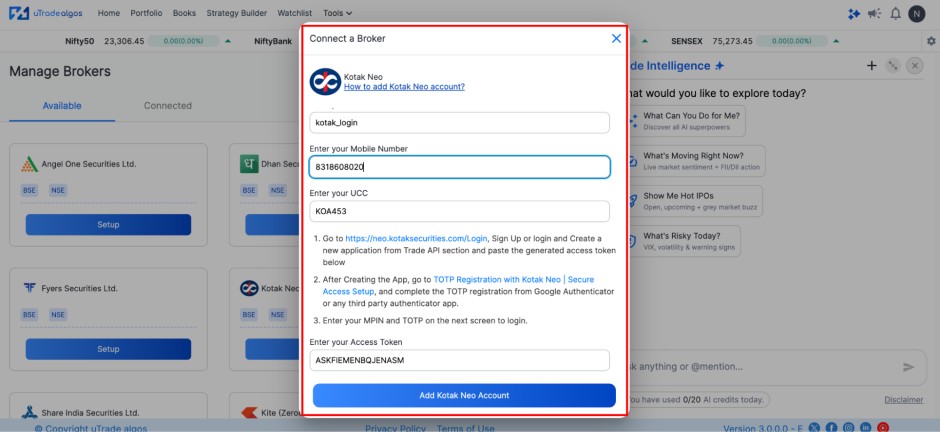
A setup form will appear. Fill in the following details:
- Connection Name — a label to identify this broker connection
- Registered Mobile Number — the mobile number linked to your Kotak Neo account
- Kotak UCC — your Unique Client Code
- Access Token — paste the token you copied from the Kotak Neo Web Terminal in Step 2
Once all field data is entered, click Add Kotak Neo Account to save the details.
Step 5: Authenticate with MPIN and TOTP
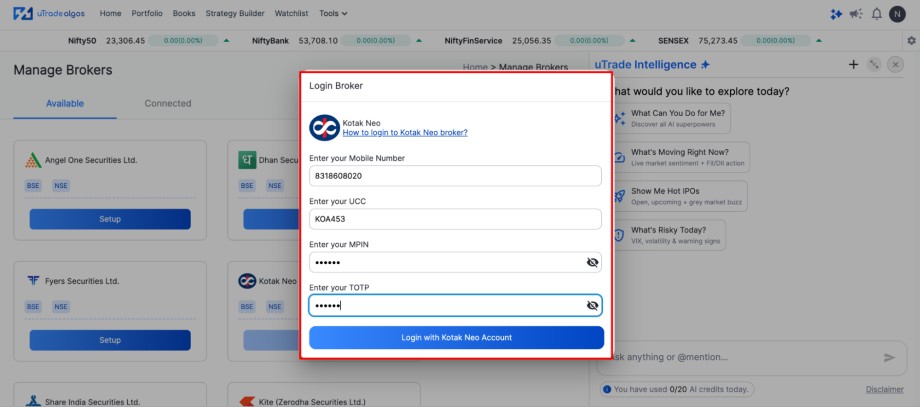
On the next page, you will be required to enter your MPIN as well as your TOTP. Once you do this, you can click Login with Kotak Neo Account.
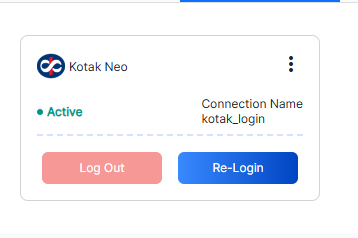
Once you're successfully logged in, your Kotak Neo account will be integrated with uTrade Algos. Your account will appear in the Connected section of Manage Brokers.
For additional reference, you can visit Kotak's official website for platform-specific documentation.
What Happens After the Connection is Set Up
Once your Kotak Neo account is connected, your uTrade Algos platform is ready for live and automated trading.
You can now deploy any strategy you have built or selected on uTrade Algos directly through your Kotak Neo account. Order execution happens automatically based on strategy signals — no manual intervention required. You can also monitor your connected broker, active deployments, and overall performance from a single dashboard view.
If you ever need to update your Access Token or reconnect after expiry, you can return to Manage Brokers and edit your Kotak connection without losing your strategy configurations. It is worth noting that Access Tokens on Kotak Neo may have an expiry period, so keep an eye on the connection status within the platform.
Conclusion
Connecting your Kotak Neo broker with uTrade Algos removes the gap between strategy and execution. As soon as the integration is live, your algo will work in sync with your broker to make orders, manage positions, and implement strategies without any need for human intervention.
It only takes a few minutes to set up, but what you are gaining access to is a much more efficient way of trading. If you have been holding back from using algo trading because of the perceived difficulty of setting up, this guide should reassure you that it does not have to be. Your first connected strategy is closer than you think — go set it up.
Frequently Asked Questions (FAQs)
Is connecting Kotak Neo with uTrade Algos free?
Connecting your Kotak Neo broker to uTrade Algos does not require any additional charges for the integration itself. Standard uTrade Algos subscription and Kotak brokerage fees apply as per your respective plans.
Is TOTP activation mandatory for Kotak Neo integration?
Yes, TOTP activation is mandatory. Without completing TOTP registration on Kotak Neo using Google Authenticator or a compatible app, you will not be able to authenticate and complete the broker connection on uTrade Algos.
Where do I find my Kotak UCC?
Your Kotak UCC (Unique Client Code) is available in your Kotak Neo account profile or in the account-opening documents sent by Kotak. You can also find it by logging into the Kotak Neo Web Terminal and checking your account details.
What should I do if my Access Token expires?
If your Kotak Neo Access Token expires, return to the Kotak Neo Web Terminal, generate a new Access Token, then go to Manage Brokers on uTrade Algos and update your Kotak connection with the new token.
Can I connect multiple broker accounts on uTrade Algos?
Yes, uTrade Algos supports multiple broker connections. You can connect Kotak Neo along with other supported brokers and manage all of them from the Manage Brokers section within your uTrade Algos account.


.svg)





