
Introduction
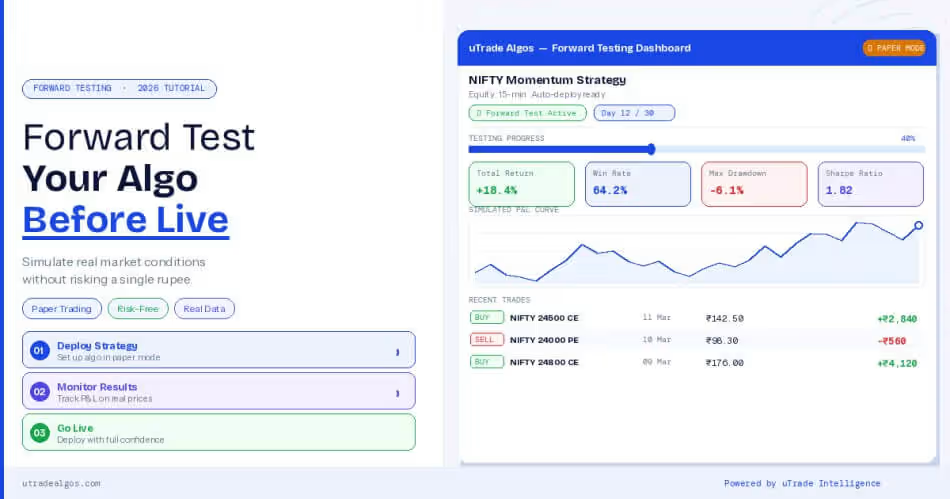
The most expensive mistake in algo trading isn't a bad strategy—it's deploying an untested one with real money. Backtesting shows what worked yesterday, but forward testing reveals what works today, right now, in current market conditions.
uTrade Algos bridges this critical gap with its forward testing feature, allowing you to run strategies in simulated live conditions without risking a single rupee.
This tutorial shows you exactly how to forward test any algorithm—AI-generated, expert-built, or custom—before committing real capital.
How to Forward Test Your Algo before making it Live
Step 1: Choose Your Strategy
Log in to uTrade Algos and navigate to the strategy you want to forward test. You have three options:
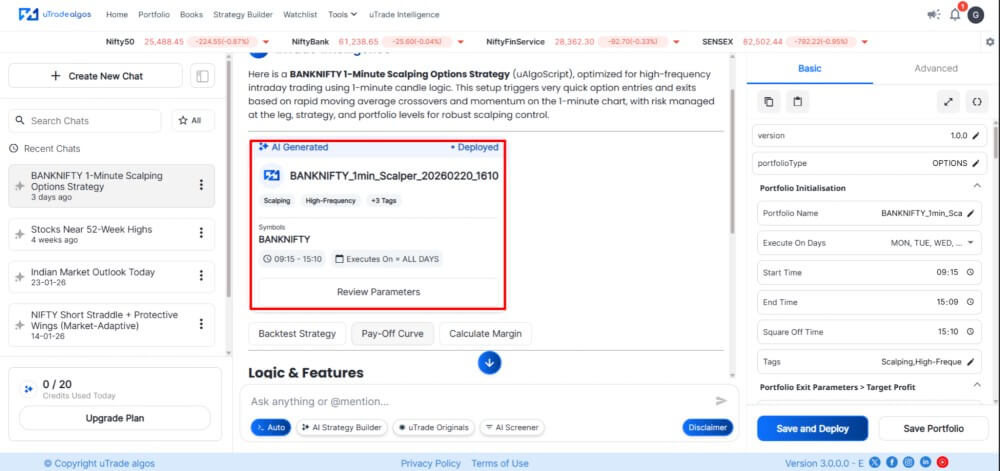
AI-Generated Strategies: Create a new algorithm using uTrade Intelligence (AI) by describing your trading idea in natural language. The AI generates complete strategy logic instantly.
Suggested Reading: Learn how to create AI algo trading strategies.
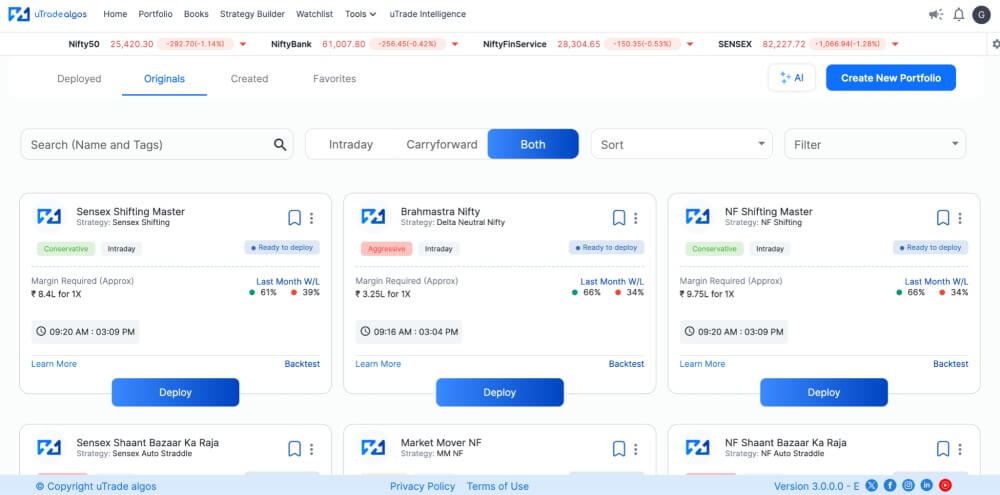
Expert-Built Strategies: Browse Portfolio > Originals for pre-built, exchange-approved strategies. These professional algorithms cover various approaches—scalping, momentum, options selling, and breakouts. Each includes detailed descriptions, backtest results, and favorable market conditions.

Custom Form-Based Strategies: Build your own strategy using Strategy Builder's intuitive forms. Define entry logic, exit parameters, risk controls, and position sizing through dropdown menus and input fields—no coding required. Save completed strategies to your portfolio.
Select the strategy you want to forward test. Review its parameters, understand its logic, and ensure it aligns with current market conditions before proceeding.
Step 2: Click Deploy Button
Once you've selected your strategy, locate the Deploy button on the strategy card. This button appears on:
- uTrade Originals cards in the Portfolio > Originals section
- Your custom strategies in Portfolio > Created section
- AI-generated strategies after creation
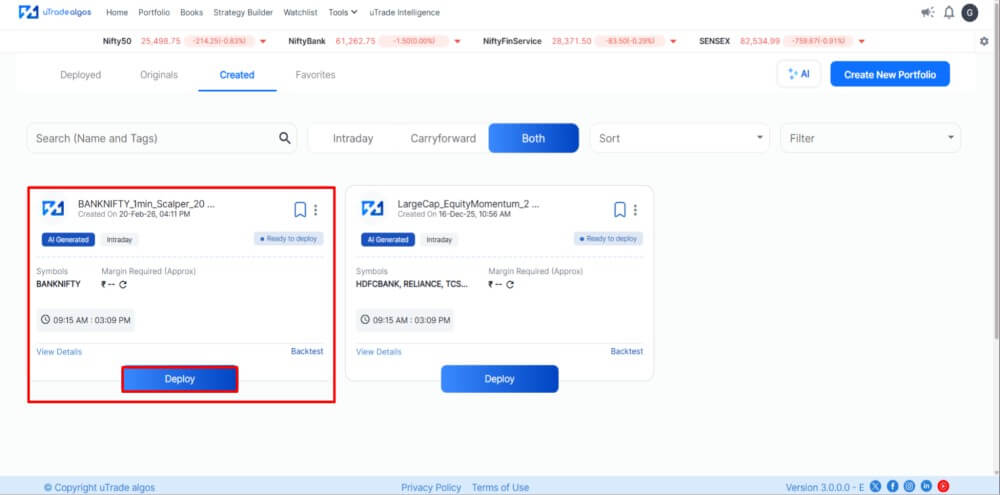
Click Deploy. This initiates the deployment configuration process where you'll specify execution parameters and select your trading environment.
Step 3: Select Broker
A "Select Broker" pop-up appears, displaying available broker connection. You'll see:
- Connected live broker with "Re-Login" options if sessions expired
- Forward Testing option with "Active" status indicator
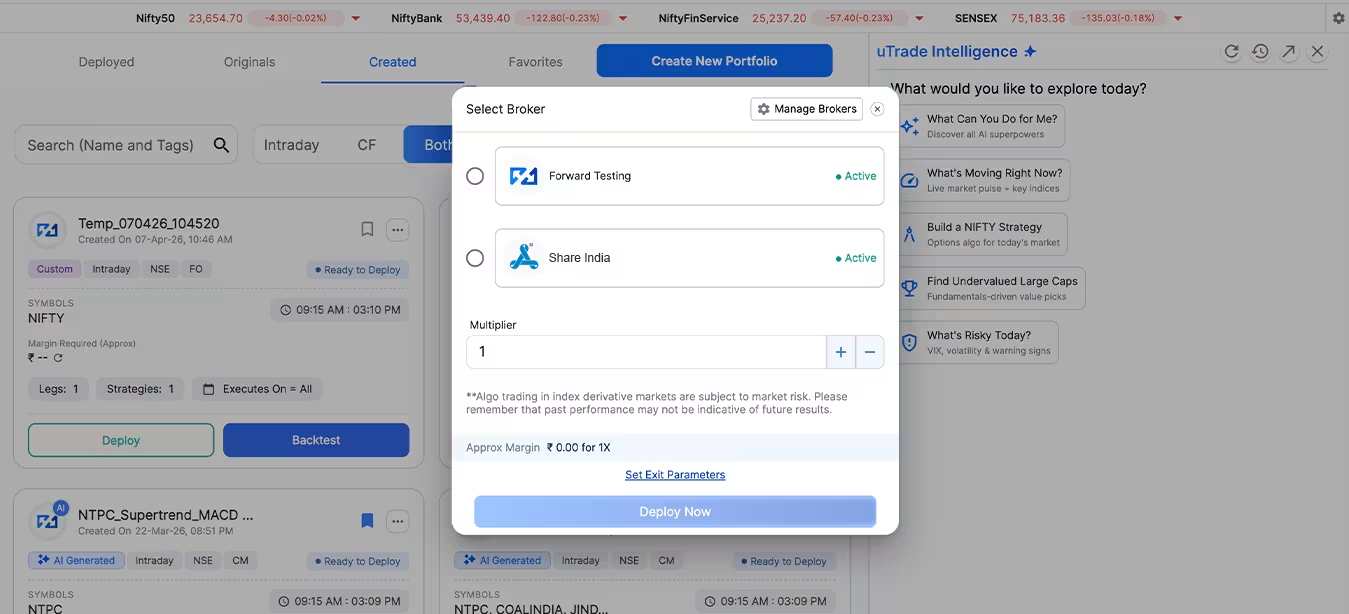
Click on Forward Testing. This selection tells uTrade Algos to deploy your strategy in the simulation environment rather than sending orders to a live broker.
The interface displays:
- Multiplier: Set position size (1x = one lot, 2x = two lots, etc.)
- Approx Margin: Shows ₹0.00 for 1X since no real capital is required
- Set Exit Parameters link: Optional customization of stop loss, target profit, and trailing stops
Review these settings. For forward testing, you can use larger multipliers than you'd risk with real money, allowing you to test strategy behavior at scale without financial exposure.
Step 4: Confirm Deployment
After selecting Forward Testing and configuring your multiplier, a confirmation dialog appears: "Please click OK to deploy."
.avif)
The system processes your deployment, connecting your strategy logic to real-time market data feeds while routing execution to the simulation engine.
Step 5: Monitor Deployed Forward Test
Within seconds, your forward testing deployment activates. You can check the deployed forward test in Potfolio section.

Control Options:
- Pause button: Temporarily halt strategy without undeploying
- View Details link: Access comprehensive strategy information
- Undeploy button: Stop forward testing completely
You can also see the deployed algo for the forward test on the home section.
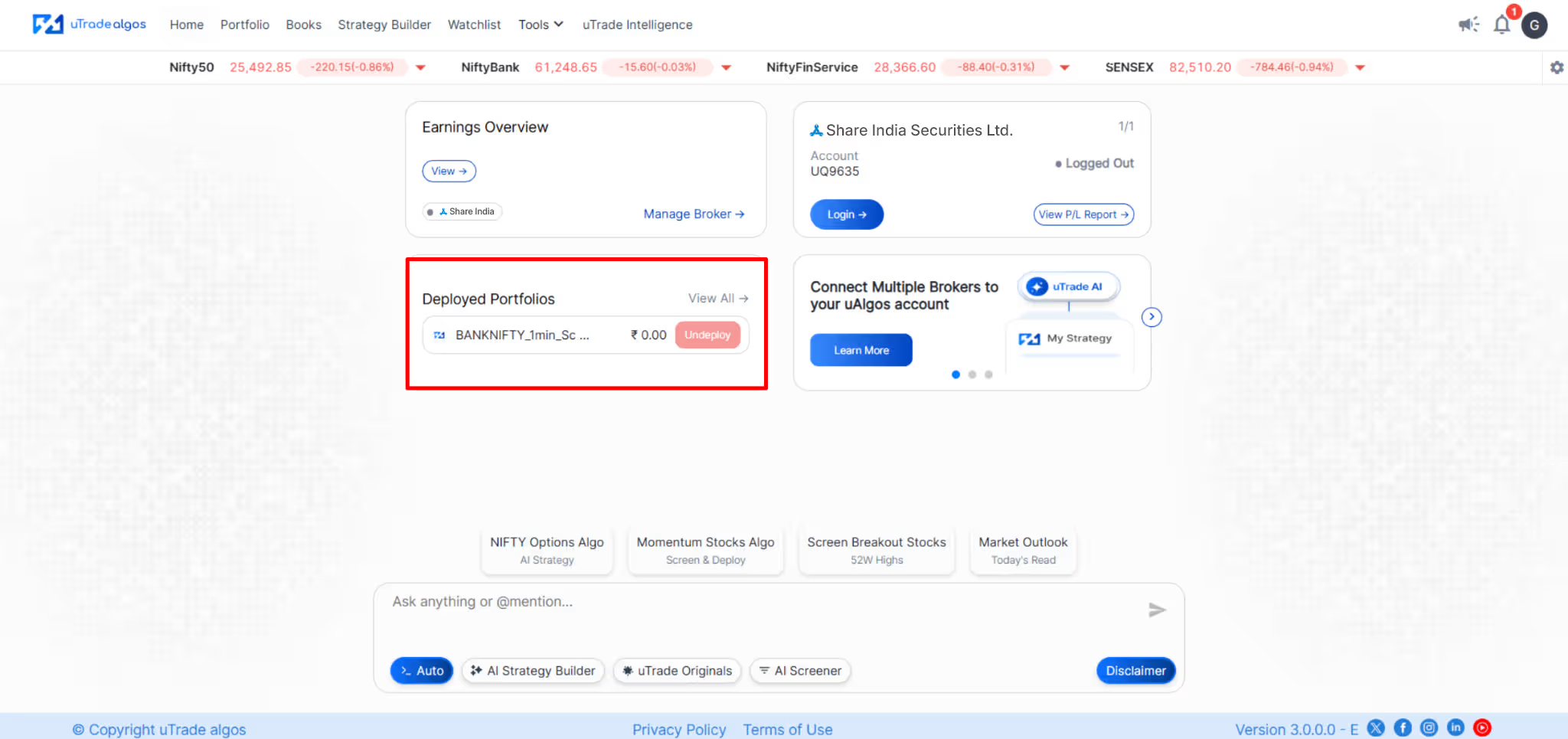
You can also access the details of the deployed algo for the forward test by clicking on the card.
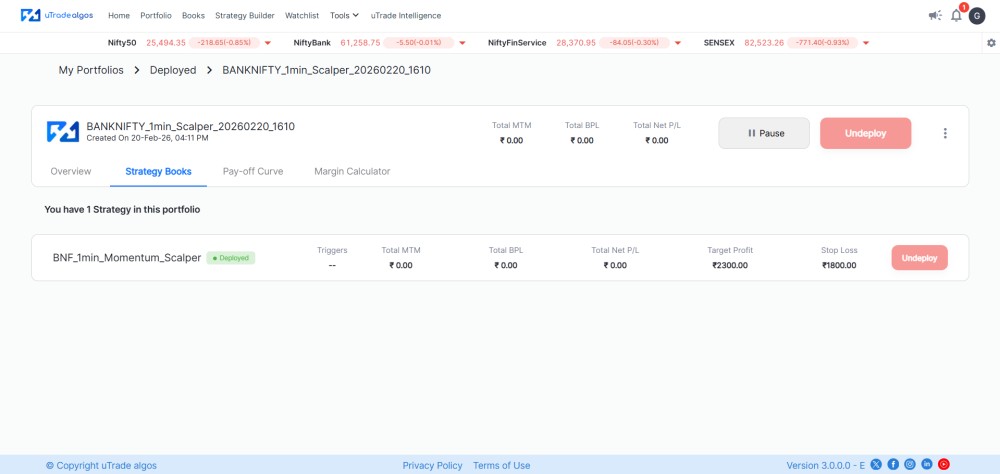
The strategy now monitors live market data, generates signals according to its logic, and simulates trade execution in real-time.
Step 6: Analyze and Iterate
As you run your forward testing, analyze performance critically:
What to Look For:
- Does the strategy enter and exit when expected?
- Are position sizes appropriate for risk tolerance?
- Do stop losses trigger at correct levels?
- Does the strategy adapt to changing volatility?
- Are there unexpected losses or excessive drawdowns?
- How does performance compare to backtest results?
Common Issues Discovered:
- Stop losses too tight, getting stopped out frequently
- Entry signals too aggressive, overtrading
- Exit logic too conservative, leaving profits on the table
- Strategy ineffective in current market regime
- Timing issues causing missed opportunities
Iteration Process: If forward testing reveals problems, undeploy the strategy, modify parameters, and forward test again. Repeat this cycle until behavior matches expectations. uTrade Algos makes iteration quick—edit, save, redeploy takes minutes.
Testing Duration: Run forward testing for at least several days across different market conditions. One good day doesn't validate a strategy; consistent performance across varied scenarios does.
Step 7: Transition to Live Trading
When forward testing demonstrates consistent, acceptable performance, you're ready for live deployment.
Pre-Live Checklist:
- Forward test ran successfully for multiple days
- Strategy performed acceptably across different market conditions
- You understand why winners win and losers lose
- Risk per trade aligns with your capital and risk tolerance
- You're emotionally prepared to see real money fluctuate
- Connected broker has sufficient margin for strategy requirements
Switching to Live:
- Undeploy the forward testing version
- Click Deploy on the same strategy
- Select your connected live broker
- Start with smaller multiplier (1x) than you used in forward testing
- Set exit parameters conservatively
- Click Deploy Now
Your strategy now trades with real capital. Monitor closely for the first few days, ensuring live behavior matches forward testing behavior. Some differences (slippage, execution delays) may occur, but overall performance patterns should align.
Gradual Scaling: After a successful live performance with small position sizes, gradually increase the multiplier. Scale up incrementally—1x to 2x to 3x—validating performance at each level before increasing further.
Conclusion
The distance between an untested idea and a profitable strategy isn't measured in code complexity—it's measured in validation rigor. Forward testing on uTrade Algos provides that rigor without financial cost, letting you discover what works now, not what worked last year. You've learned the complete workflow: choose strategies, deploy to simulation, analyze performance, iterate until confident, then transition to live trading. The software for forward testing is ready. Your strategies are waiting. Test first, trade second—that's how professionals approach algorithmic trading.
Frequently Asked Questions (FAQs)
How long should I forward test a strategy before going live?
Forward test for at least 5-7 trading days across different market conditions. Longer testing provides better confidence, especially for strategies making fewer trades. Ensure you've tested through both trending and range-bound sessions before deploying with real capital.
Can I forward test multiple strategies simultaneously on uTrade Algos?
Yes. uTrade Algos supports multiple concurrent forward tests. Deploy several strategies simultaneously to compare performance, test different approaches, and build a diverse strategy portfolio. Each forward test operates independently without interference.
Does forward testing consume real margin or require broker connection?
No. Forward testing requires zero margin and no broker connection. It's completely free simulation using uTrade Algos' built-in Forward Testing option. You can test strategies even without connecting any live trading account.
What's the difference between forward testing and backtesting on uTrade Algos?
Backtesting analyzes strategy performance using historical data. Forward testing runs strategies in real-time with current market data in a simulated environment. Forward testing reveals how strategies perform today, while backtesting shows what worked yesterday.
Can I modify a strategy while it's deployed in forward testing?
Not directly while deployed. To modify parameters, undeploy the forward test, edit the strategy settings, save changes, and redeploy for forward testing. The platform makes this iteration cycle quick—typically under two minutes
.avif)
.avif)
.avif)
.avif)
.avif)
.avif)
.avif)

.svg)





