

Introduction
A single strategy rarely tells the whole story of your trading. One strategy, one outcome — win or lose. But professional algo traders think differently. They build portfolios of strategies — diversified, structured, and designed to perform across different market conditions.
uTrade Algos brings this exact capability to retail traders through its Portfolio feature, where you can combine multiple custom algo strategies under one roof, set unified exit parameters, backtest the entire portfolio, and deploy it live — all without writing a single line of code. This guide shows you exactly how to build yours from scratch.
How to Develop a Custom Algo Trading Portfolio on uTrade Algos
Step 1: Go to Portfolio and Create a New Portfolio

Log in to your uTrade Algos account and click on Portfolio in the top navigation menu.
The Created tab will open by default, showing all portfolios you have previously built. To start fresh, click the Create New Portfolio button at the top-right corner of the screen.
Step 2: Add Portfolio Details
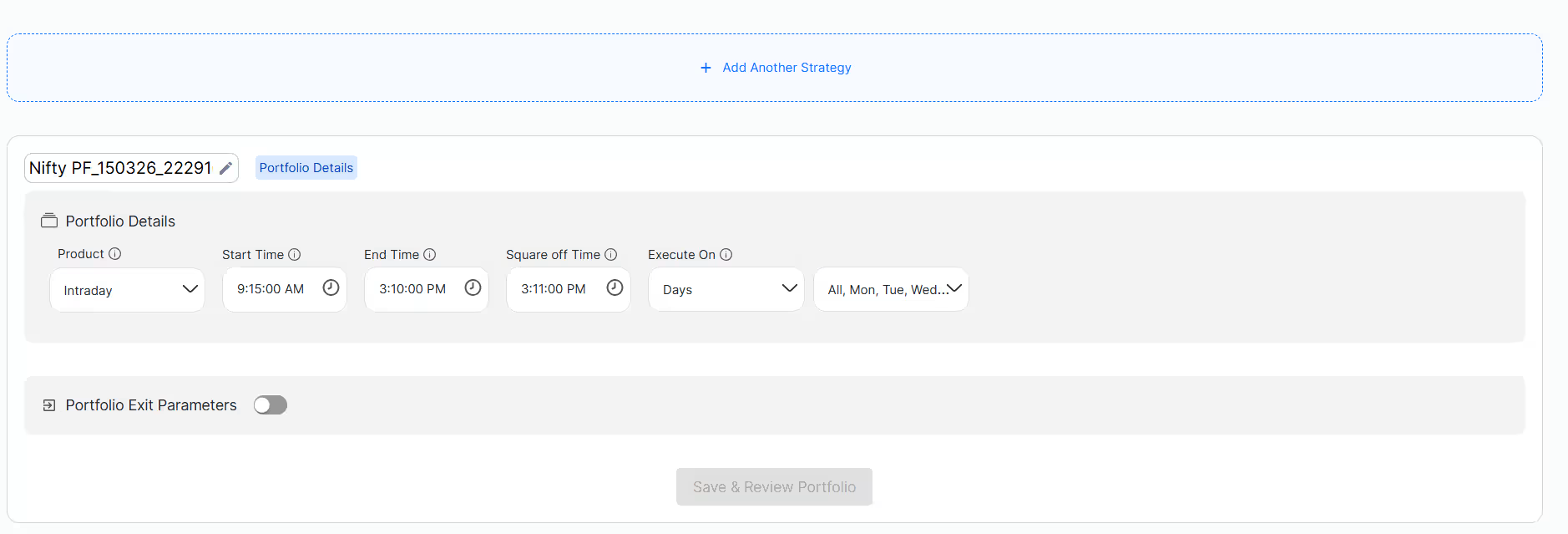
A setup screen will appear where you define the portfolio-level settings. Fill in the following:
- Portfolio Name — Give your portfolio a clear, identifiable name
- Product — Select the product type (Intraday)
- Start Time — The time from which the portfolio strategies can begin executing
- End Time — The time after which no new entries will be taken
- Square Off Time — The time by which all open positions will be automatically squared off
- Execute on Days — Select the days of the week on which the portfolio should run
- Portfolio Exit Parameters — Set overall risk controls such as maximum loss limits or profit targets at the portfolio level
These settings apply across all strategies within the portfolio, giving you centralised control over how and when the entire portfolio operates.
Step 3: Add Your First Custom Strategy
Once the portfolio details are set, click on the Add Another Strategy option. This opens the strategy builder, where you can build a fully custom options or equity strategy from scratch.

Define your instrument, strike selection, entry conditions, exit rules, and any other strategy-specific parameters, and then save the strategy.

Once you have added the strategy, click Save or Review Portfolio to add it to the portfolio.
Step 4: Add More Strategies to the Same Portfolio
One of the key advantages of the portfolio feature is that you are not limited to a single strategy.
Click Add Another Strategy again to build and add another strategy to the same portfolio.

You can keep adding as many custom strategies as you need — each one independent in its logic but unified under the same portfolio settings and exit parameters. This is how you build a truly diversified algo trading portfolio within a single deployment.
Step 5: Save and View Your Created Portfolio

After adding all your strategies, save the portfolio. It will now appear in the Created tab under the portfolio name you assigned. You can see all your created portfolios listed here, each showing the strategies contained within and their current status.
Step 6: Explore Portfolio Details

Click on the portfolio you created to open its detailed view. Inside, you will find:
- Overview — A summary of the portfolio's structure and settings
- Strategy Details — Individual strategy cards showing the logic and parameters of each strategy inside the portfolio
- Payoff Curve — A visual representation of the combined risk-reward profile of the entire portfolio
- Margin Calculator — An estimate of the total margin required to deploy the portfolio live
These tools help you evaluate whether the portfolio is structured the way you intend before you backtest or deploy it.
Step 7: Backtest and Deploy the Portfolio

Once you have reviewed the portfolio details, click the Backtest Portfolio button to run a historical performance simulation across all strategies in the portfolio simultaneously. 4
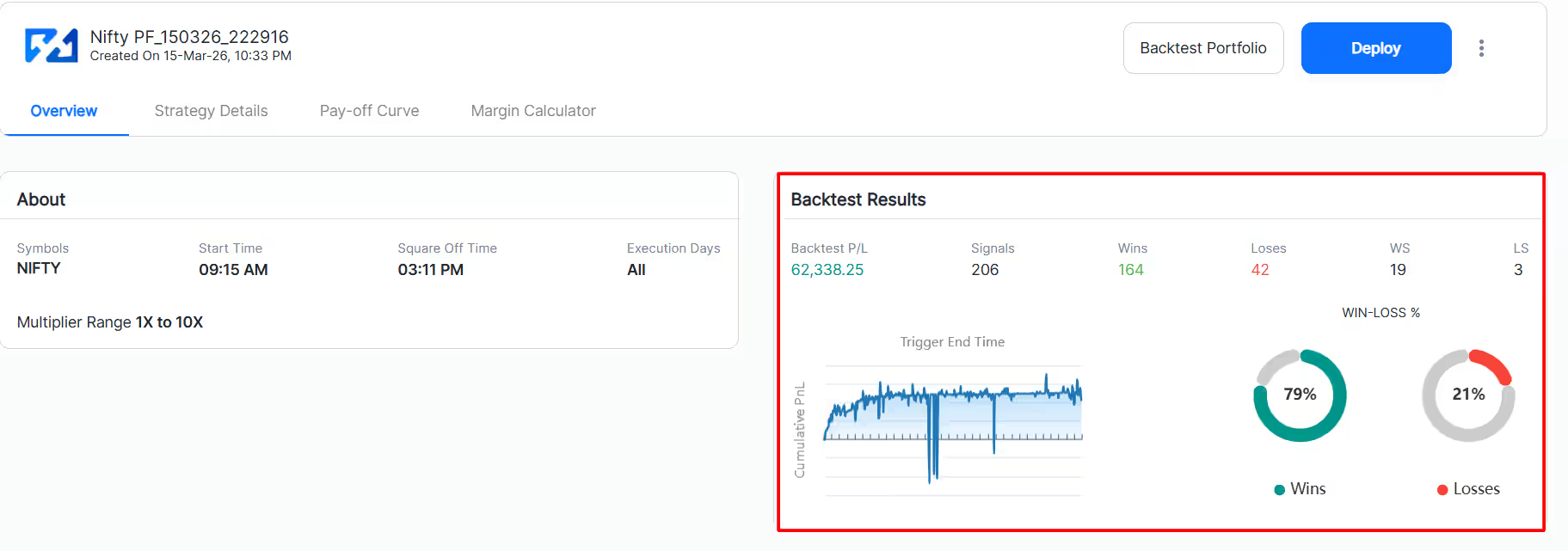
This gives you a combined performance view — not just individual strategy results. When you are satisfied with the backtest results, click the Deploy button on the portfolio detail page to take it live. The portfolio will execute across your connected broker with all the settings you defined.
Step 8: Bookmark Portfolios and Access Favourites

If you want to save specific portfolios — either your own created ones or expert-built pre-built portfolios from uTrade Originals — click the Bookmark icon on any strategy card.
All bookmarked portfolios will appear in the Favourites tab, giving you quick access to the ones you use or refer to most frequently.
Conclusion
Building a custom algo trading strategy portfolio on uTrade Algos is how you move from placing individual strategy bets to running a structured, systematic trading operation. You define the rules once, add the strategies that fit your view, backtest the whole system, and deploy it with a single click.
The portfolio feature brings together everything — custom strategy building, combined backtesting, payoff analysis, and live deployment — in one place. If you have been running strategies one at a time, it is time to think bigger. Build your first portfolio today and see what a coordinated approach to algo trading actually looks like.
Suggested Reading: Why Diversification Matters in Automated Trading Portfolios
Frequently Asked Questions (FAQs)
What is a strategy portfolio on uTrade Algos?
A strategy portfolio on uTrade Algos is a grouped collection of custom algo trading strategies managed under shared settings — including trading hours, square-off time, and portfolio-level exit parameters — that can be backtested and deployed together as a unified system.
How many strategies can I add to one portfolio?
You can add multiple strategies to a single portfolio by using the Add Another Strategy option repeatedly. There is no fixed cap mentioned — you can build as comprehensive a portfolio as your trading plan requires.
Can I backtest the entire portfolio at once?
Yes. The Backtest Portfolio button on the portfolio detail page runs a combined historical simulation across all strategies in the portfolio simultaneously, giving you a unified performance view rather than individual strategy results.
What are portfolio exit parameters?
Portfolio exit parameters are risk controls set at the portfolio level — such as a maximum loss limit or profit target — that trigger an automatic square-off of all positions across the entire portfolio when the defined threshold is reached.
Can I save expert pre-built portfolios from uTrade Originals to favourites?
Yes. You can bookmark strategy cards from both your own created portfolios and from uTrade Originals expert-built strategies. All bookmarked items appear under the Favourites tab for quick access
.avif)
.avif)
.avif)

.avif)
.avif)
.avif)

.svg)





