
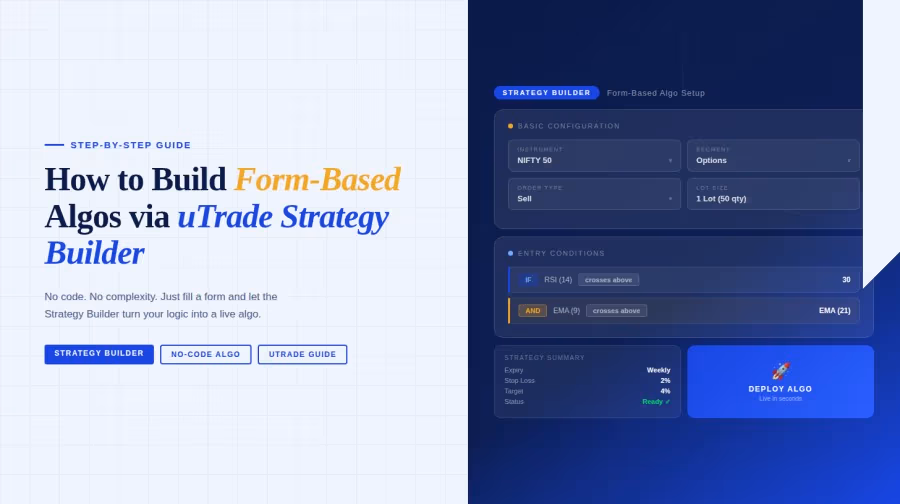
Introduction
You don't need to code to build professional trading algorithms. That statement might sound impossible to anyone who's tried traditional algo trading, but uTrade Strategy Builder proves it's real.
This form-based algo trading strategy tool transforms complex coding into simple form-filling. Whether you're building an option trading strategy or an equities trading strategy, the process is visual, intuitive, and fast.
In this walkthrough, you'll learn exactly how to create your first algo trading strategy using uTrade Algos—from login to live deployment—without writing a single line of code.
Understanding Strategy Builder Architecture
Before diving into the step-by-step process, understanding the platform's structure helps you navigate more efficiently.
Three Core Components
uTrade Algos organizes strategy creation around three elements:
- Strategy Settings: Define what you're trading (instrument, symbol, product type)
- Leg Configuration: Specify positions (buy/sell, strike selection, quantities)
- Exit Parameters: Control when and how positions close (targets, stops, time-based exits)
Options vs Equities Workflows
The platform offers separate workflows for option trading strategies and equities trading strategies. While the interface looks similar, options strategies require additional inputs like expiry dates, strike prices, and option types (call/put).
Visual Payoff Analysis
Unique to uTrade Strategy Builder is the integrated payoff curve visualization. As you configure legs, you see the risk-reward profile graphically, helping you understand maximum profit, maximum loss, and breakeven points before deployment.
Step-by-Step: Creating Your First Form-Based Algo
Step 1: Login or Create Your Account
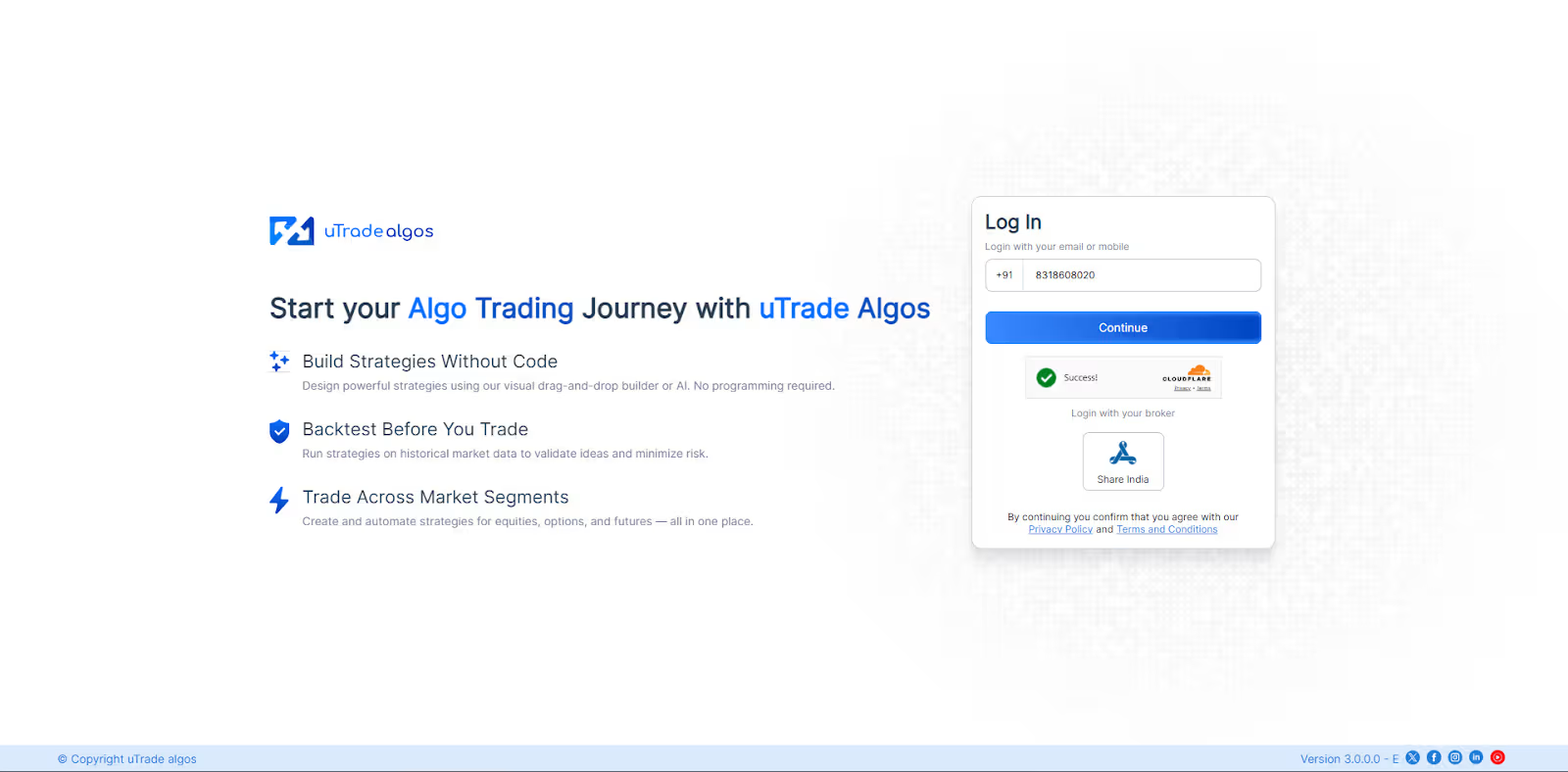
Start by visiting the uTrade Algos platform. If you're new, click Sign Up and complete the registration process. Existing users simply log in with their credentials. The platform requires basic information and a broker connection for live trading.
Once logged in, you land on the main dashboard—your command center for all algorithmic trading activities.
Step 2: Access uTrade Strategy Builder
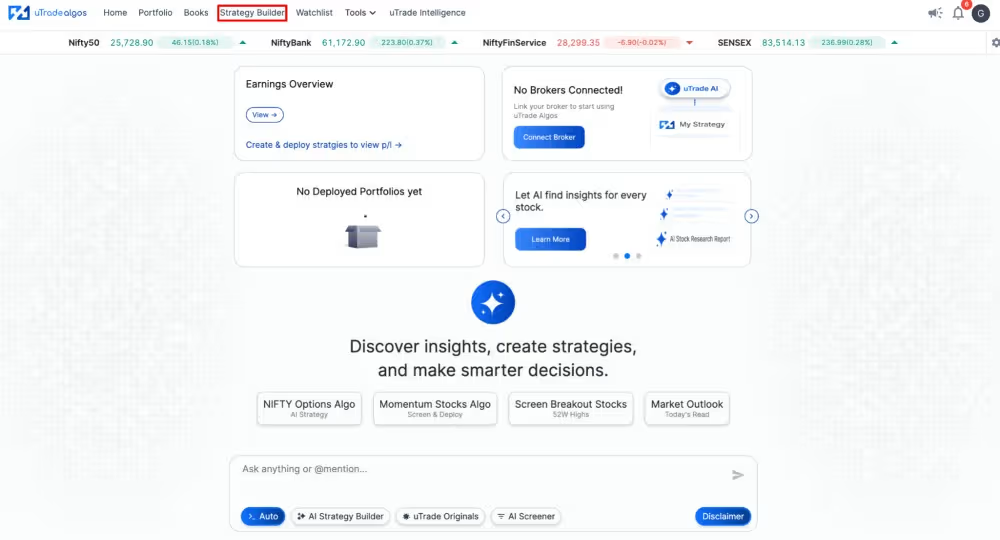
From the uTrade Algos dashboard (Home screen), look at the top navigation panel. You'll see several options, including Portfolio, Books, and Strategy Builder. Click on Strategy Builder.
This opens the strategy creation interface—a clean, form-based environment where all algo development happens. No code editors, no syntax to memorize, just structured forms waiting for your input.
Step 3: Choose Your Strategy Type
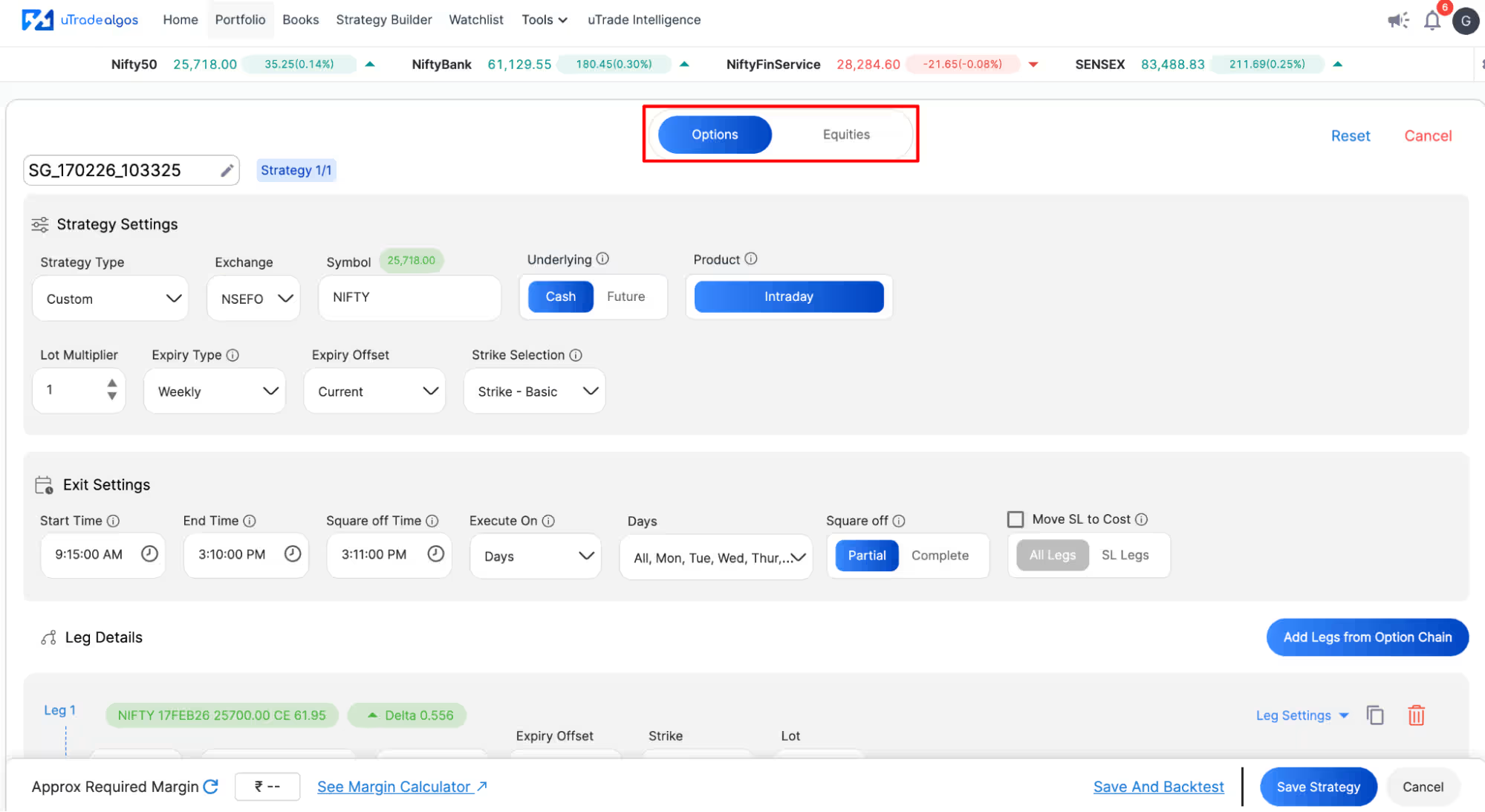
The first decision point appears immediately: Options or Equities. This choice determines which form fields appear in subsequent steps.
Select Options if you're building:
- Straddles or strangles
- Iron condors or butterflies
- Credit or debit spreads
- Any multi-leg option strategy
Select Equities if you're creating:
- Stock-based momentum strategies
- Breakout or breakdown systems
- Mean reversion approaches
- Sector or basket trading
For this walkthrough, let's assume you select Options to build an option trading strategy. The interface updates to show options-specific configuration fields.
Step 4: Configure Strategy Settings
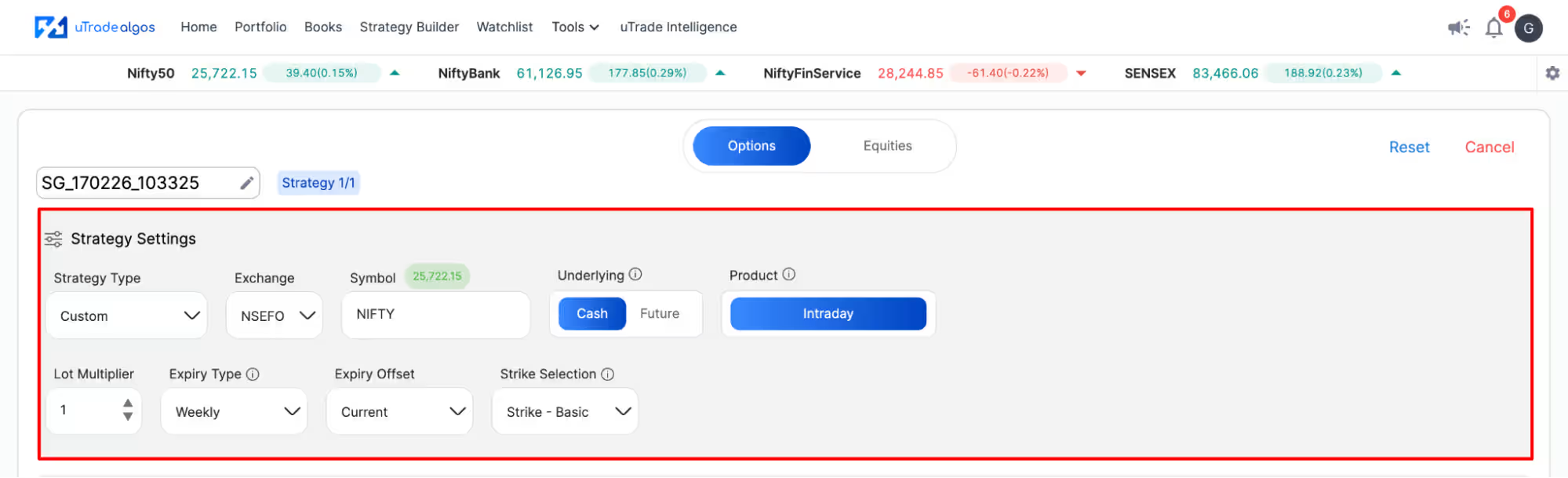
Now you're looking at the Strategy Settings section—the foundation of your algo trading strategy. This form captures essential details about what you're trading and how.
Key fields to complete:
Strategy Type: Choose from templates like straddle, strangle, iron condor, or custom. This pre-populates certain defaults based on common strategy structures.
Exchange: Select NSE (National Stock Exchange) for Indian markets or other exchanges, depending on your location and broker support.
Symbol: Type the underlying instrument name. For example, NIFTY, BANKNIFTY, RELIANCE, or any stock/index you want to trade.
Underlying: Choose between Cash (spot market) or Future (futures contract). This affects pricing, margins, and execution logic.
Product Type:
- Intraday: Positions square off on the same day
- Carryforward: Positions held overnight or multiple days
Expiry Type: Define which expiry you're targeting—current week, next week, monthly, or specific dates. This is crucial for option trading strategies where time decay matters.
Strike Selection: Specify how strikes are chosen—ATM (at the money), ITM (in the money), OTM (out of the money), or specific strike distances from spot price.
Each selection narrows your strategy's focus, transforming vague ideas into concrete trading parameters.
Step 5: Define Exit Settings
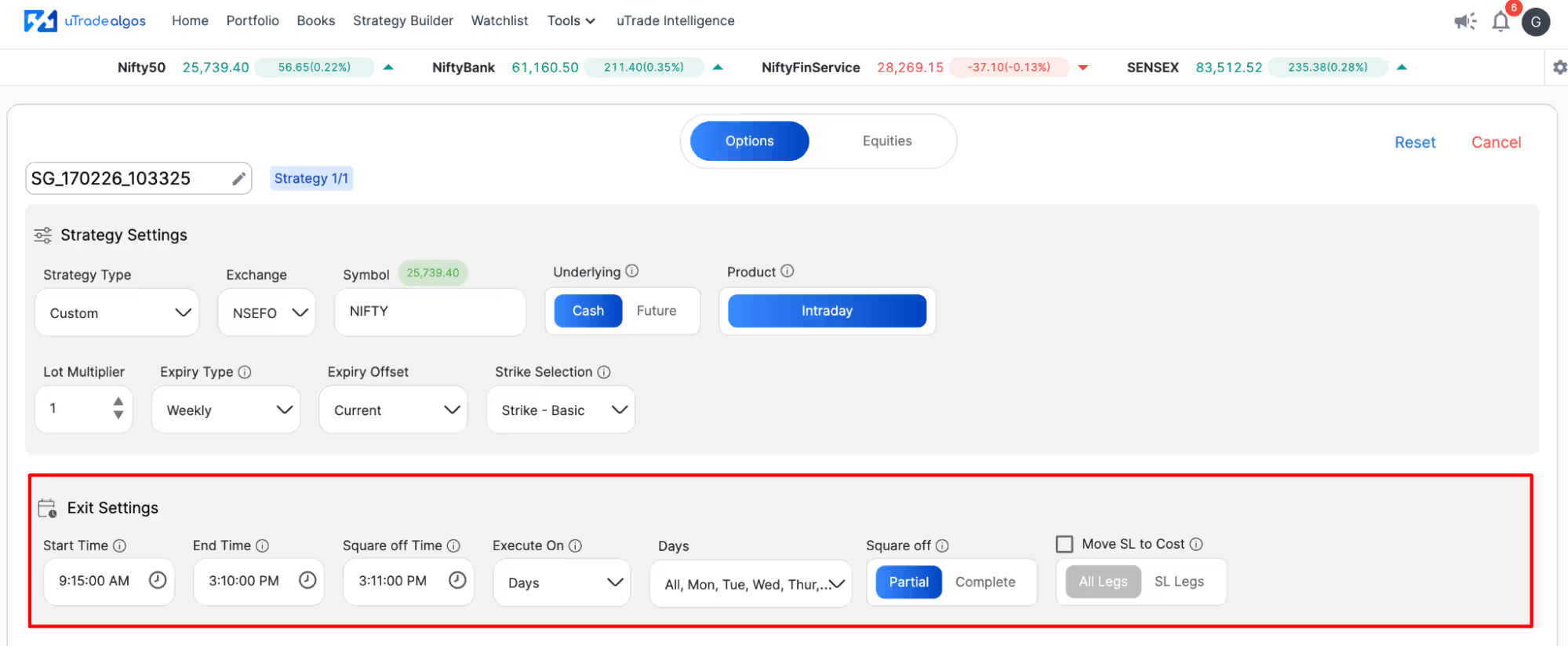
Timing is everything in algo trading. The Exit Settings section controls when your strategy becomes active and when it stops trading.
Start Time: When should the algo begin placing trades? For example, 09:20 AM (after market opening volatility settles).
End Time: Last possible time for new entries. For instance, 03:00 PM to avoid late-day surprises.
Square-Off Time: Forced exit time when all positions close regardless of profit/loss. Critical for intraday strategies. Example: 03:15 PM, ensuring everything closes before market close at 03:30 PM.
Trading Days: Select which weekdays the strategy should execute. Maybe you avoid Mondays due to weekend gap risk, or only trade mid-week when volatility is predictable.
Partial vs Complete Square-Off: Decide whether positions exit all at once or can be partially closed. Partial exits allow taking profits on winning legs while letting others run.
These timing controls prevent your form-based algo trading strategy from operating outside intended windows, crucial for risk management.
Step 6: Add Leg Details
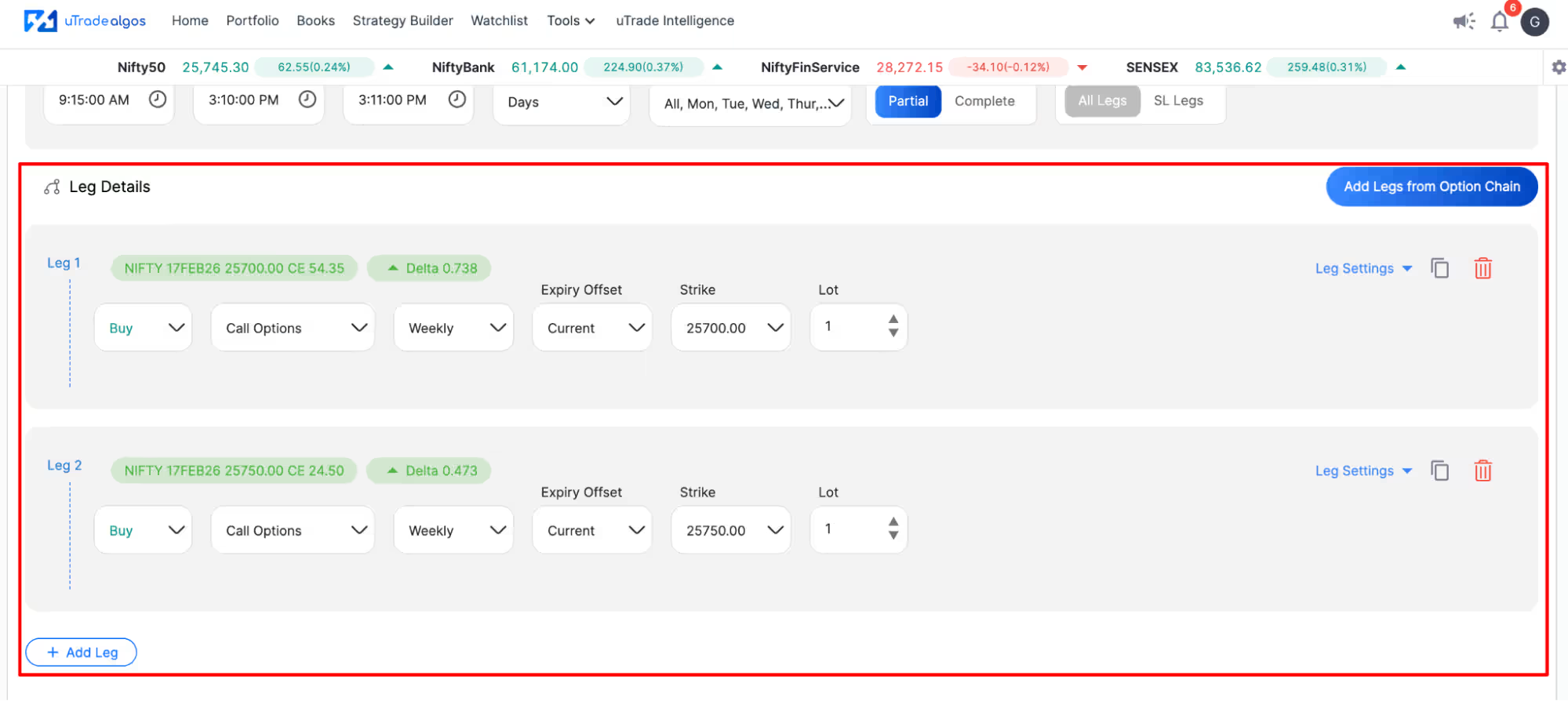
This is where your option trading strategy takes shape. A "leg" represents one position in your overall strategy. Simple strategies have one leg; complex ones use multiple legs simultaneously.
For each leg, specify:
Buy or Sell: Are you buying (paying premium) or selling (receiving premium)? This determines if you're a net premium payer or receiver.
Call or Put: Choose the option type based on market view. Calls for bullish, puts for bearish, or combinations for neutral strategies.
Expiry: Select which expiry cycle this leg uses—current week, next week, or specific dates.
Strike Price: Define the exact strike or use relative selection (ATM +2, ATM -1, etc.). For dynamic strategies, relative strikes adjust automatically as the underlying moves.
Lot Size: How many contracts per trade? This directly affects position sizing and capital requirements.
Adding Multiple Legs: Click Add Leg to include additional positions. For an iron condor, you'd add four legs (buy call, sell call, sell put, buy put). For a straddle, two legs (buy call, buy put at same strike).
The platform shows all legs simultaneously, making it easy to visualize the complete structure of your algo trading strategy.
Step 7: Configure Strategy Exit Parameters
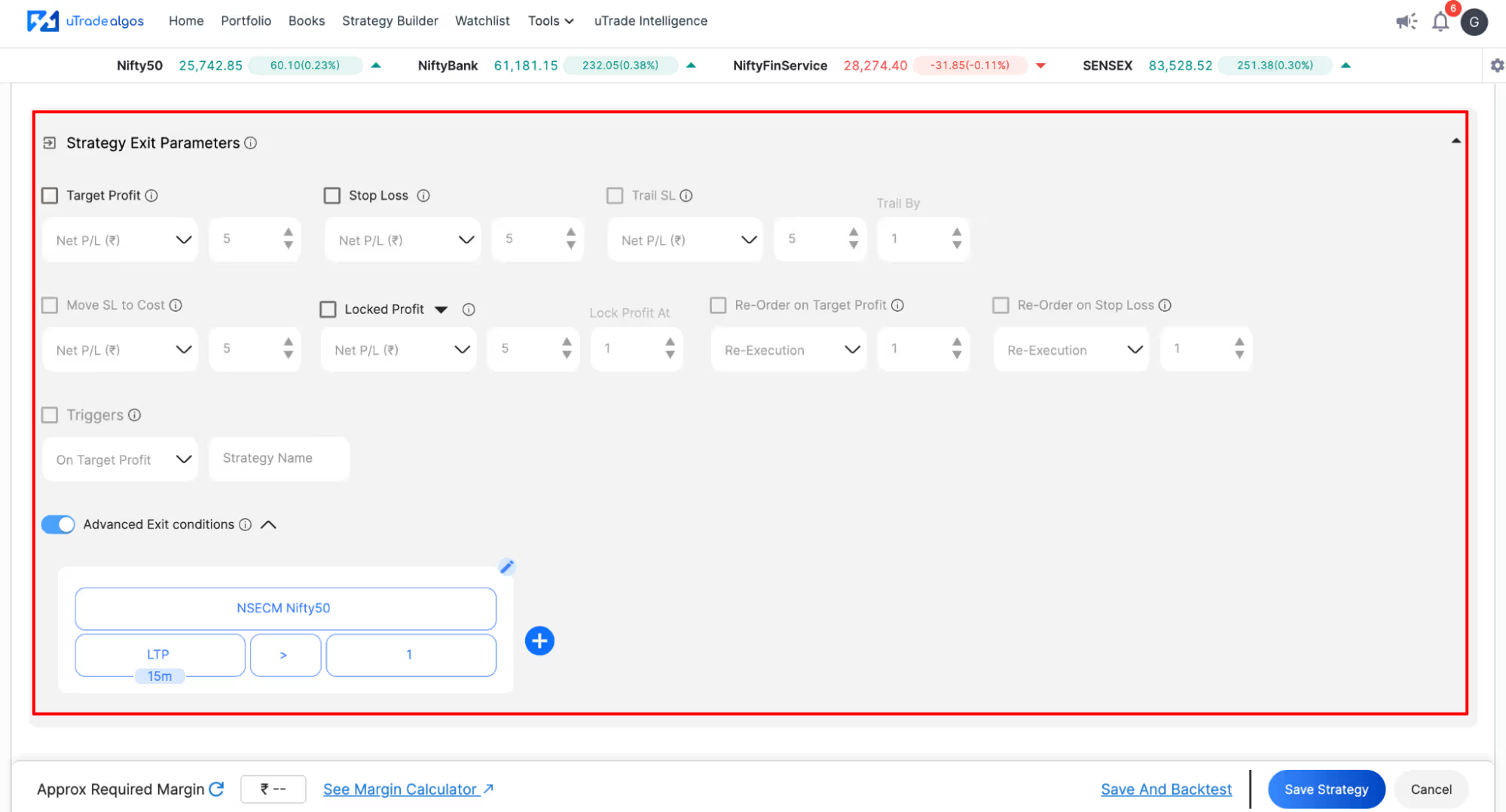
Risk management separates profitable algos from disasters. The Exit Parameters section is where discipline gets encoded into your strategy.
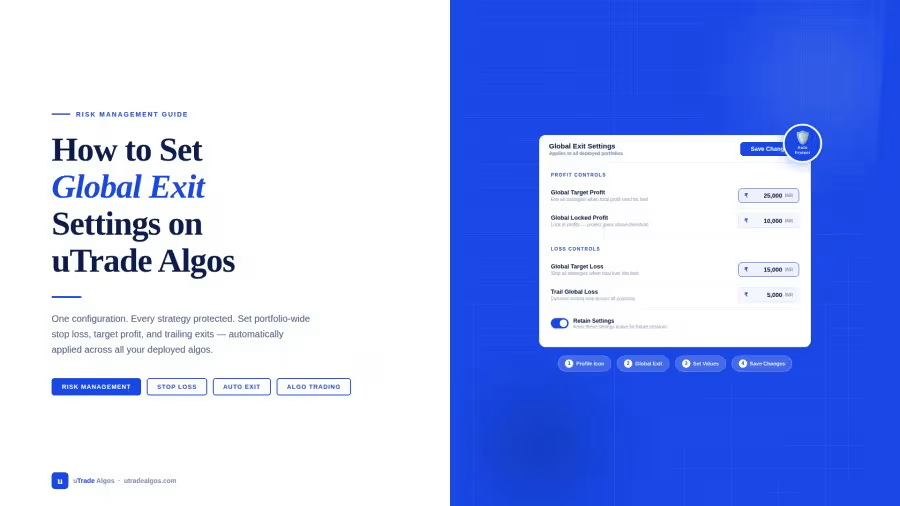
Target Profit: Define profit level triggering automatic exit. Example: ₹5,000 per strategy execution. Once reached, all legs close, locking in gains.
Stop Loss: Maximum acceptable loss before forced exit. Example: ₹3,000. This caps downside, preventing catastrophic losses during adverse moves.
Trailing Stop Loss: Dynamic stop that moves with profit. If you're up ₹4,000 with a ₹1,000 trailing stop, the exit trigger moves to ₹3,000 profit. This protects gains while allowing further upside.
Locked Profit: Once profit reaches a certain threshold, lock in a minimum. Example: If profit hits ₹6,000, lock ₹3,000 by setting stop at breakeven plus locked amount. You can't lose from that point.
Re-Order Conditions: Should the strategy re-enter after exiting? Define conditions like time-based (wait 30 minutes) or signal-based (wait for new indicator trigger). Prevents overtrading.
Advanced Exit Conditions: Optional custom exits based on technical indicators, time decay, volatility changes, or underlying price movements. For sophisticated traders wanting granular control.
These parameters transform your form-based algos from simple entry signals into complete trading systems with professional risk management.
Step 8: Backtest & Analyze
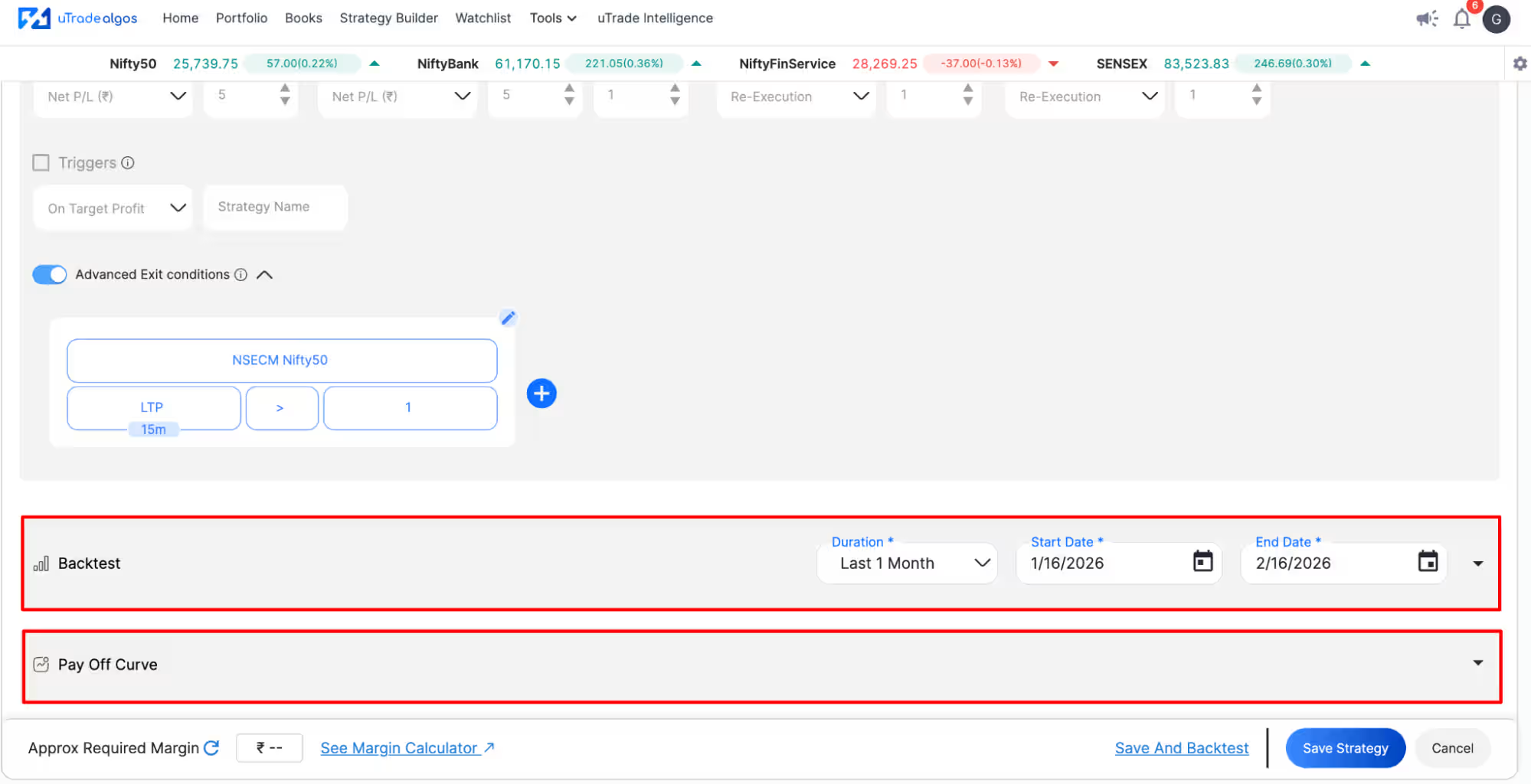
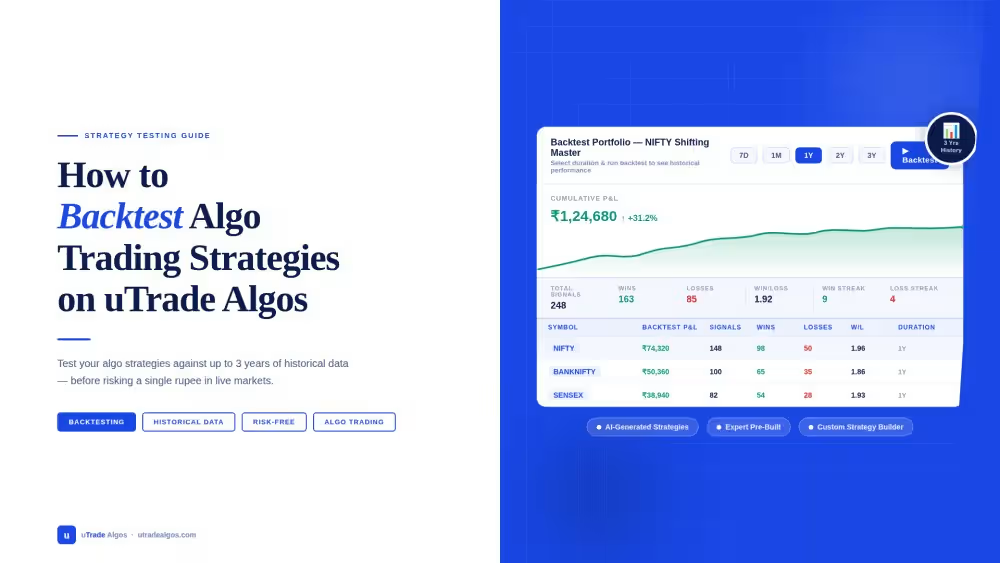
Before risking real capital, validate your algo trading strategy against historical data. uTrade Strategy Builder integrates backtesting directly into the creation workflow.
Adding Backtest Data: Specify the date range for historical testing. Example: Last 3 months, last year, or custom periods matching your strategy's timeframe.
Running the Backtest: Click Backtest Strategy. The platform simulates how your strategy would have performed historically, executing all entry and exit logic exactly as configured.
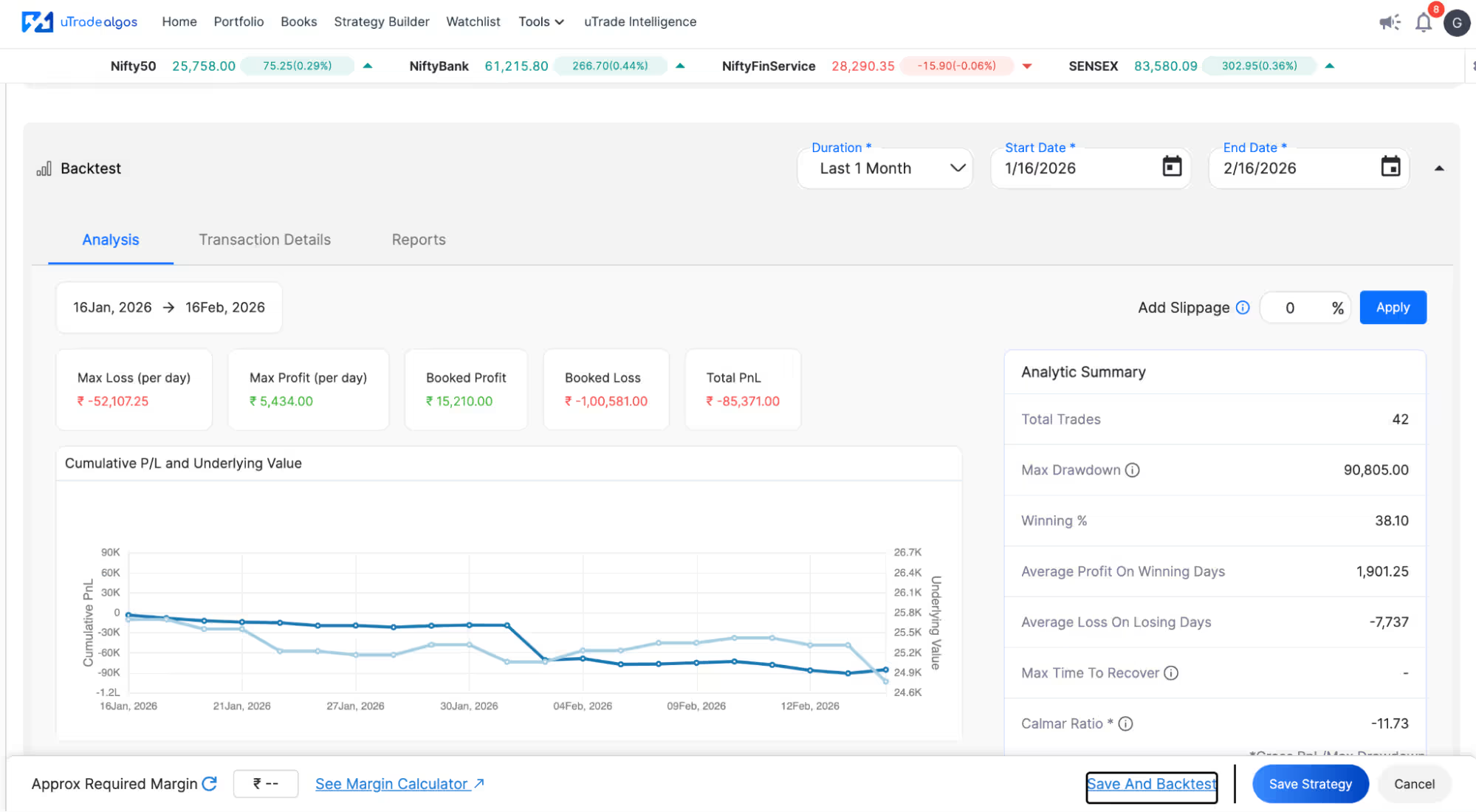
Analyzing Results: Review key metrics:
- Total return (profit/loss)
- Win rate (percentage of profitable trades)
- Maximum drawdown (largest peak-to-trough decline)
- Sharpe ratio (risk-adjusted returns)
- Average profit per trade
- Number of trades executed
Viewing Payoff Curve:
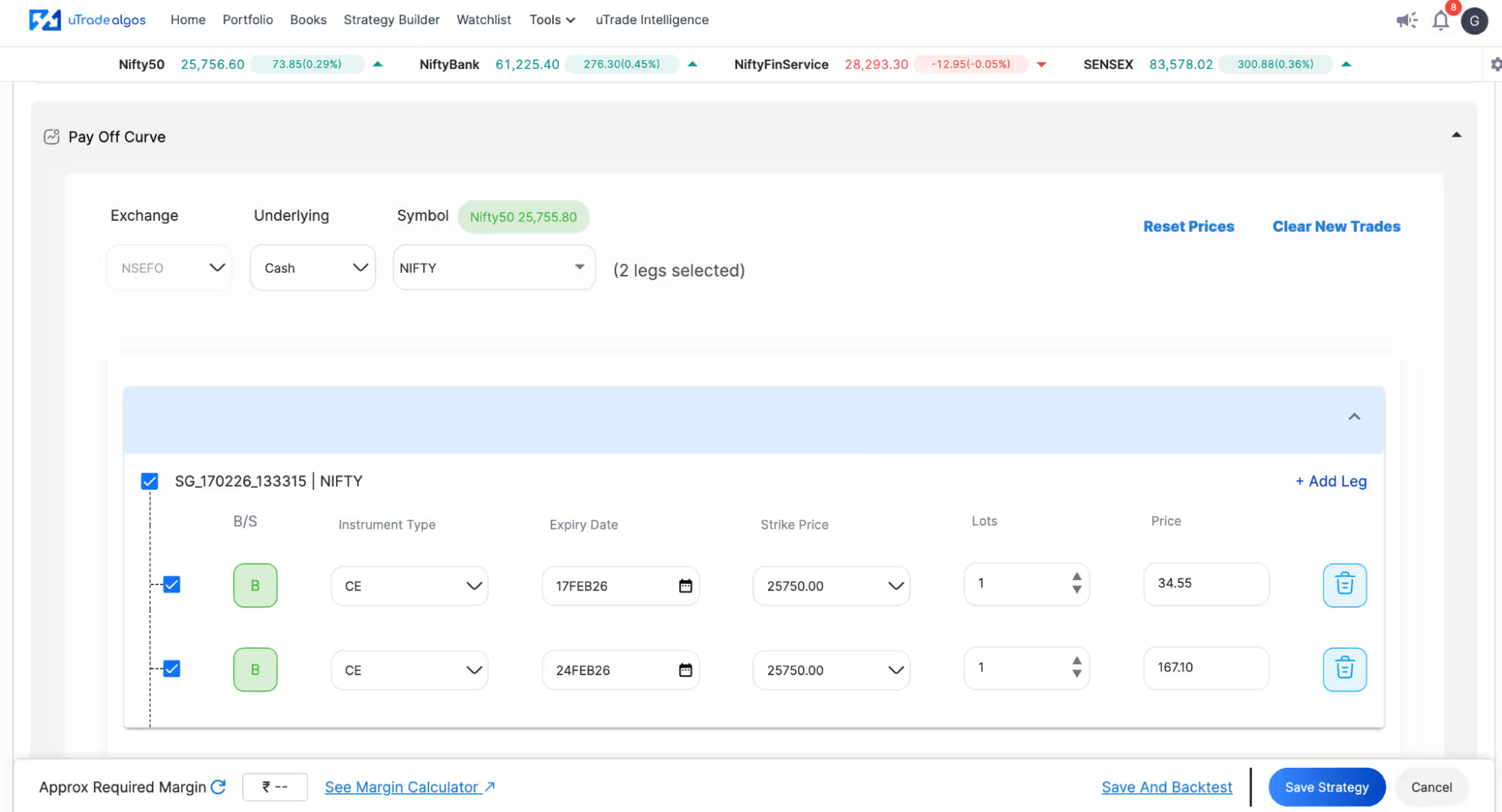
The graphical payoff diagram shows your risk-reward profile at expiry. For option trading strategies, this visualizes maximum profit, maximum loss, and breakeven points across different underlying prices.
Checking Margin Requirements:
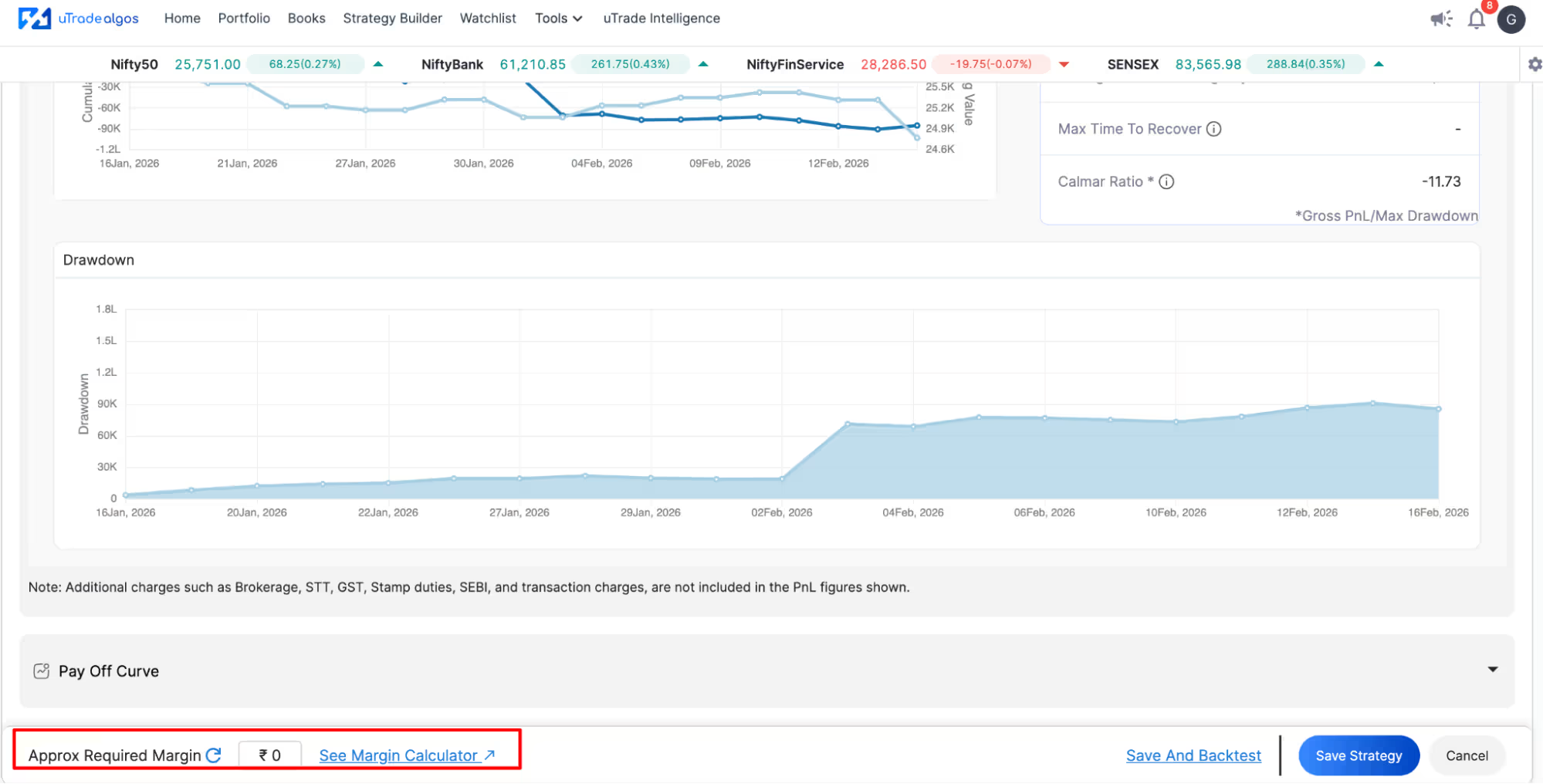
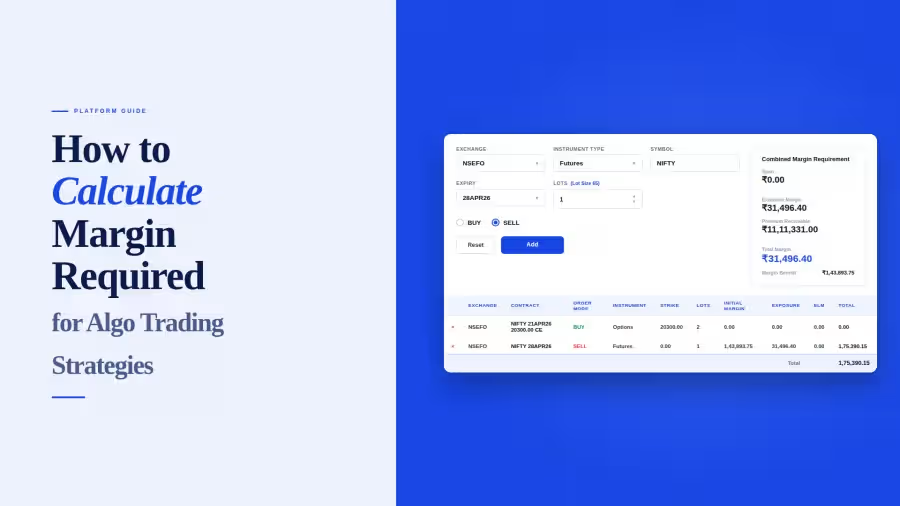
See the Approximate Margin Required for your strategy. This ensures you have sufficient capital before deployment. Margin varies by strategy complexity, underlying volatility, and broker rules.
Iterating Based on Results: Don't like the backtest performance? Modify parameters—change strikes, adjust stop losses, alter entry times—then backtest again. This iterative process helps optimize before going live.
Step 9: Save or Deploy Your Strategy
You've built, configured, and validated your form-based algo trading strategy. Now decide: save for later or deploy immediately?
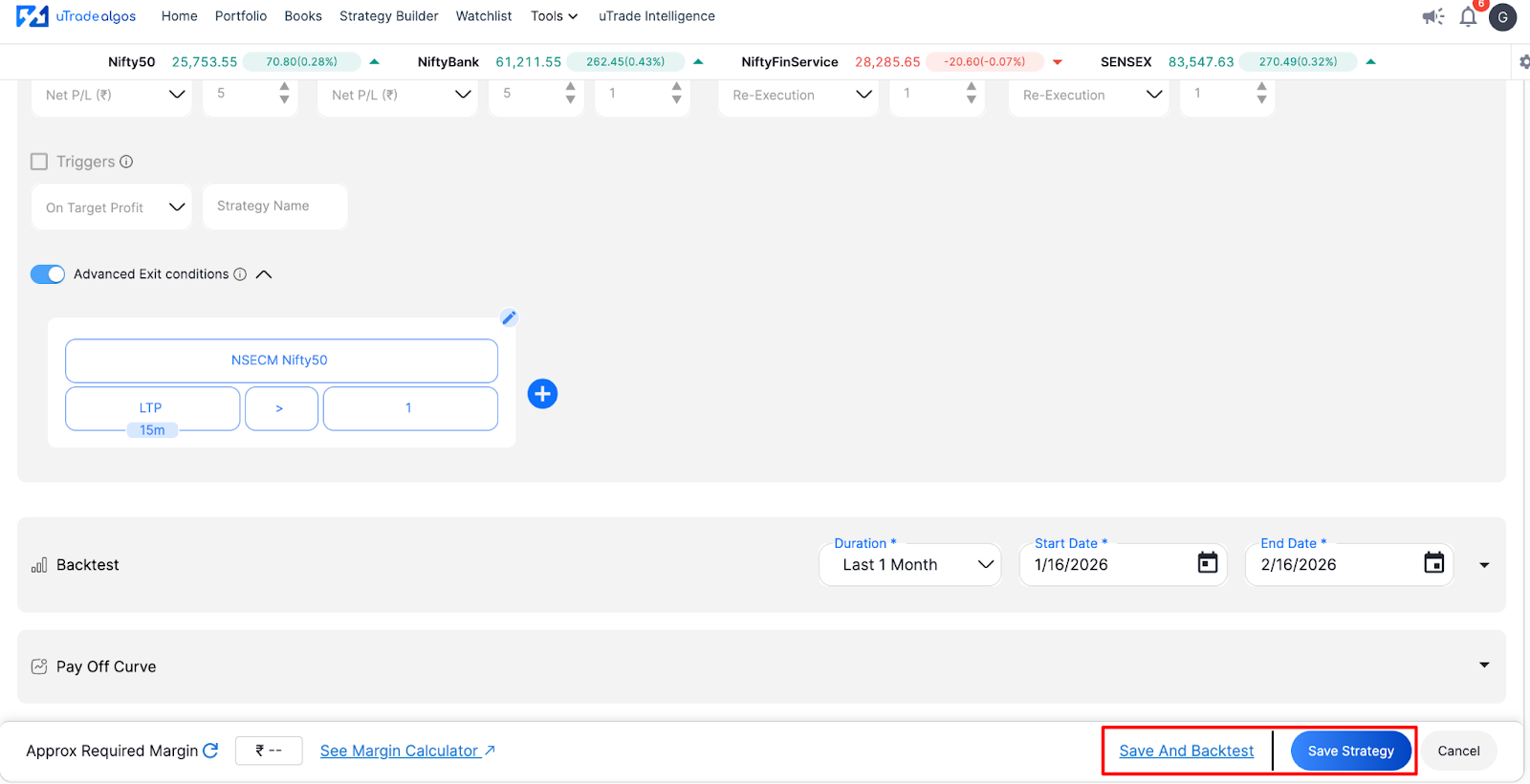
Save & Backtest: Stores the strategy in your portfolio without deploying. Use this when you want to compare multiple variations or wait for specific market conditions before going live.
Save Strategy: Permanently saves to your uTrade Algos portfolio. You can deploy it anytime with one click, making it easy to maintain a library of strategies for different market scenarios.
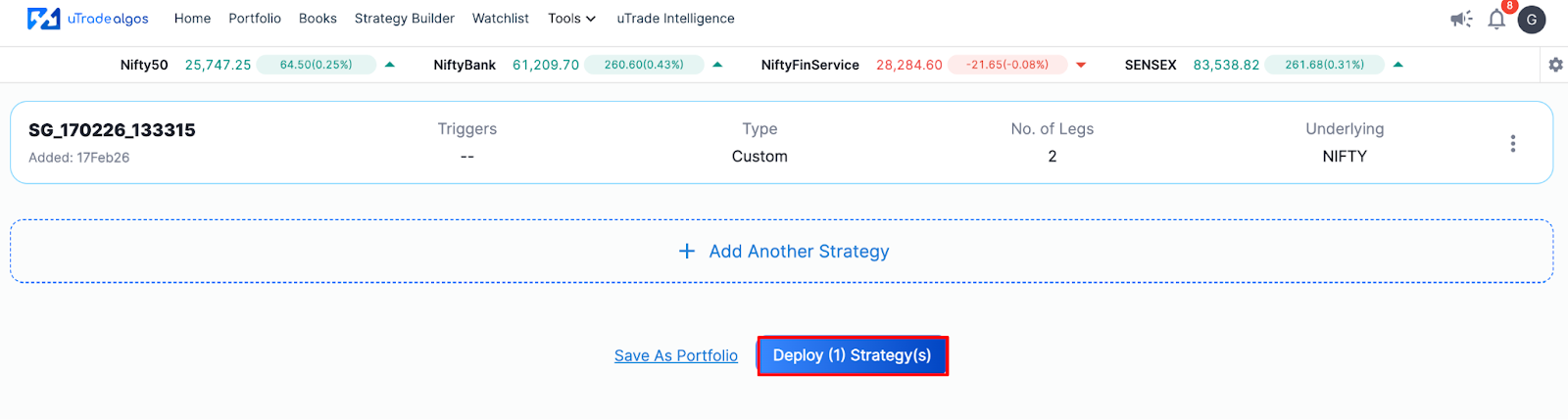
Deploy Strategy: Goes live immediately. The strategy connects to your linked broker and begins executing trades based on configured parameters. Real money, real markets, real results.
One-Click Deployment: Unlike traditional setups requiring API configuration and server management, uTrade Strategy Builder handles everything. Click deploy, confirm broker connection, and your algo is active.
Suggested Reading: How to Deploy Your First AI Algo with uTrade AI Strategy Builder
Creating Equities Trading Strategies: Key Differences
While we focused on options, creating an equities trading strategy follows the same workflow with slight variations.
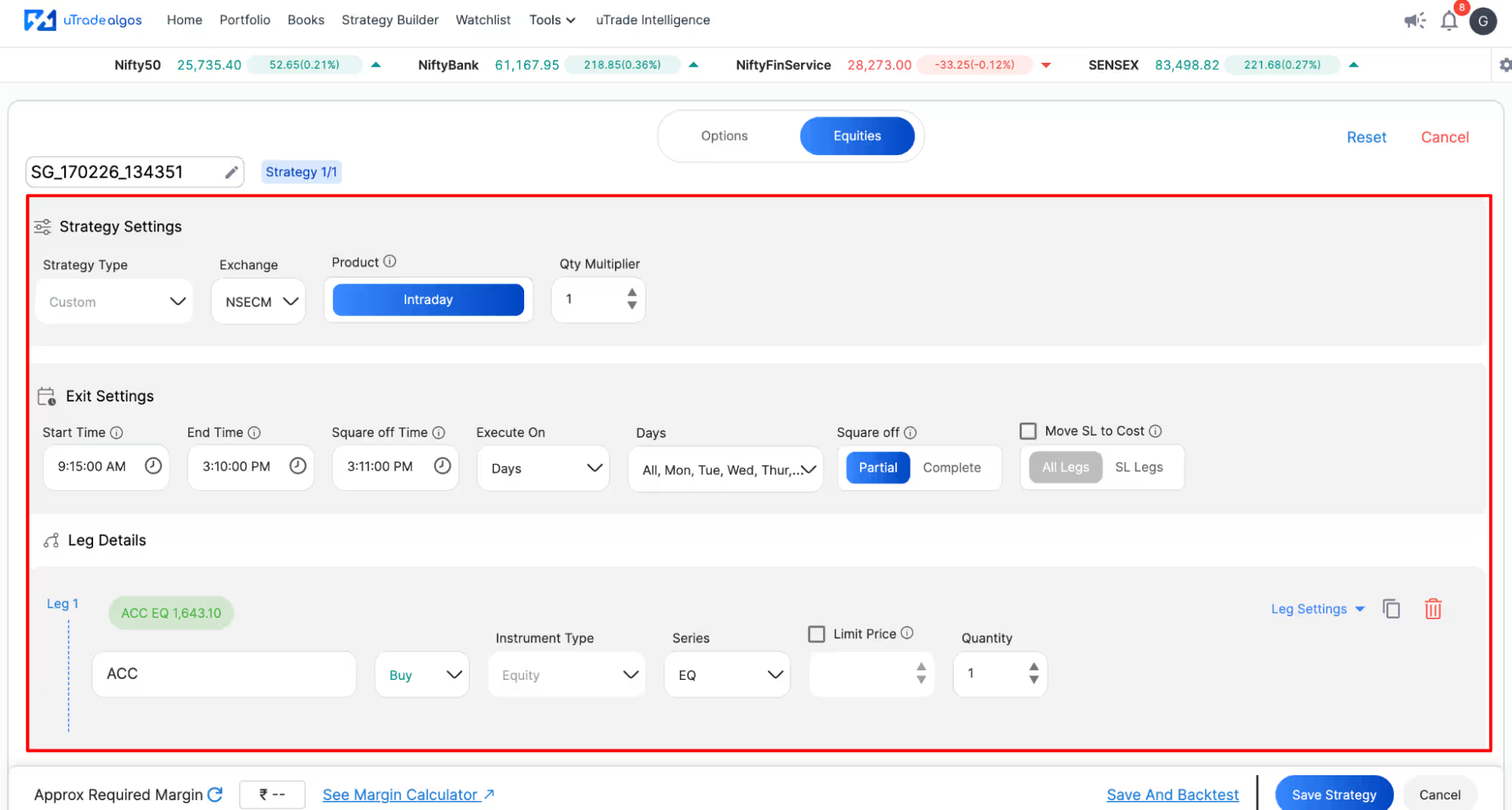
Simplified Configuration
Equities don't require expiry dates or strike selections. You choose:
- Symbol (stock name)
- Exchange (NSE, BSE)
- Product type (Intraday/Delivery)
- Quantity (number of shares)
Technical Indicator Integration
Equities trading strategies often rely more heavily on technical indicators. The uTrade Strategy Builder allows adding:
- Moving averages (SMA, EMA)
- Oscillators (RSI, MACD, Stochastic)
- Momentum indicators (ADX, CCI)
- Volume indicators (OBV, VWAP)
Select indicators from dropdown menus, set parameters (periods, thresholds), and define entry/exit conditions based on their values.
Longer Timeframes
While option trading strategies typically focus on intraday or weekly timeframes due to time decay, equities trading strategies can run days, weeks, or months. The exit settings accommodate these longer holding periods with flexible square-off options.
Margin Differences
Equity strategies generally require less margin than options strategies, especially for delivery-based positions. The calculator shows exact requirements before deployment.
Common Mistakes to Avoid
Over-Optimization
Tweaking parameters until backtests look perfect often leads to "curve fitting"—strategies that perform beautifully historically but fail forward. Prefer robust strategies over perfectly optimized ones.
Ignoring Transaction Costs
Every trade incurs brokerage, exchange fees, taxes, and slippage. High-frequency strategies generating dozens of trades daily might show good gross returns but poor net returns after costs.
Forgetting About Liquidity
Ensure your chosen strikes and symbols have sufficient liquidity. Illiquid options have wide bid-ask spreads, making profitable entry/exit difficult despite correct directional calls.
Deploying Without Understanding
Don't blindly deploy strategies you don't understand. Know why each parameter exists, what conditions trigger entries and exits, and how the strategy makes money.
Neglecting Market Conditions
A strategy working in trending markets might fail in sideways conditions. Match your algo trading strategy to current market regime, or build regime-adaptive strategies.
Setting Unrealistic Expectations
Algo trading isn't guaranteed profit. Even good strategies have losing periods. Understand expected win rates and drawdowns before deployment to avoid emotional reactions during normal variance.
Suggested Reading: How to Manage Risk in Algo Trading (Proven Framework)
Conclusion
The barrier between idea and execution has collapsed. What once required programming expertise, infrastructure investment, and technical knowledge now happens through intuitive forms and visual interfaces. uTrade Strategy Builder hasn't just simplified algo trading—it's democratized it entirely.
Your journey from curious trader to systematic algo trader doesn't require a computer science degree or months of learning syntax. It requires market understanding, disciplined risk management, and willingness to test ideas systematically. The form-based algo trading strategy approach handles everything technical, letting you focus purely on what matters: finding edges and managing risk.
Whether you're building your first simple equities trading strategy or your twentieth complex option trading strategy, the process remains consistent—intuitive, visual, and fast. Start with one strategy today. Test it. Deploy it. Learn from it. Then build the next one. That's how systematic trading becomes not just accessible, but natural. The forms are waiting. Your strategies are ready to be built.
Frequently Asked Questions (FAQs)
Do I need coding knowledge to use uTrade Strategy Builder?
No coding required. uTrade Strategy Builder uses a form-based interface where you select options from dropdowns and input values. The platform automatically converts your selections into executable algo trading strategies without any programming.
Can I backtest my strategy before deploying it live?
Yes. uTrade Strategy Builder includes integrated backtesting that simulates your strategy against historical data. You can analyze performance metrics, view payoff curves, and check margin requirements before risking real capital in live markets.
What's the difference between Options and Equities strategies?
Options strategies require additional inputs like expiry dates, strike prices, and option types (call/put), while equities strategies need only symbol, quantity, and product type. Both use the same form-based interface with different configuration fields.
Can I modify a strategy after deployment?
Yes. You can pause live strategies, edit parameters, and redeploy with updated settings. You can also save multiple versions of the same strategy with different configurations to test various approaches simultaneously in live markets.
How much capital do I need to start algo trading?
Capital requirements vary by strategy type and underlying instrument. uTrade Strategy Builder shows approximate margin requirements before deployment. Start with minimum lot sizes to test strategies, then scale up based on performance and comfort level.




.svg)





