

Introduction
Most trading platforms look like cockpits — overwhelming at first glance, with no clear starting point. uTrade Algos is built differently. Every section on the dashboard has a defined purpose, and once you understand what each one does, the whole platform clicks into place.
Whether you want to create an AI-generated strategy, deploy a pre-built algo, track your P&L, or simply watch the market — it all lives in one clean, connected interface. This guide walks you through every part of the uTrade Algos dashboard so you know exactly where to go and what to do from day one.
How to Set up & Start AI Algo Trading on uTrade Algos
Step 1: Sign In to uTrade Algos
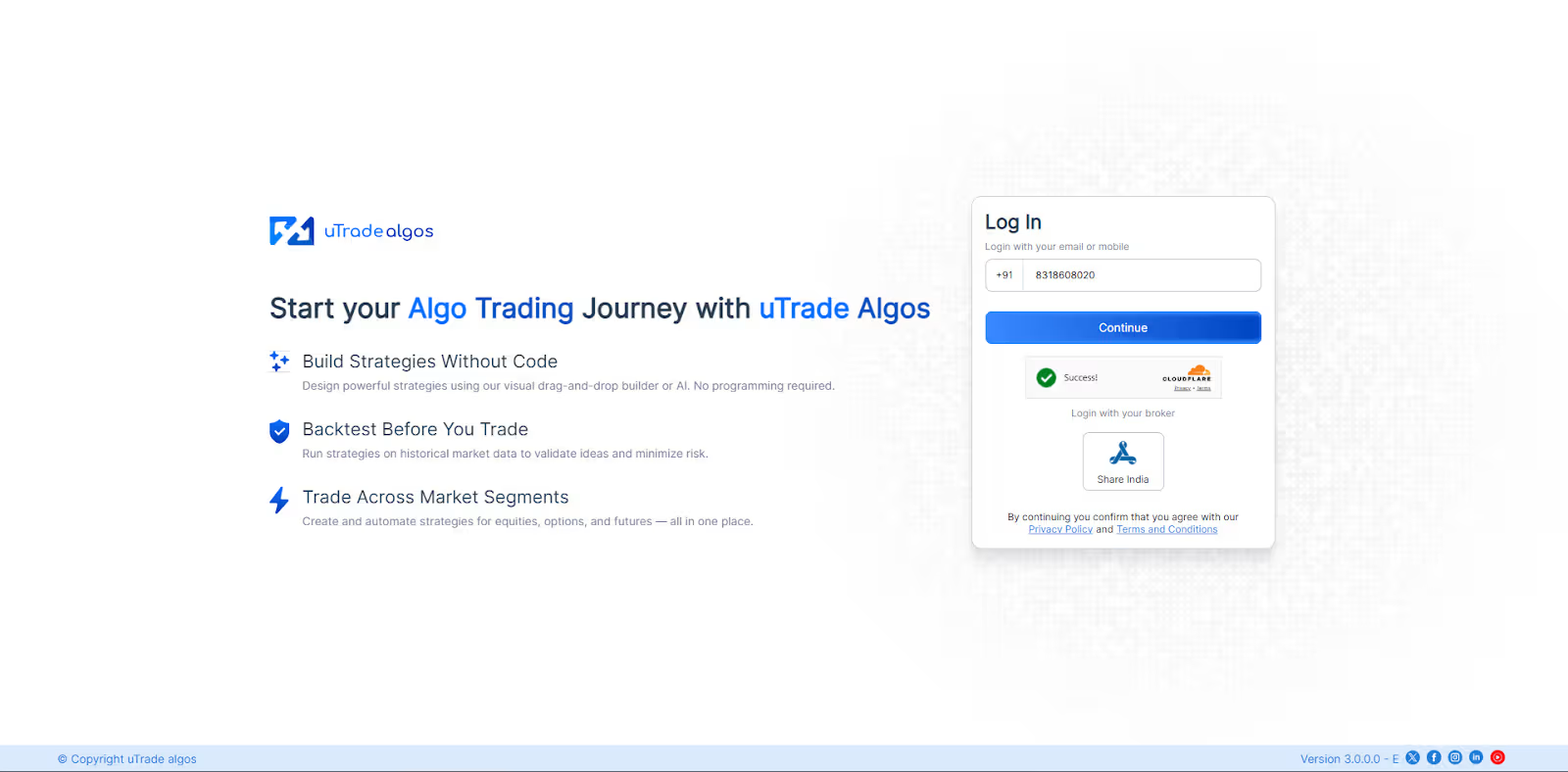
Getting started takes less than a minute. Go to utradealgos.com and click the Sign In button. The login screen will appear, giving you multiple ways to access your account:
- Enter your registered mobile number and verify using an OTP
- Log in using your email ID
- Log in directly through a supported broker — Share India.
Once authenticated, you land on the main dashboard, your central hub for everything on the platform.
Step 2: Meet uTrade Intelligence — Your AI Trading Assistant

The first thing worth noticing when you land on the dashboard is the uTrade Intelligence panel on the right side of the screen. This is the platform's built-in AI assistant — and it is far more than a chatbot.
uTrade Intelligence helps you:
- Create AI-generated trading strategies using simple natural language prompts
- Screen stocks based on your market viewpoint
- Analyze the market — from index direction to FII/DII flows to volatility
- Build custom strategies even if you have no idea where to start
Whether your viewpoint is complex and specific or you are simply exploring what the market looks like today, uTrade Intelligence handles both types of users.
Just type what you have in mind in plain language — and the AI does the rest. You will see pre-set prompt options like What Can You Do for Me?, What's Moving Right Now?, Show Me Hot IPOs, and What's Risky Today? to help you get started instantly.
Suggested Reading: uTrade AI Strategy Builder: No-Code, AI-Powered Algo Trading Tool for Smarter Trading
Step 3: Understand the Navigation Header
The top navigation bar is the backbone of the platform. It contains five sections — each with a distinct purpose. Here is what each one does:
Portfolio
Portfolio is where all your strategies live — organized into four tabs:
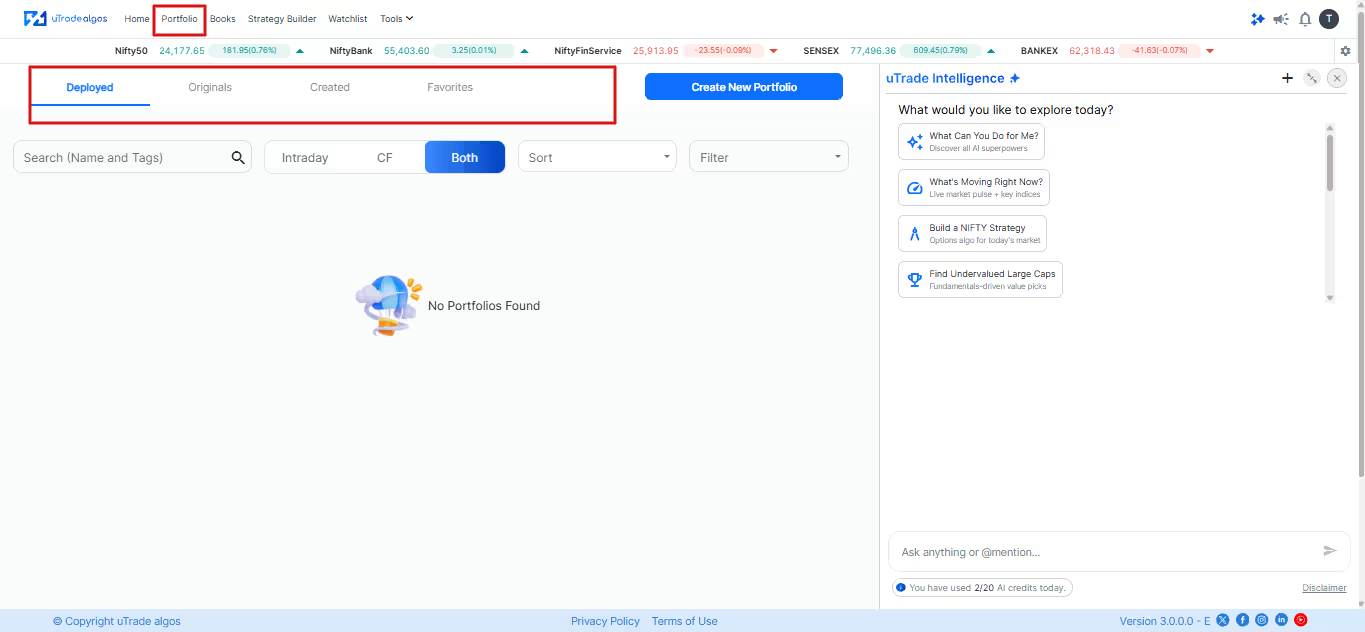
- Created — All strategies you have built, whether AI-generated via uTrade Intelligence or custom-built using the uTrade Strategy Builder
- Originals — Exchange-approved, expert pre-built strategies from uTrade Originals that are ready to deploy in one click
- Favorites — All strategies you have bookmarked for quick access
- Deployed — All actively deployed strategies — whether live with a broker or running in Forward Test mode — appear here
You can search, filter, sort, backtest, and deploy directly from the Portfolio section. A Create New Portfolio button at the top right lets you start building a new strategy or portfolio at any time.
Suggested read: What is a Portfolio in Algo Trading? Beginner's Guide
Books
Books is your real-time order and trade management section. It has three tabs:
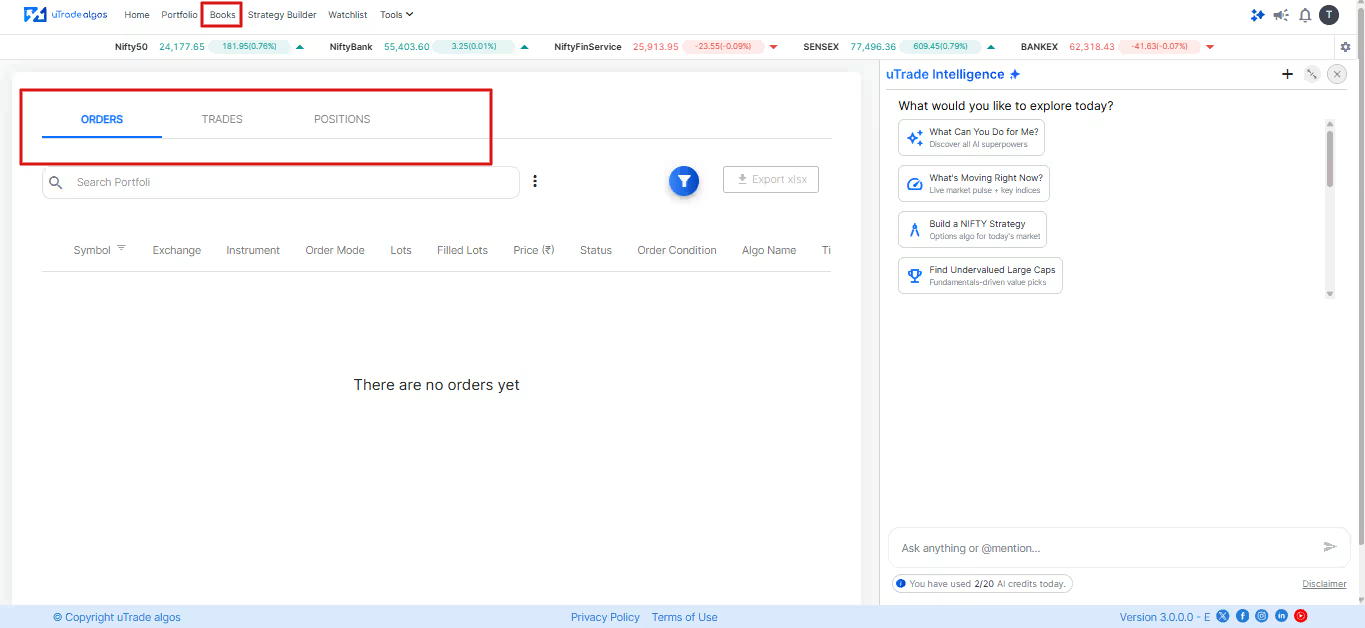
- Orders — All orders placed by your deployed strategies, with details like Symbol, Exchange, Instrument, Order Mode, Lots, Filled Lots, Price, and Status. You can also export orders as an Excel file.
- Trades — A record of all completed trades
- Positions — Your current open positions across all deployed strategies and connected broker.
This is where you monitor execution in real time once your strategies are live.
Strategy Builder
The Strategy Builder is uTrade's custom strategy creation tool for both Options and Equities. Here you can build strategies from scratch with full control over:

- Strategy Type, Exchange, Symbol, Underlying, and Product
- Lot Multiplier, Expiry Type, Expiry Offset, and Strike Selection
- Exit Settings, including Start Time, End Time, Square Off Time, Execute On Days, and Square Off conditions
Once built, you can save, backtest, and deploy directly from the Strategy Builder. It is the go-to section for traders who want to define their own entry and exit logic with custom parameters and indicators.
Watchlist
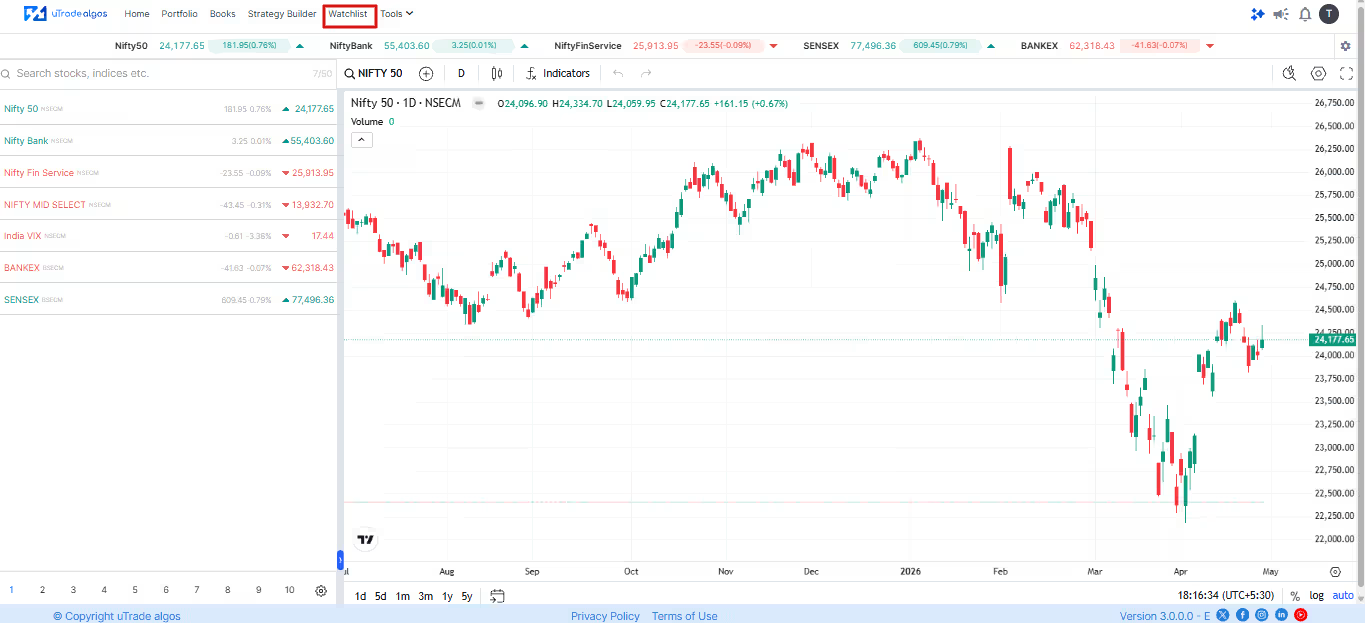
The Watchlist lets you track key indices and stocks directly within the platform — without switching to a separate charting tool.
You can monitor Nifty 50, Nifty Bank, Nifty Fin Service, India VIX, SENSEX, BANKEX, and more, with live price updates and a built-in TradingView chart. It keeps your market context visible while you work on strategies — no tab switching needed.
Tools

The Tools dropdown gives you access to two powerful pre-trade analysis tools:
- Pay-off Curve — Visualize the complete profit and loss profile of any strategy across price levels.
See your Max Profit, Max Loss, Break-Even points, Risk/Reward ratio, and Greeks before placing a single order.
Available both as a standalone tool under Tools and as a tab within each strategy's detail page. - Margin Calculator — Calculate the exact margin or minimum capital required to execute a specific strategy or trade.
Input your Exchange, Instrument Type, Symbol, Expiry, Lots, and Buy/Sell direction to get a breakdown of Span, Exposure Margin, Premium Receivable, Total Margin, and Margin Benefit.
Both tools help you plan trades with full financial clarity before committing real capital.
Step 4: Explore the Home Screen Dashboard
The left and centre of the home screen give you a live snapshot of your trading activity and platform status.

Earnings Overview
The Earnings Overview card shows your cumulative profit and loss for all deployed strategies. Click View to open the full PnL Reports screen where you can filter by date range, strategy type, and day — and export reports in PDF or Excel format.
Broker Connection Card
This card shows your currently connected broker. If no broker is linked yet, it will display No Broker Connected with a Connect Broker button. Click it to go directly to the Manage Broker section and set up broker.
Trading Summary
The Trading Summary section shows:
- Total Margin Deployed — Capital currently committed across all active strategies
- Total Peak Margin — The highest margin used at any point
Below this, the Deployed Strategies section shows all strategies currently running — with margin deployed, and peak margin details for each.
Step 5: Use the Top-Right Header Icons
The icons at the top-right corner of the header give you quick access to key platform functions.
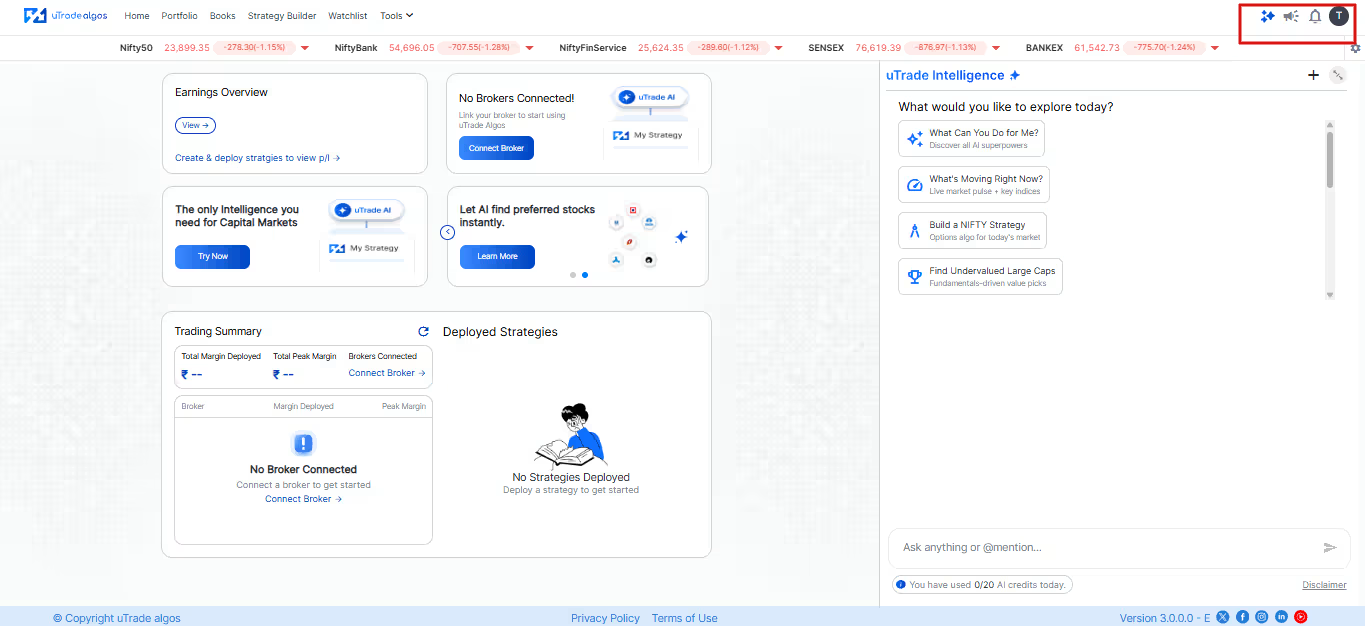
- AI Icon (uTrade Intelligence) — Opens the uTrade Intelligence panel on the right side of the screen
- What's New Icon — Shows the latest feature launches and platform updates from uTrade Algos
- Notifications Bell — Keeps you updated on important alerts so you never miss a critical platform or strategy update
- Profile Icon — Opens your account menu with the following options:
Profile Icon Menu
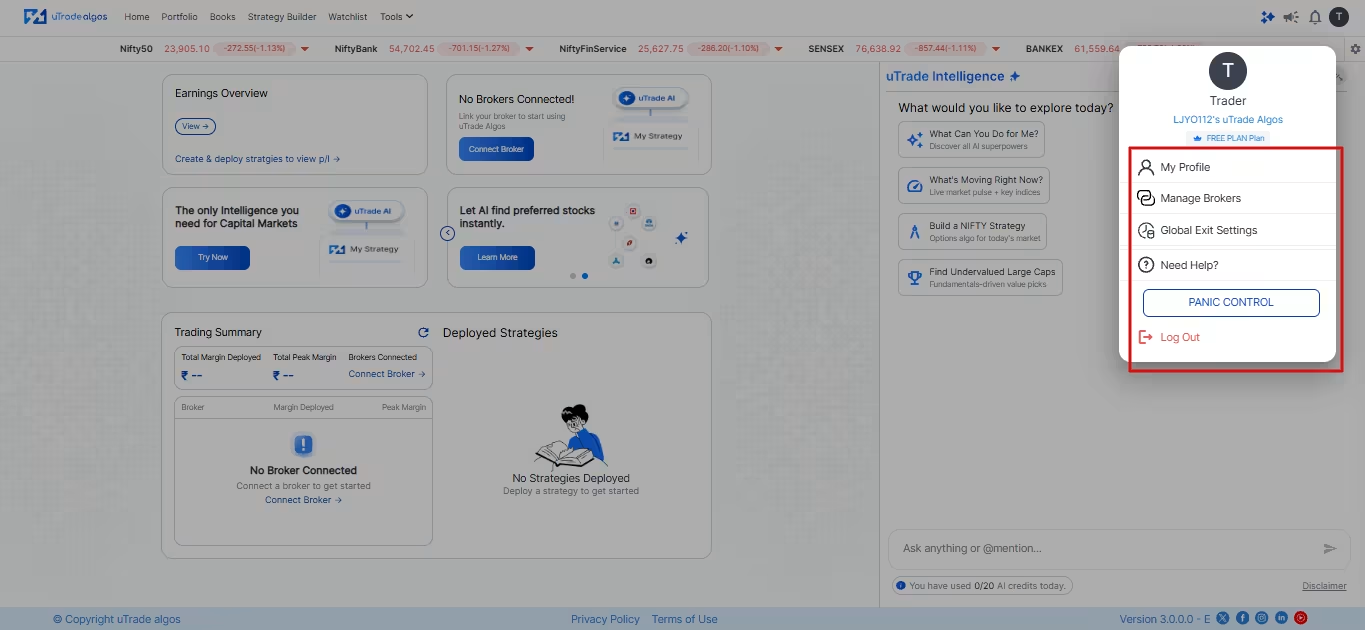
Clicking the Profile icon reveals a dropdown with everything related to your account:
- My Profile — View and edit your personal details, plan status, billing information, and account settings. Also contains tabs for PnL Reports, Active Sessions, and Help.
How to Set up & Start AI Algo Trading on uTrade Algos
- Manage Broker — Connect, disconnect, or reconnect broker. Currently supported brokers include Share India. Broker has a Setup button on the Available tab, and connected broker appear under the Connected tab.
- Global Exit Settings — Set portfolio-level exit parameters that apply across all your strategies, including Global Target Profit, Global Stop Loss, Trail Global SL, Global Locked Profit, Lock Profit At, and Retain Settings. Click Save Changes to apply.
- Need Help? — Access the platform's full support centre, including the User Manual, Tutorial Videos, FAQs, WhatsApp support (+91 8146536381), and Email Us (care@utradesolutions.com).
- Panic Control — A one-button emergency exit that lets you instantly Pause All or Stop All running strategies. Pause All stops strategies at the end of the current configured cycle. Stop All immediately cancels all open orders, terminates all strategies, and requires you to manage open positions manually. Use this in emergency situations to limit further losses instantly.
Step 6: Start Using the Platform
Now that you understand every section of the dashboard, you are ready to start trading on uTrade Algos. Here is the natural flow from here:
- Use uTrade Intelligence to generate an AI strategy or get a market read
- Or build your own strategy using the Strategy Builder
- Or browse Originals for expert pre-built strategies ready to deploy
- Backtest any strategy to validate it against historical data
- Forward Test it in paper trading mode to simulate live performance risk-free
- Deploy it live through your connected broker (Share India)
- Monitor execution in Books and track performance in PnL Reports
Conclusion
The uTrade Algos dashboard is designed so that every tool you need — from AI strategy creation to live order tracking to emergency exit — is within one or two clicks from anywhere on the platform.
Once you know where everything lives, the workflow becomes second nature. You stop searching and start trading. Log in, explore each section at your own pace, and use uTrade Intelligence as your starting point — it is the fastest way to go from a market idea to a deployed algo strategy on the platform.
Frequently Asked Questions (FAQs)
What is uTrade Intelligence on uTrade Algos?
uTrade Intelligence is the platform's built-in AI assistant. It helps you create AI-generated trading strategies, screen stocks, analyze the market, and build custom strategies using simple natural language prompts — no coding or technical knowledge required.
What is the difference between the Created and Originals tab in Portfolio?
The Created tab contains all strategies you have built — either AI-generated via uTrade Intelligence or custom-built using the Strategy Builder. The Originals tab contains exchange-approved expert pre-built strategies from uTrade that are ready to deploy in one click.
What does Panic Control do on uTrade Algos?
Panic Control is an emergency exit feature. Pause All stops running strategies at the end of their current cycle. Stop All immediately cancels all open orders and terminates all strategies — open positions must then be managed manually.
What tools are available under the Tools section on uTrade Algos?
The Tools section has two features: Pay-off Curve, which shows the complete profit and loss profile of a strategy across price levels, including Max Profit, Max Loss, and Break Even points, and Margin Calculator, which calculates the exact capital required to execute a specific strategy or trade.



.svg)





