
Introduction
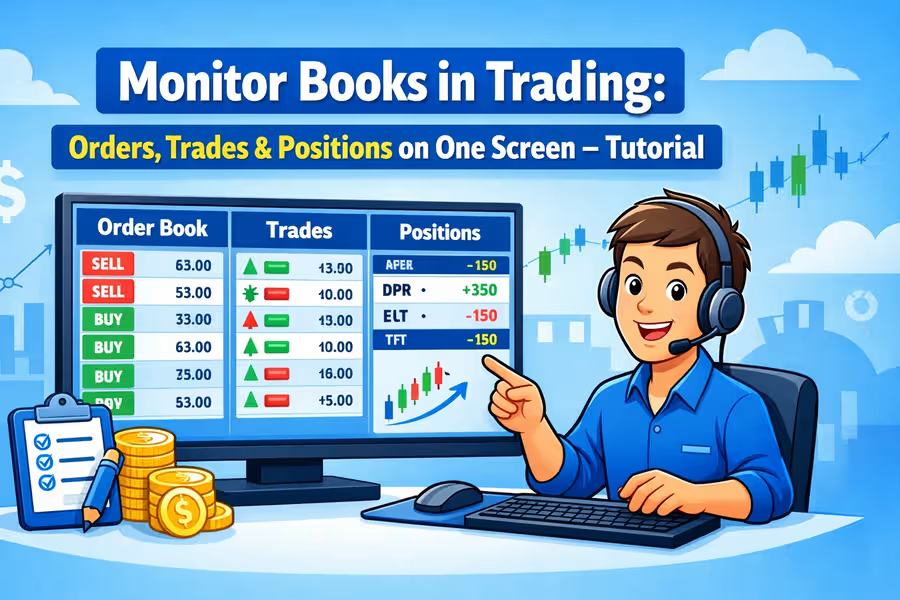
The books section is your real-time trading “dashboard”. It gives you a live view of all your open positions, strategies, profits/losses (PnL), margins, and trading activity on uTrade Algos—all in one place.
Managing and being aware of your actions is just as important as having the right strategies. But who’s going to track every order, trade, and position on paper or messy sheets? What if everything was in one place—just like your shopping cart? That’s exactly what the Books section does.
That's what the books part on the uTrade algo platform does for you!
Books is important because it is your single source of truth. Instead of guessing or remembering what your algo did, you can just open Books and see everything clearly — what was ordered, what got executed, and what you are currently holding. It removes all confusion during live market hours.
Think of it as your trading control center:
- Where are all your trades right now?
- Which strategies are running currently?
- How much profit/loss have you made?
- What are your risks and exposures?
- How much money is available to trade?
- What actions do you need to take?
What is an Order Book?
An order book in trading is where you can track all your placed orders, executed trades, and current open positions in one place.
- Total Transparency: So you always know exactly what’s happening in your trading account at any moment.
- Easy Monitoring: Track multiple active strategies and portfolios—no need to log in to your broker separately.
- Quick Decision-Making: See if you need to act—like adding funds, closing risk, or deploying new trades.
How Does It Make Your Work Easier?
- Everything in One Place: No need to check multiple places or keep lots of spreadsheets.
- Live P&L and MTM: See your live Mark-to-Market (real-time profit/loss) updating tick by tick.
- Action Center: Easily square off (close), pause, or modify your strategies instantly.
- Risk and Margin Alerts: Get notified if you’re low on margin or close to stop-loss.
How to Monitor Order Books in Trading
1. Go to the ‘Books’ Section
- Log in to uTrade Algos & on the Navigation Bar, just click “Books.”

2. View Your Live Dashboard
- Instantly see all active strategies (like “NIFTY Iron Condor”, “BANKNIFTY Straddle”).
- See how many positions are open and the current P&L for each strategy.

3. Monitor & Control Your Trades
- Every row shows details: Strategy name, instrument, lots, entry price, current price, MTM profit/loss.
- Green = Profit, Red = Loss
- Click any strategy to see more details.
4. Take Actions Instantly
- Buttons for Square-off (close), Pause, Modify, Add Funds.
- If you need to react quickly to the market, you can do it right here.


5. Use Filters and Sorts
- Filter by which instrument, day, or profit/loss.
- Very useful if you run multiple strategies or accounts.


6. Download Reports
- Need to analyze or share your trade history? Export it to Excel from Books.


The 3 Sub-Sections Inside Books Section on uTrade Algos

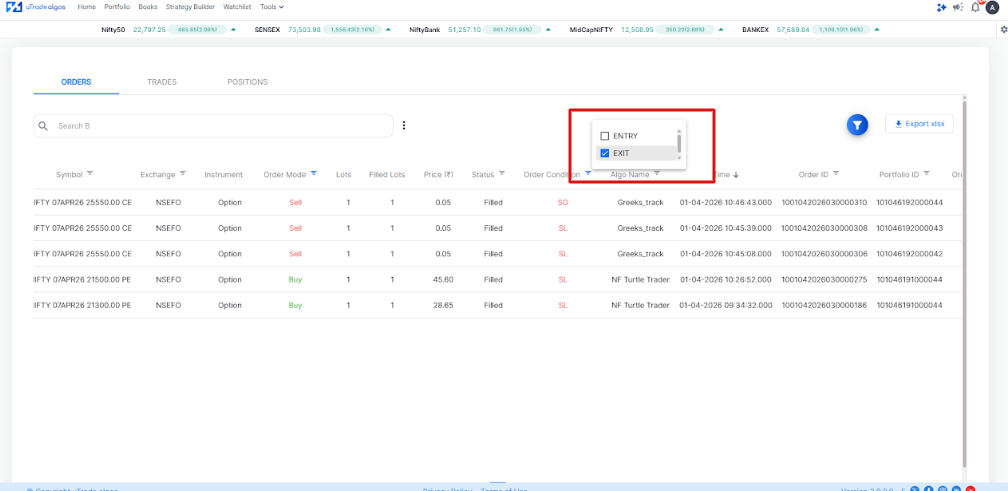
1. Orders Book
The Orders Book is a record of all the orders that you've created from your end — the order status, order summary, deployment type, and order time.

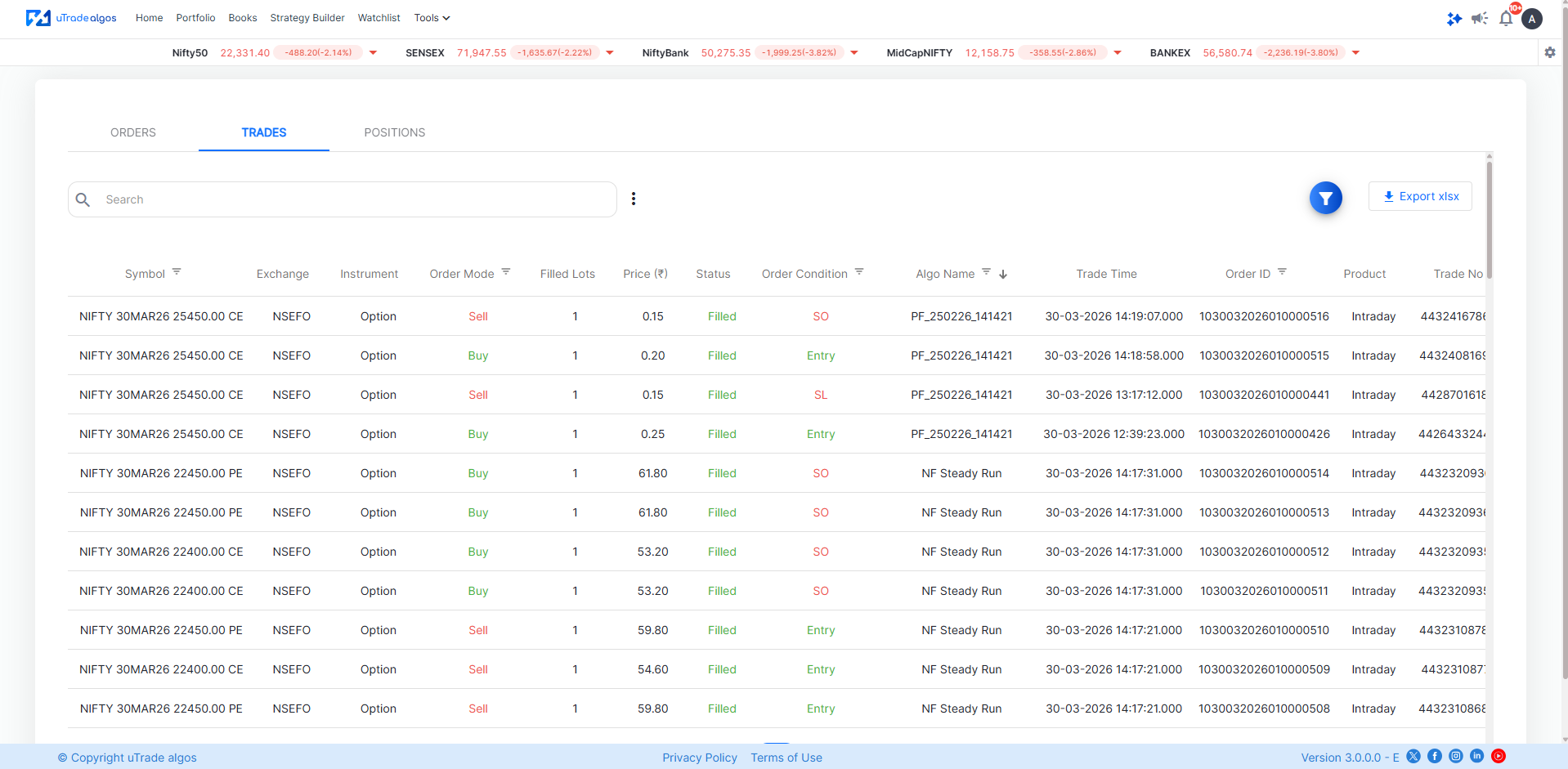
2. Trades Book
When an order gets executed, it enters the Trade Book. There is a trade number assigned, and the status of the execution is also listed in the Trade Book.
3. Positions Book
The Positions Book displays all the net positions created by you on different symbols.
Orders, Trades & Positions — What's the Difference?

Common Terms You’ll Notice in the Books Section

The Books section is more than just a tracking tool—it’s where your entire trading activity comes together in a clear and actionable way. Instead of juggling between different tabs or guessing your current status, you get a complete picture of your orders, trades, and positions in real time.
Whether you’re trying to understand what positions are in trade or improve your timing with strategies like Position Trading: Market Timing Mast, the Books section helps you stay informed, in control, and ready to act when it matters most.
Frequently Asked Questions (FAQs)
How can I square off all positions at once?
You can quickly exit (square off) all open positions by using the “Square Off All” or “Exit All Positions” button on your trading dashboard (web or app).
1: Go to the Portfolio, Live Positions, or Dashboard section.
2: Click/tap “Square Off All”.
3: Confirm the prompt—this immediately sends orders to exit every open position at market price.
4: Only works during market hours (9:15 AM – 3:30 PM IST).
If you don’t see this, update your app or contact support.
Why is my order not showing in positions?
If an order is not visible under “Positions,” it could be because:
- The order has not been executed/traded yet (still “open” or “pending”—check “Orders” tab).
- The order was rejected, cancelled, or expired (also check “Orders” or “Order History”).
- Technical delay: Sometimes, very recent trades take a few seconds to reflect.
- You placed a GTC/GTD or after-market order, which will only be visible once executed.
Tip: “Orders” = your requests to buy/sell.
“Positions” = trades that are already executed and open in your account.
What happens after an order is executed?
Once your order is executed:
- The system matches your order with a counterparty, and you own the position (for Buy) or are liable for it (for Sell).
- The trade moves from the “Orders” section to “Positions”.
- Live P&L (profit & loss) for that trade starts reflecting in your dashboard.
- You can now manage this position—square off, add Stop Loss/Target, etc.
What happens if I don’t close my position?
Depends on the product:
1. Intraday (MIS/CO/BO):
- The system will auto-square off any open position near market close (~3:15 pm) if you haven’t done so yourself.
- Auto square-off may incur an extra charge.
2. Delivery (CNC, NRML for stocks):
- Your position remains open overnight and carries to the next day until you sell/square off or till expiry (in case of options/futures).
3. Futures & Options:
- If not closed, positions will settle on expiry date—could result in physical delivery (stock F&O) or settlement at last closing price (index F&O, cash market).
Why do I see trades but no positions?
Usually, this means:
- All previous trades have been squared off/closed, so you no longer have any open positions.
- “Trades” section/history lists everything you bought/sold (even if fully closed), whereas “Positions” only shows your current live holdings.
- Example: You bought and then sold TCS—your “Trades” will show both, but your “Positions” will be zero.
What does MTM (Mark-to-Market) mean in the Books section?
MTM (Mark-to-Market) = Real-time profit or loss on your open positions based on the latest market price, not the price you bought/sold.
- Positive MTM: You’re in profit (if squared off now, this is your realized gain).
- Negative MTM: Loss if closed now.
- For options/futures, MTM is settled daily; for intraday, it’s real-time till squared off.
The “Books” section shows your current profit/loss dynamically (unrealized/realized), helping you track risk and performance.
Disclaimer: This tutorial is for informational purposes only and is not financial advice. Always use risk management and consult your broker or advisor when in doubt.
.avif)
.avif)
.avif)
.avif)
.avif)
.avif)
.avif)

.svg)





