

Introduction
Building algorithms isn't the only path to automated trading. Sometimes the fastest route to systematic profits is using strategies already built, tested, and approved by exchanges.
uTrade Algos offers a library of pre-built algo trading strategies called uTrade Originals—ready-to-deploy systems requiring zero coding or configuration. These exchange-approved options are intra-day algos that eliminate the learning curve.
In this guide, you'll discover how to view, backtest, customize, and deploy professional algo trading strategies in minutes, transforming from a manual trader to a systematic investor without building anything from scratch.
How to Deploy Ready-to-use Pre-Built Algo Trading Strategy
Step 1: Log in to uTrade Algos
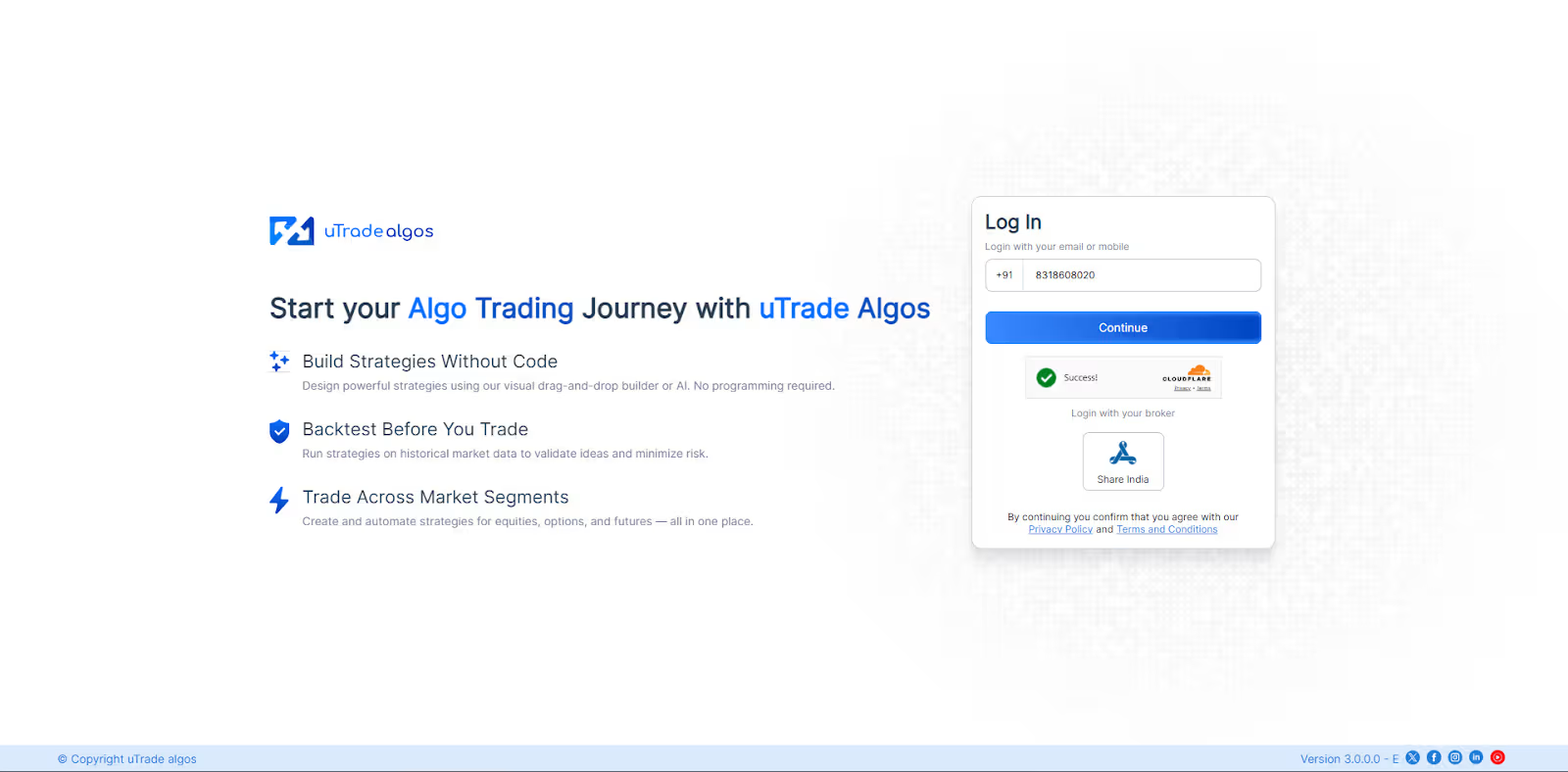
Start by visiting the uTrade Algos platform. If you're new, create an account through the simple registration process. Existing users log in with their credentials. The platform requires a broker connection for live trading, which you can set up during or after registration.
Once authenticated, you land on the main dashboard—your hub for all algorithmic trading activities.
Step 2: Access the Portfolio Section
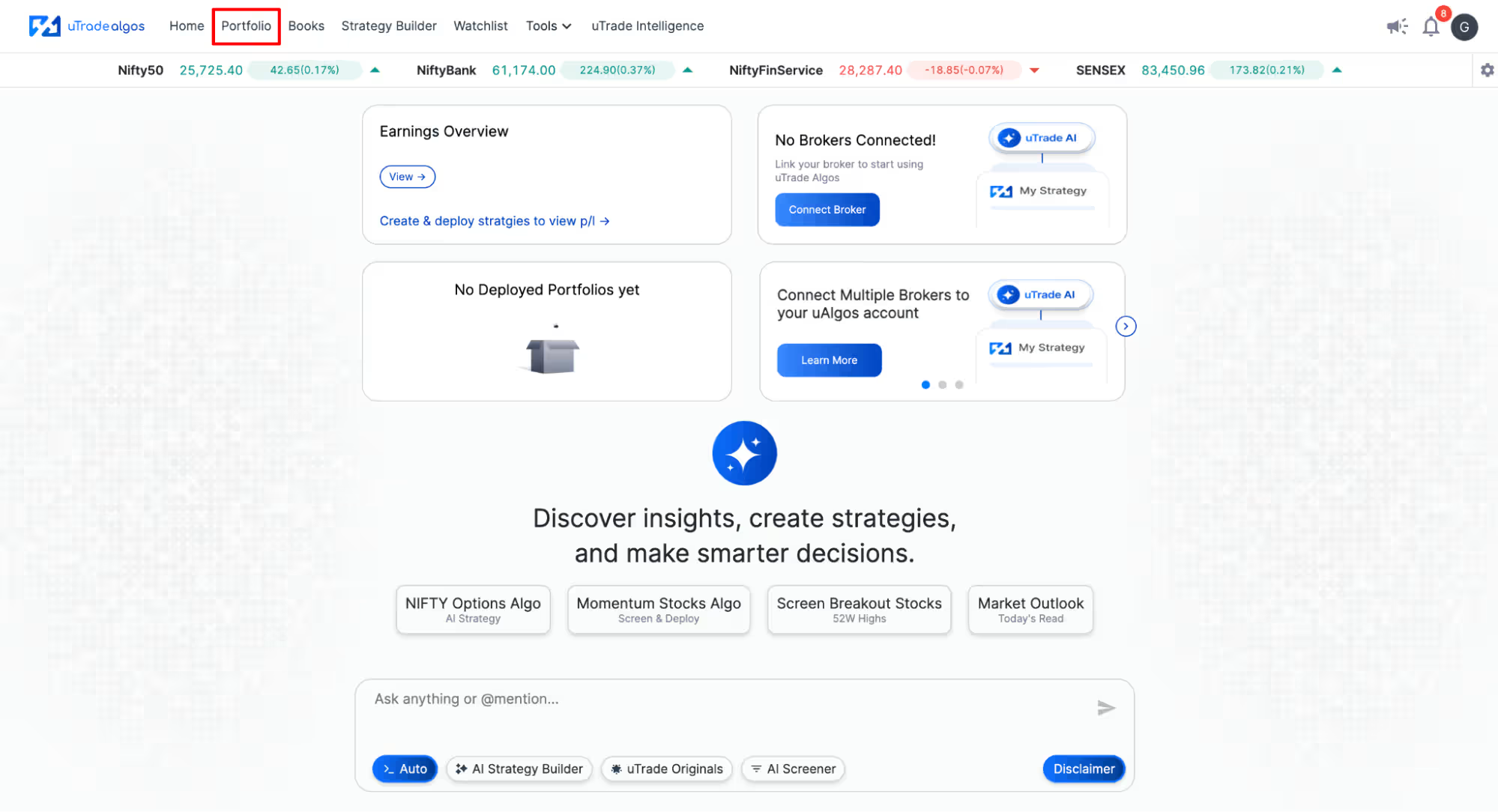
From the home screen dashboard, locate and click on Portfolio in the top navigation menu. This section houses all your strategies—deployed, saved, and available originals.

The Portfolio view organizes content into tabs: Deployed (currently active strategies), Originals (pre-built strategies available for use), Created (strategies you've built yourself), and Favorites (strategies you've bookmarked).
Step 3: Browse uTrade Originals

Click on the Originals tab. The screen populates with cards representing each pre-built algo trading strategy in the library.

Each card displays:
- Strategy Name: Descriptive title like "NF Shaant Bazaar Ka Raja" or "Sensex Shifting Master"
- Strategy Type: Tags indicating approach (Conservative, Aggressive, Moderate)
- Product Type: Intraday or Carryforward
- Margin Required: Approximate capital needed per lot
- Last Month Performance: Win/loss percentages showing recent effectiveness
- Trading Schedule: Time windows when the strategy operates
- Ready to Deploy: Status indicator confirming immediate availability
You'll notice strategies for both option trading (using strikes, premiums, expiries) and equities trading (using stocks, momentum, breakouts).

The interface allows filtering by product type—select Intraday, Carryforward, or Both to narrow options.
Step 4: Search and Filter Strategies

The uTrade Algos Originals library grows continuously. Use the Search bar to find strategies by name or tags. For instance, searching "Nifty" returns all strategies trading the NIFTY index.
The Sort dropdown organizes strategies in alphabetical ascending or descending order.
The Filter option helps you filter all the algo trading strategies and the deployed strategies.
Step 5: View Strategy Details

Found something interesting? Let's explore "NF Shaant Bazaar Ka Raja" as an example. Click Learn More on the strategy card.
A detailed view opens, revealing comprehensive information organized into sections:

Step 6: Analyze Backtest Results
Before deploying any pre-built algo trading strategy, examine historical performance. The strategy detail page displays Backtest Results:

A Win-Loss percentage chart visualizes the 59%/41% split graphically. The Cumulative P/L curve shows profit trajectory over time, helping you understand drawdown periods and growth phases.
Trigger End Time graph plots when the strategy typically exits—useful for understanding if profits come early or late in trading sessions.
Step 7: Understand Favorable Conditions and Risk Factors
The detail page includes critical context for intelligent deployment: Favorable Conditions & Risk Factors for the selected Strategy.

This information guides when to deploy and when to pause the strategy based on current market conditions.
Step 8: Run Custom Backtest

Want to test a different period? Click Backtest on the strategy detail page. A configuration screen appears:
- Duration: Select preset periods (Last 7 Days, Last 1 Month, Last 1 Year, Last 2 Years, Last 3 Years) or custom date ranges
- Start Date: Define beginning of test period
- End Date: Define end of test period

For example, select "Last 1 Month" with dates 1/16/2026 to 2/16/2026. Click Backtest. The system simulates strategy execution across that period, generating fresh performance metrics specific to your chosen timeframe.
This feature helps validate if recent market conditions favor the strategy or if performance has degraded.
Step 9: Customize Exit Parameters (Optional)

While pre-built algo trading strategies come fully configured, uTrade Algos allows customizing exit conditions to match your risk tolerance. Click Set Exit Parameters on the deployment screen or on the three dots on the strategy card in the portfolio section.
An exit configuration panel appears with options:

Start Time & Square Off Time: Adjust when the strategy begins trading and when it force-closes all positions.
Portfolio Exit Parameters toggle: Enable to customize:
- Exit on Basis of: Choose underlying points movement (lower/upper range triggers)
- Overall Target Profit: Set profit level triggering automatic exit
- Overall Stop Loss: Define maximum loss before forced exit
- Trail Overall SL: Enable trailing stop loss protecting profits
- Move SL to Cost: Shift stop to breakeven after certain profit
- Overall Locked Profit: Lock minimum profit once threshold reached
Each parameter includes dropdown menus and number inputs for precise control. Modify values, then click Save Changes to apply your custom exit logic.
This customization transforms pre-built strategies into personalized systems matching your specific risk appetite while retaining the core proven logic.
Step 10: Select Broker

Ready to deploy? Click the Deploy button on the strategy card or detail page. A broker selection screen appears.
Select Broker: Choose your connected broker now. If you haven't linked the broker yet, click Manage Brokers to complete the integration.
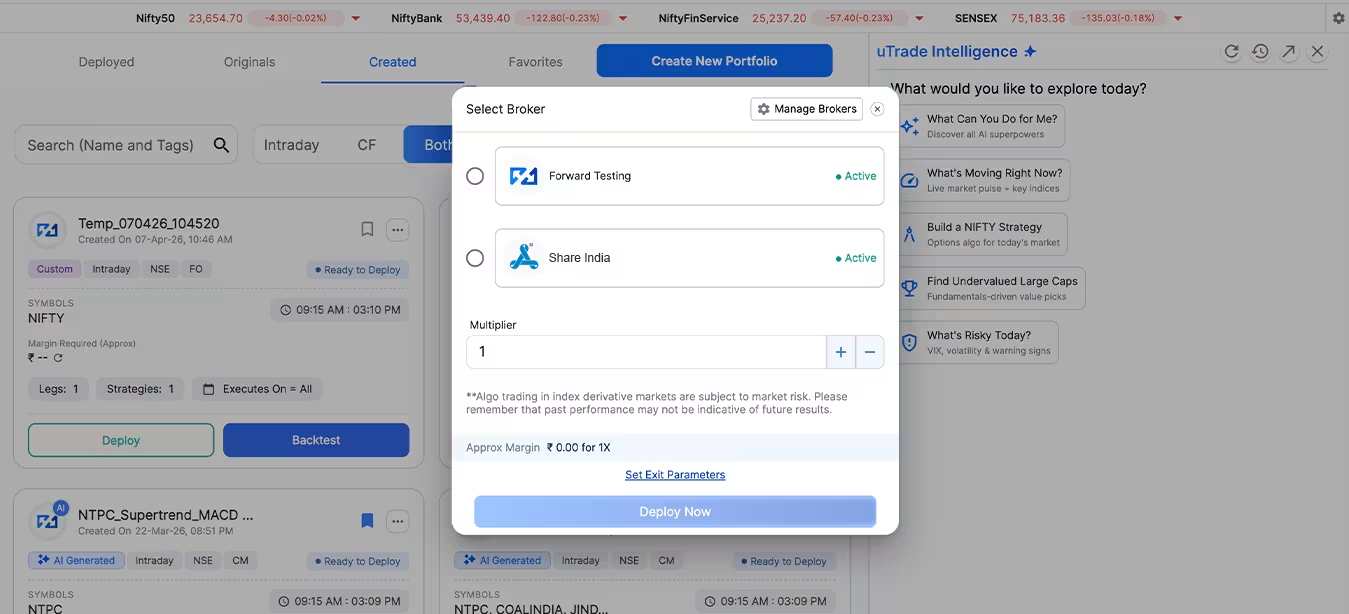
The screen displays Approx Margin required based on your multiplier selection. For "NF Shaant Bazaar Ka Raja" at 1X: ₹3,25,000. At 2X: ₹6,50,000. Ensure you have sufficient capital before proceeding.
Step 11: Deploy or Forward Test
Two final options appear:
Deploy Now: Goes live immediately. The strategy connects to your broker and begins executing trades based on configured parameters during designated trading hours. Real money, real markets, real results.
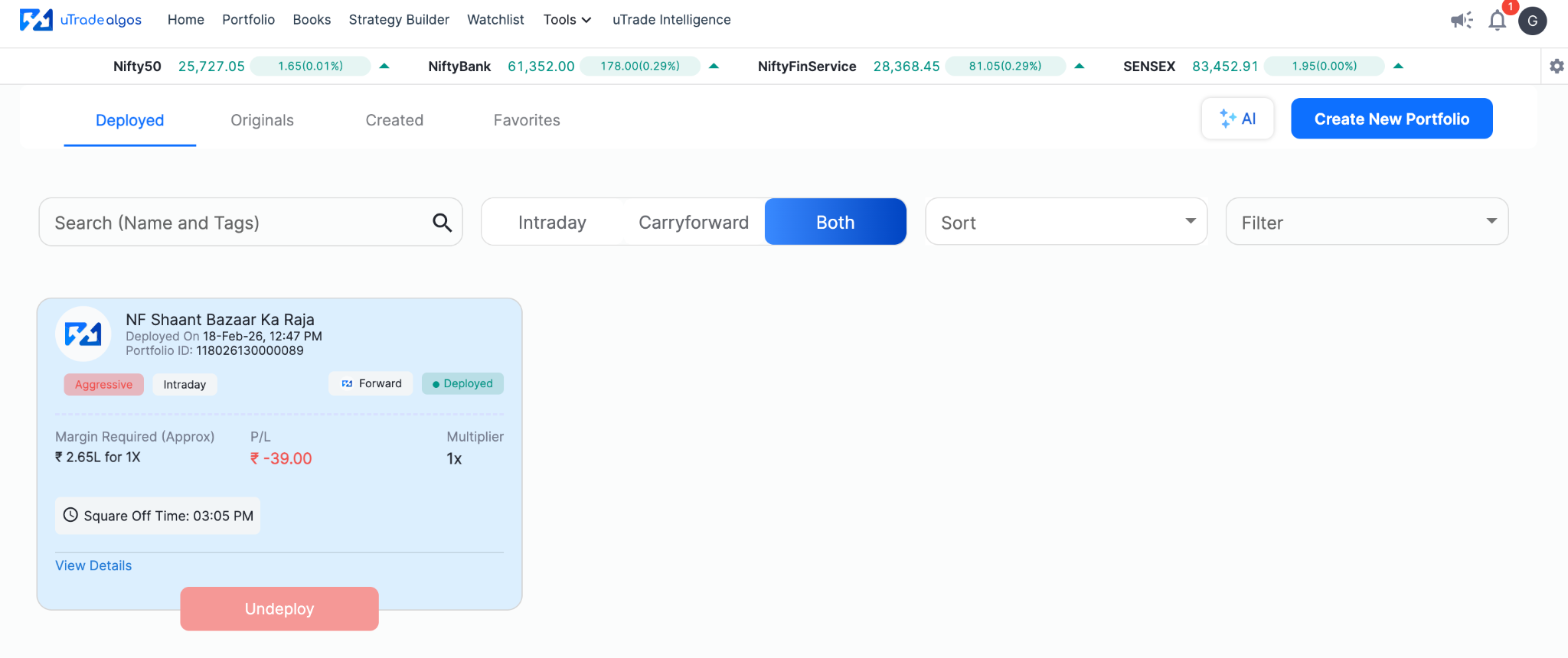
Forward Test: Deploys the strategy in paper trading mode. It executes all logic—entries, exits, position management—but with simulated capital, not real money. Perfect for validating behavior in current market conditions without financial risk.
Forward testing is wise when deploying any pre-built algo trading strategy for the first time. Run it for a week or two, verify it behaves as expected, then switch to live deployment.
Click your chosen option. The system confirms deployment, and the strategy moves to your Deployed tab where you can monitor real-time performance.
Conclusion
The path from interested observer to active algo trader has never been shorter. Pre-built algo trading strategies eliminate the technical barriers that once made systematic trading accessible only to programmers and institutions.
You don't need to understand complex coding, spend months learning technical indicators, or risk capital testing unproven ideas.
uTrade Algos has done the heavy lifting—building, testing, and refining strategies that work. Your role is simpler: understand each strategy's logic, validate it resonates with your risk tolerance, backtest it against recent market conditions, and deploy when favorable conditions align. That's systematic trading distilled to its essence.
Frequently Asked Questions (FAQs)
Can I deploy multiple pre-built strategies simultaneously on the same account?
Yes. uTrade Algos allows deploying multiple strategies concurrently across different instruments and timeframes. Ensure your total margin requirement doesn't exceed available capital. The platform tracks each strategy's performance separately for easy monitoring.
What happens if market conditions don't match the strategy's favorable conditions?
The strategy continues executing as programmed, but performance may suffer. You can manually pause deployment during unfavorable conditions and reactivate when conditions improve. Monitor risk factors and market environment regularly for optimal results.
Are pre-built strategies updated when market dynamics change?
uTrade Originals undergo periodic review and optimization. Major updates are communicated to users. However, deployed strategies maintain their current configuration unless you manually update them. Check the Originals library regularly for improved versions.
Can I see which specific trades a pre-built strategy will execute before deployment?
Backtest results show historical trades with entry/exit points, profit/loss per trade, and timing. However, future trades depend on real-time market conditions. Forward testing in paper trading mode reveals current behavior without financial risk.
.avif)
.avif)
.avif)
.avif)
.avif)
.avif)
.avif)

.svg)





