Creating an Account

To start trading Algos you'd need an account with uTrade algos. You can do so by:
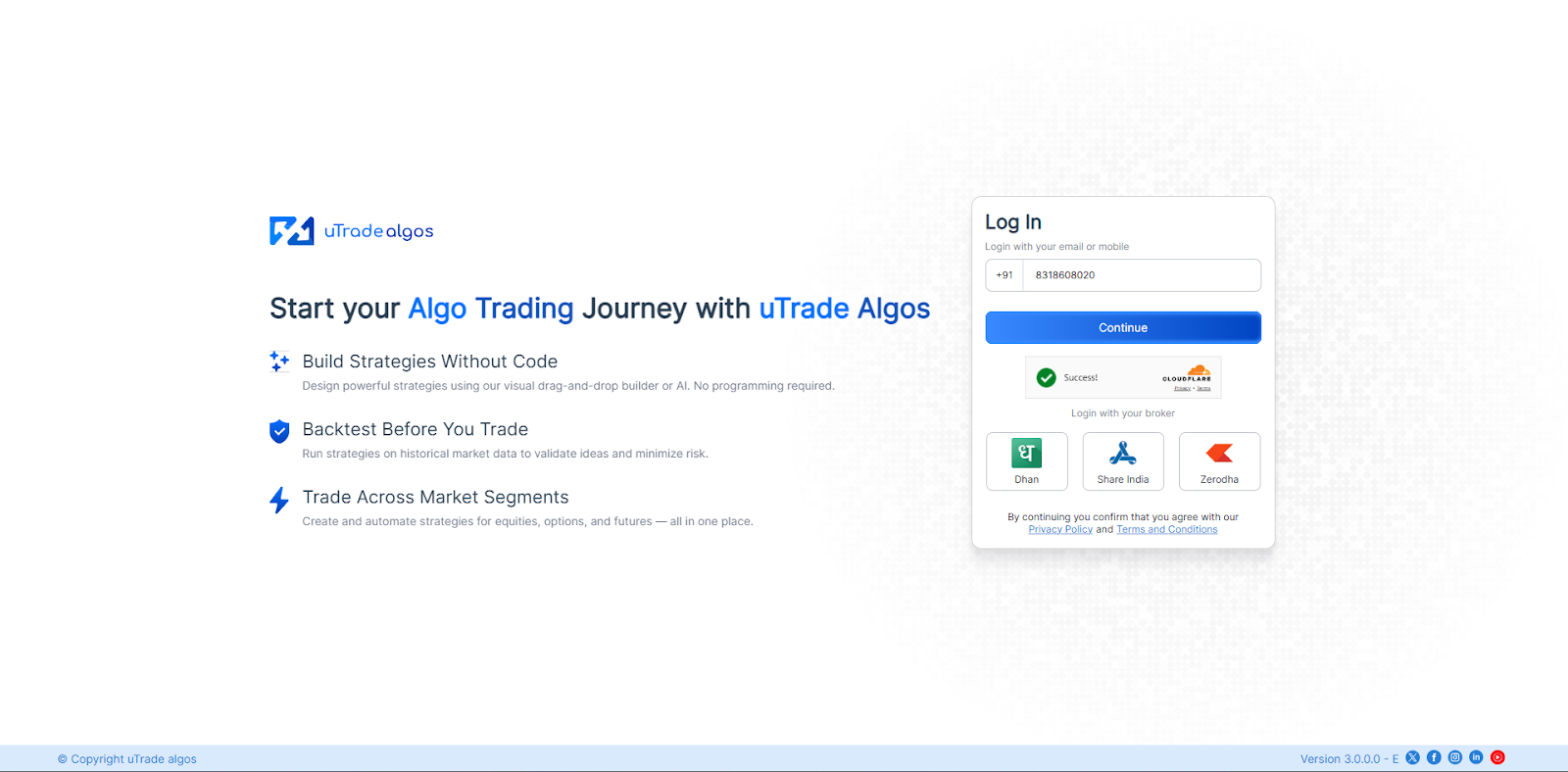
1. Sign in with Share India

2. Sign in with Zerodha

3. Sign in with Dhan

4. Guest user Sign in with Mobile Number

Create a new account by entering on Mobile Number in the login window

  • Enter the Mobile number with which you want to register with
  • Enter the 6-digit OTP. Click on Continue.
  • Account created successfully.

Connecting a Broker

An important thing to understand is that uTrade Algos is an Algorithmic layer for signal generation. You still need a broker account to execute trades as is the case in manual trading.

Thus, to be able to trade in the live markets, you must connect a Broker account with us.

We support some of India’s leading Brokers like - ShareIndia, Zerodha, Dhan. We understand that you must open an account with them if you don't have one already. 

Once you have an account with your broker, you can simply connect your brokerage account with uTrade Algos directly from the login page or from Manage Broker Dashboard.

Connecting Share India with uTrade Algos: You need to have an active Demat account in ShareIndia. If you don’t have an account, Open a demat account in ShareInda. Make sure to activate F&O on your account. 

1. Go to uTradeAlgos. Login to your account.

2. Click on the profile icon at the top right and select Broker Setup.
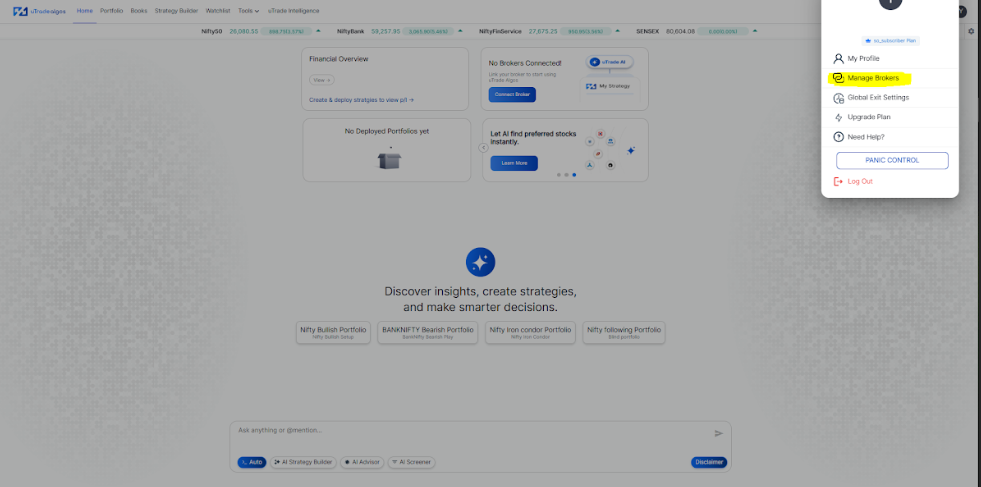
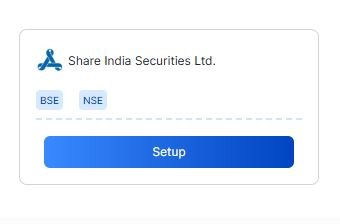
3. Click on Setup Button
4. Now enter the ShareIndia UCC and Password. Once you click on the Sign In Button it will ask you for a OTP.

5. Enter the OTP which is sent over the email or phone number.

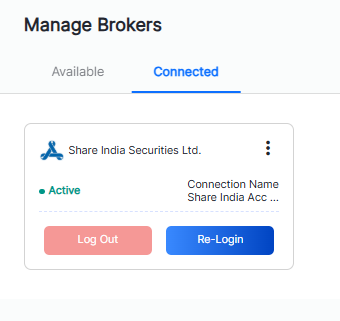
6. Once OTP is filled, Your ShareIndia account will now be successfully linked with UtradeAlgos and will appear under the Connected section in Manage Broker. 
Connecting Zerdoha with uTrade Algos: You need to have an active Demat account on Zerodha. If you don’t have an account, create an account on Zerodha. Make sure to activate F&O on your account. 

1. Go to uTradeAlgos. Login to your account.

2. Click on the profile icon at the top right and select Broker Setup.

3. Click on the setup button of Zerodha.

4. Enter the Connection Name and Broker ID and click on Generate Redirect URL. To find your Zerodha Broker ID, log in to your Zerodha account and click on your profile. Your Broker ID will be displayed there.

5. To generate your Zerodha API key and Secret Key, follow the steps below. Enter the Redirect URL and Postback URL on the Zerodha portal. Once the API key and API secret are generated, copy them along with your Zerodha account details and update them in utradeAlgos.

6. After clicking the “Add Zerodha Securities Ltd Account” button, you will be redirected to the Zerodha web login page, where you will be asked to enter your login credentials. Once the authentication is complete, you will be redirected back to your UtradeAlgos account. Your Zerodha account will now be successfully linked with UtradeAlgos and will appear under the Connected section in Manage Broker.  

Connecting Dhan with uTrade Algos:You need to have an active Demat account in Dhan. If you don’t have an account, Open a demat account in Dhan. Make sure to activate F&O on your account.

1. Go to uTradeAlgos. Login to your account.

2. Click on the profile icon at the top right and select Broker Setup.

3.Click on the setup button of Dhan.

4. Enter the Connection Name and Broker ID and click on Generate Redirect URL To find your Dhan Broker ID, log in to your Dhan account and click on your profile. Your Broker ID will be displayed there.

5. To generate your Dhan API key, follow the steps below. Enter the Redirect URL and Postback URL on the Dhan portal. Once the API key and API secret are generated, copy them along with your Dhan account details and update them in utradeAlgos

6. After clicking the “Add Dhan Securities Ltd Account” button, you will be redirected to the Dhan web login page, where you will be asked to enter your login credentials. Once the authentication is complete, you will be redirected back to your UtradeAlgos account. Your Dhan account will now be successfully linked with UtradeAlgos and will appear under the Connected section in Manage Broker.

